

Docs Menu
Workspace Collaboration and Sharing
Share project access, map context, comments, tasks, and revision history with your team.
Open collaboration
- Sign in with Professional or Enterprise access.
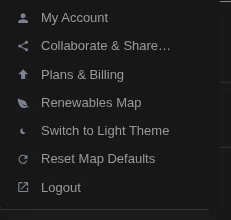
- Open your avatar menu and choose Collaborate & Share…. You can also choose Share in Projects & Flows.
- If no workspace is selected, choose one in Choose a workspace. To create one, enter New workspace name and choose Create workspace.
- Use the People, Comments, Activity, and History tabs.
- Choose Done to close the dialog.
A workspace is the shared project context, not a separate copy for each member. The project can contain workflows and related modelling work. The shared map is a saved map context. It is separate from a flow revision or a model result.
Current Project follows you across the product modules. For project selection and layer controls, see Layers, Networks and Projects.
Roles and plan access
The workspace role controls what you can change. Your subscription and each layer's access rules still apply. A workspace invitation does not grant a subscription or unlock restricted layers.
| Role | Workspace permissions |
|---|---|
| Owner | Manages members and invitations, decides access requests, edits workspace content, runs workflows, publishes map revisions, and participates in comments and tasks. |
| Editor | Edits flows, runs workflows, changes project pins, and publishes or restores shared map revisions. Can participate in comments and tasks. Cannot manage membership. |
| Commenter | Reads workspace content and contributes comments, replies, reactions, and tasks. Cannot edit workflows or publish the shared map. |
| Viewer | Reads workspace content, comments, activity, and map history. Can copy the restricted link. Cannot post comments or edit the workspace. |
The owner's access cannot be changed with the member role selector. This dialog does not provide an ownership-transfer control.
Invite people
- As the owner, open People.
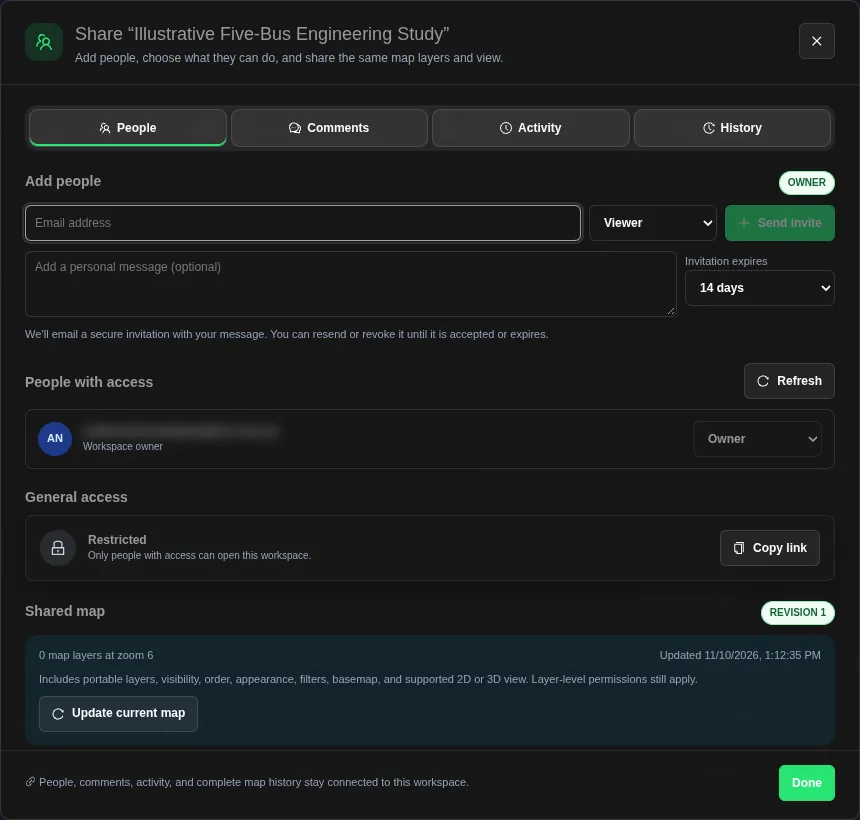
- Under Add people, enter a valid email address.
- Select Viewer, Commenter, or Editor.
- Optionally enter an Invitation message. It can contain up to 2,000 characters.
- Choose Invitation expires: 7 days, 14 days, or 30 days. The default is 14 days.
- Choose Send invite.
Sending an invitation also captures the current map context for the workspace. Check the email delivery notice after sending. Wait for the map view to finish loading if the invitation control is unavailable. The dialog reports an invalid email before sending.
Accept or manage an invitation
Recipients can open their notifications and choose Accept or Decline on an invitation. Sign in with the invited account. Accepting joins the workspace with the offered role. Declining does not grant access.
Owners can use Pending invitations to see the recipient, role, email delivery state, and expiry time. Choose Refresh to reload the list. Choose Resend to send the invitation again, or Revoke to withdraw it.
Pending invitations lists invitations awaiting a response. After acceptance, check the member under People with access. Declined, expired, and revoked invitations do not grant access. Send a new invitation if access is still needed.
An email delivery status is not confirmation that the person accepted.
Change or remove member access
- Open People with access.
- As the owner, use the role selector beside a member to choose Viewer, Commenter, or Editor.
- To remove a member, choose Remove access, then Remove. Choose Cancel to keep their access.
- Use Refresh to reload membership records.
Request a higher role
Under Need more access?, a viewer can request Commenter or Editor. A commenter can request Editor. Select the role, add an optional message, and choose Request access. The owner sees the request under Access requests and chooses Approve or Decline.
A pending request does not change your current permissions. An approved request grants the requested role. A declined request leaves your existing role unchanged.
Share a restricted workspace link
- Check General access. It shows Restricted.
- Choose Copy link.
- Send the link to people who have workspace access.
When an owner or editor copies the link, the current map context is captured for sharing. A commenter or viewer copies the existing workspace link without publishing a map update. The link selects the project when opened. It does not grant membership. Recipients need Professional or Enterprise access and permission to open that workspace.
Workspace links and viewer links are different
A workspace member with the Viewer role uses the restricted workspace link. This is not a public map viewer link. Public viewer URLs open the map viewer, not the private project collaboration workspace. They do not grant access to project members, private discussions, or workflow records. The Collaborate & Share… menu is not available in the public viewer.
Publish the shared map
- Arrange the map layers and view you want colleagues to open.
- Open People, then review Shared map.
- As an owner or editor, choose Update current map.
- Check the saved revision, updated time, summary, and any omitted-item notice.
The shared context includes portable layers, visibility, order, appearance, filters, basemap, and supported 2D or 3D views. Layer permissions still apply when a recipient opens it. Non-portable items are omitted. Check the notice before assuming every item in your current session was saved.
If the shared map fails to load, read the displayed error. Retry shared map is available in Projects & Flows after a restore failure. If another editor updates the workspace, refresh its current state before publishing over it.
Discuss a project
- Open Comments, then choose Open workspace comments. You can also use the workspace-comments control in the top bar.
- Check the Workspace selector. Each workspace has a separate discussion.
- Enter a non-empty comment. The limit is 10,000 characters.
- Type
@and choose a teammate to mention them. - Choose Post, or press Ctrl+Enter on Windows or Command+Enter on macOS.
Owners, editors, and commenters can post. Viewers can read the discussion and request a higher role. Active now and the comments presence indicator show current collaborators. If another person is editing the thread, refresh before overwriting their changes.
Attach evidence and map context
| Control | Use |
|---|---|
| Attach map | Attaches the current map context or a target offered by the context selector. A reader can choose Open on the comment's context card to restore that context. |
| Pick location | Click a location on the map to attach it with map context. Press Escape to cancel. |
| Attach file | Uploads evidence to the comment or reply. Attach up to five files. The browser rejects files larger than 10 MB each. |
| Screenshot | Captures and attaches the map image when screenshot capture is available. |
| Remove | Removes a pending file or map context from the draft before posting. |
Comment attachments support PNG, JPEG, WebP, GIF, PDF, plain text, CSV, Markdown, and JSON content. The server checks the declared file type and content. Unsupported, empty, oversized, or mismatched files are rejected. Open a posted attachment to download it.
Map attachment controls require a ready map. The available targets depend on the current map context. An attached view does not bypass layer access rules.
Manage threads
Use Open, Unread, Tasks, Resolved, or All to filter the discussion. Use Refresh to reload it, and Load earlier comments when older comments are available.
Choose Actions on a comment to reveal collaboration controls. Less hides them.
| Action | Effect |
|---|---|
| Reply | Add a reply to the same thread. Replies can include mentions and file attachments. |
| Link | Copy a link to the comment. The recipient still needs workspace access. |
| React | Add a reaction. Select your reaction again to remove it. |
| Resolve / Reopen | Mark a root thread resolved or return it to the open discussion. Resolution does not delete the comments. |
| Follow / Following | Follow a thread or stop following it. |
| Mute / Unmute | Control notifications for that thread. |
| Edit | Edit your own comment. Owners can also edit other comments. Choose Save for the updated text, or Cancel to leave it unchanged. |
| Delete | Delete your own comment, or moderate it as the owner. Confirm the deletion. The thread retains a deleted-comment marker. |
Turn comments into tasks
- Open a comment's Actions and choose Task.
- Choose an Assignee, or leave it Unassigned.
- Optionally set a Due date.
- Choose a Reminder: No reminder, 1 day before, 3 days before, or 1 week before.
- Choose Save task.
Use Edit task to update the assignee, due date, reminder, or status. A saved custom reminder is shown as Custom reminder (kept). Owners and editors can manage tasks. A commenter can edit task details when they created the task. A commenter who is only an assignee can change its status with Complete task or Reopen task, but cannot change the assignee, due date, or reminder.
| Task status | Meaning and next action |
|---|---|
| Open | The task needs work. Assign it or start the work. |
| In progress | Work has started. Update the thread with progress or evidence. |
| Completed | The work is marked complete. Review it where approval is needed. |
| Cancelled | The task is no longer active. Use Reopen task if it is needed again. |
Complete task marks active work complete. Reopen task reopens a completed or cancelled task.
Review completed work
Owners and eligible editors can review completed tasks. An editor cannot review a task they marked complete; the owner can.
- Choose Approve to accept the work, or Request changes to ask for more work.
- For approval, add an optional note and choose Confirm approval.
- For changes, enter a non-empty explanation and choose Send change request.
- Choose Cancel review to leave the review unchanged.
The review note limit is 5,000 characters. An approved review records acceptance of the task. A change request records the work still needed and returns the task to In progress.
Manage collaboration notifications
Open Notifications in the top bar to see invitations, mentions, replies, access changes, and map updates. Select an item to open its context and mark it read. Use Unread to filter the inbox, Show all to remove that filter, or Mark all read to clear unread items.
Open Notification preferences to change In-app notifications, Email notifications, Invitations and access, Mentions, Replies, Access changes, Map updates in inbox, and Email map updates. For Email digest, choose As it happens or Off. Email map updates and Email digest require Email notifications to be enabled. Preference changes save when you change the control.
Inspect activity
Open Activity to review the workspace audit record. Use Search activity and choose All activity, Comments and tasks, People and access, Map revisions, or Studies and workflows. Entries show the recorded action and time. Choose Refresh for new events or Load older activity for earlier records.
Preview, compare, and restore map history
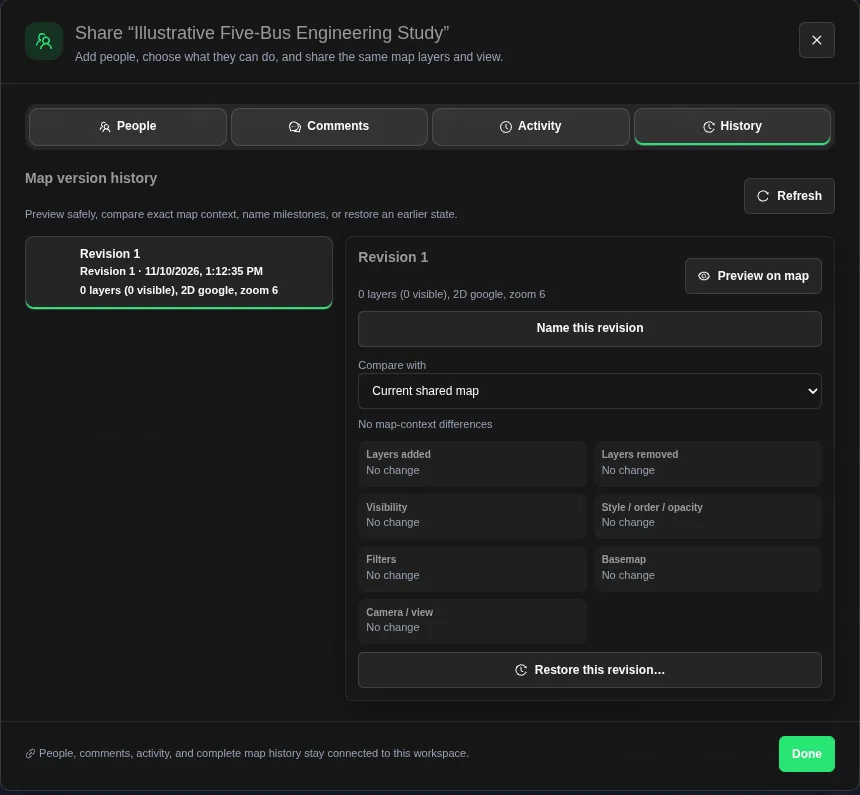
- Open History to see Map version history.
- Select a revision and choose Preview on map. Preview applies that map context locally without making it the current shared revision.
- Use Compare with to compare against Current shared map or another saved revision.
- Review added and removed layers, visibility, appearance and order, filters, basemap, and camera changes.
- As an owner or editor, choose Name this revision, enter a non-empty name, and choose Save name to label a milestone.
- To publish an earlier state again, choose Restore this revision…, then Confirm restore.
Restore creates a new current revision and applies that map context. Earlier revisions remain in history. Choose Cancel to abandon a rename or restore. Use Refresh or Load older revisions to browse more history.
Related Guides
- Projects and Flows
- Layers, Networks and Projects
- Project Modelling
- Engineering Studies
- Engineering Exports and Handoffs


