

Docs Menu
Spatial Analysis Tools
Measure distances and areas, find the nearest assets to a site, draw Voronoi catchments and see which network layers are close to any point.
Where the Tools Are
Watch the Video: Using Spatial Tools (0:43)
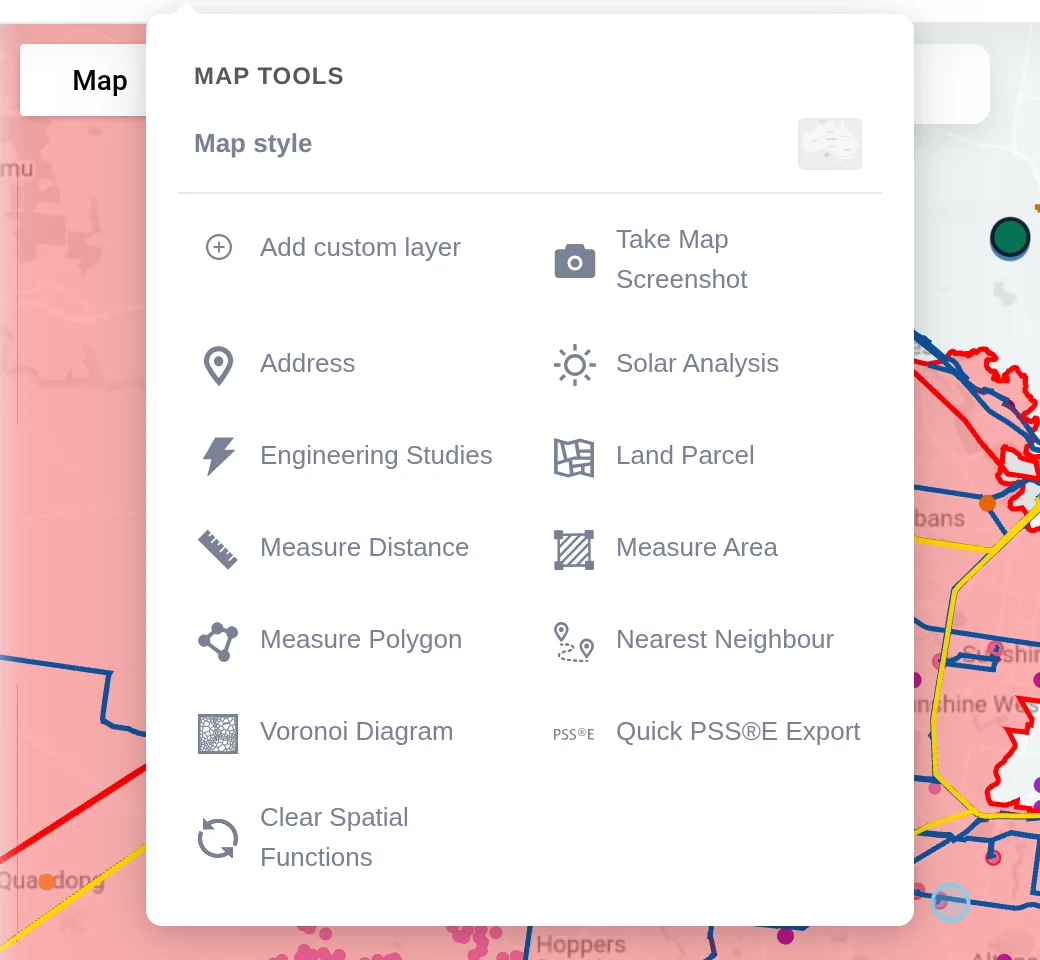
On a wide screen the tools are a row of icon buttons in the top bar; hover over an icon to see its name. On narrower screens and tablets they are grouped under one Map tools button. The same menu holds the map style, Add custom layer and the screenshot tool.
| Tool | What it does | Plan |
|---|---|---|
| Measure Distance | Distance between two points, in km and miles | Free and up |
| Measure Area | Area of an adjustable rectangle, in km² and mi² | Free and up |
| Measure Polygon | Area of a shape you draw, with the length of each edge | Free and up |
| Address | Drops a pin and shows the street address of that point | Free and up |
| Land Parcel | Outline and details of the land parcel at a point, where parcel data is available | Analyst and up |
| Nearest Neighbour | The ten nearest point assets to a location, with distances | Pro and up |
| Voronoi Diagram | Catchment areas around the point assets in view | Pro and up |
| Nearby Layers | Right-click menu listing the network layers near a point | Every plan |
| Take Map Screenshot | Saves the current map as a PNG image | Every plan |
Measure Distance
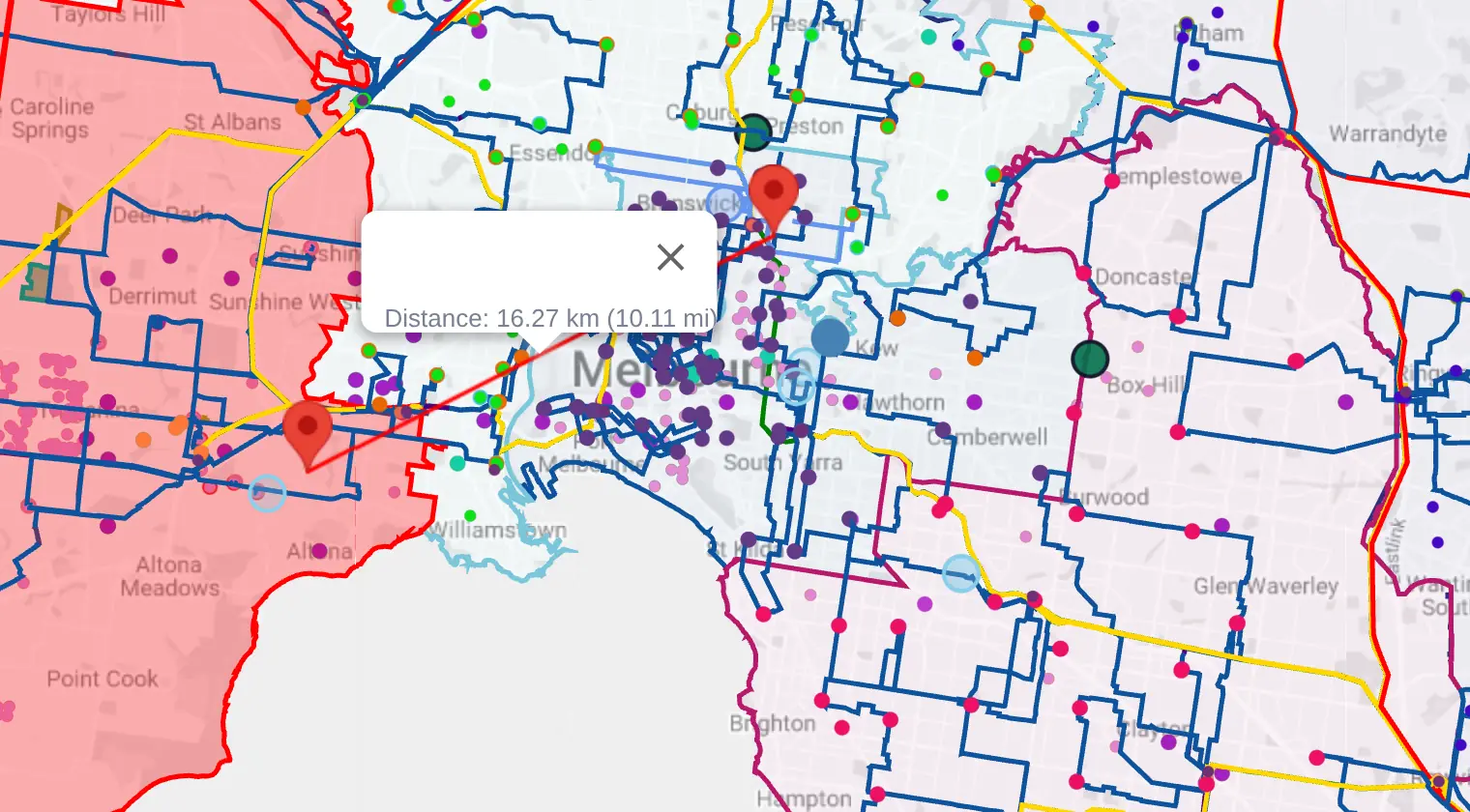
- Choose Measure Distance.
- Click the first point on the map. A line follows your pointer with a live Distance label.
- Click the second point to finish. Distances under 1 km show in metres and feet; longer distances in kilometres and miles, to two decimal places.
- Click the finished line at any time to show its label again.
Distances are measured along the earth's surface (great-circle distance), not along roads or network routes.
Measure Area and Measure Polygon
- Measure Area: one click places a rectangle sized to part of the current view. Drag its edges to resize it, or drag the whole shape to move it. The area label updates as you go.
- Measure Polygon: click to place each corner of your shape, then right-click to finish. You can adjust the corners and drag the shape afterwards. The label shows the area, and each edge shows its length.
Small areas show in m² and ft²; areas over 10,000 m² show in km² and mi².
Delete or Clear Measurements
Click a measurement to select it, then press Delete. To remove every measurement and spatial result at once, choose Clear Spatial Functions; you will see Spatial Calculations have been cleared.
Nearest Neighbour
Use Nearest Neighbour to answer "what are the closest substations (or poles, or power stations) to this site?".
- Load the point layers you want to search, for example a network's substations, with Load detailed layer or Autoload Details.
- Choose Nearest Neighbour, then click your site on the map.
- The ten nearest point assets among the layers on the map are highlighted, each with its straight-line distance in kilometres.
Voronoi Diagram
A Voronoi diagram divides the map into catchments: every location inside a cell is closer to that cell's asset than to any other. It is a quick way to see which substation is nearest to each part of a region.
- Load a point layer, such as zone substations, and zoom so the assets you want are in view.
- Choose Voronoi Diagram and click the map.
- The cells are drawn around the point assets visible in the current view.
Voronoi works with up to 500 points in view. With more you will see There are too many points on the map to draw a Voronoi diagram: zoom in or switch off some layers. With no point layer loaded, the tool asks you to enable one.
Nearby Layers (Right-Click)
Watch the Video: Smart Spatial Search & Nearby Layers (0:58)
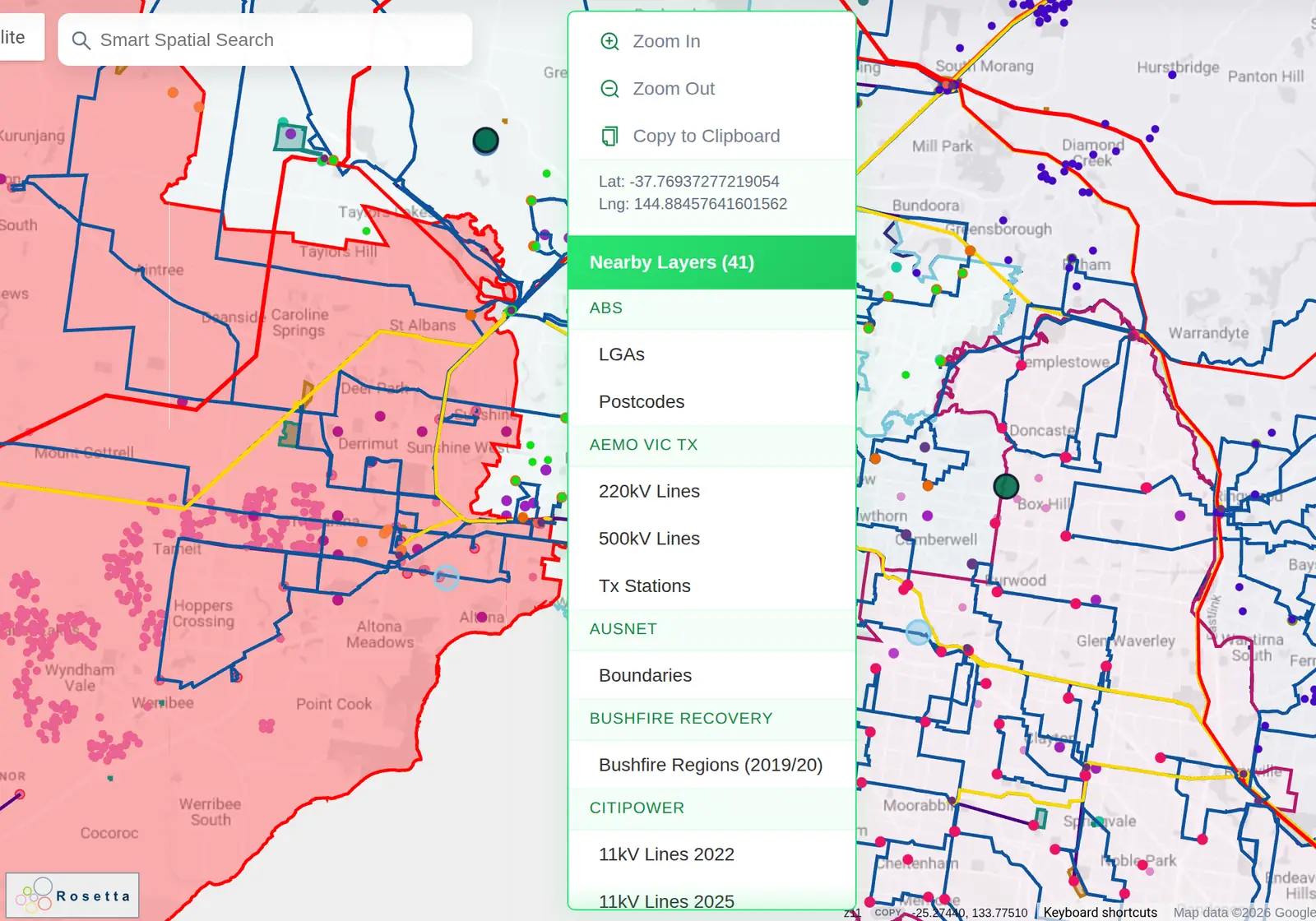
Right-click anywhere on the map (Control-click on a Mac with a one-button mouse or trackpad) to open the map menu:
- Zoom In and Zoom Out around that point.
- Copy to Clipboard: copies the point's latitude and longitude.
- Nearby Layers: every network layer within about 5 km of the point, grouped by network and sorted alphabetically. Layers already on the map are marked as active.
Choose a layer in the list to switch it on (or off), exactly as if you had ticked it in the sidebar. If nothing is close you will see No layers found in this area. The menu does not open while a measuring or spatial tool is active; finish or clear the tool first.
Address and Land Parcel
Address drops a pin where you click and shows the address of that point. Land Parcel loads the parcel outline at the point you click and shows details such as suburb, postcode, local government area and lot and plan identifiers. Parcel details depend on the land data available for the area.
Coordinates, Zoom and Screenshots
- The footer of the map shows the latitude and longitude under your pointer (or the map centre), to five decimal places. Choose Copy to copy them.
- Next to it, the current zoom level is shown as
z12, for example. - Take Map Screenshot saves a PNG of the current map, named with the date and time.
Worked Example: Distance From a Site to the Network
- Search for the site in Smart Spatial Search, or type its coordinates.
- Right-click the site and switch on the transmission lines and substations listed in Nearby Layers.
- Choose Nearest Neighbour and click the site to see the ten nearest substations and their distances.
- Choose Measure Distance and click from the site to the nearest line to measure the shortest route to it.
- Choose Voronoi Diagram to see which substation's catchment the site falls in.