

Docs Menu
Legacy Estimates
Use the legacy annual calculator, compare solar and battery sizes, and upgrade an estimate to a versioned engineering case.
Open the legacy calculator
- Select Project Modelling from the Rosetta products menu.
- In the Project Scenario Modelling workbench, select Legacy estimates.
- The Feasibility Model opens on Setup. Use the Setup, Assumptions, Solutions, Results, and Saved tabs.
Professional or Enterprise access is required.
The legacy calculator is separate from the seven-step engineering workbench. Its annual estimate is not a network constraint assessment. Use a versioned Detailed Engineering Case for interval-based option screening and network evidence.
Set up an estimate
- In Setup, enter Project Name, Scenario Name, and Location.
- Select Technology.
- Set Capacity (kW) and Annual Yield (kWh/kW).
- Enter Initial Investment and System Lifespan (years).
- Complete the value and storage assumptions.
- Select Calculate.
A new estimate starts as Network Map Project, Base Case, and Current map scope. Use Scope copies a selected asset name or network reference into the location label. It does not extract a complete electrical model or validate connection capacity.
Reset restores the default estimate and clears annual results, interval results, generated solutions, and the current selection. It does not delete the saved libraries.
Technology starting values
| Technology | Capacity | Annual yield |
|---|---|---|
| Solar | 50 kW | 1,500 kWh/kW |
| Wind | 15 kW | 1,800 kWh/kW |
| Hydro | 20 kW | 1,600 kWh/kW |
| Biomass | 12 kW | 1,200 kWh/kW |
| Battery Storage | 5 kW | 0 kWh/kW |
A new estimate uses Solar with Include battery storage enabled. Changing Technology applies its starting capacity and yield. Selecting Battery Storage also enables storage. Replace the starting values with site-specific data.
Enter non-negative capacity and annual yield. For generation technologies, annual production is capacity multiplied by annual yield. Battery Storage has no generation production in this annual calculation. Curtailment (%) reduces the energy available, and Self-consumption (%) divides that energy between on-site use and export.
Presets
| Preset | Changes |
|---|---|
| Solar only | Selects solar, disables battery and FCAS, and sets battery energy to zero. |
| Solar + battery | Selects solar, enables storage, and selects Coordinated with generation. Review the battery capacity. |
| Battery arbitrage | Selects Battery Storage, enables storage, and selects Independent arbitrage. |
| Demand reduction | Enables storage and supplies a 10 kW demand-reduction assumption when the field is empty. |
Each preset sets Scenario Name to its preset name. Presets change selected fields, not the whole model, and do not apply the technology starting values in the table above. Review capacity, yield, costs, rates, and storage settings after choosing one.
Legacy setup example
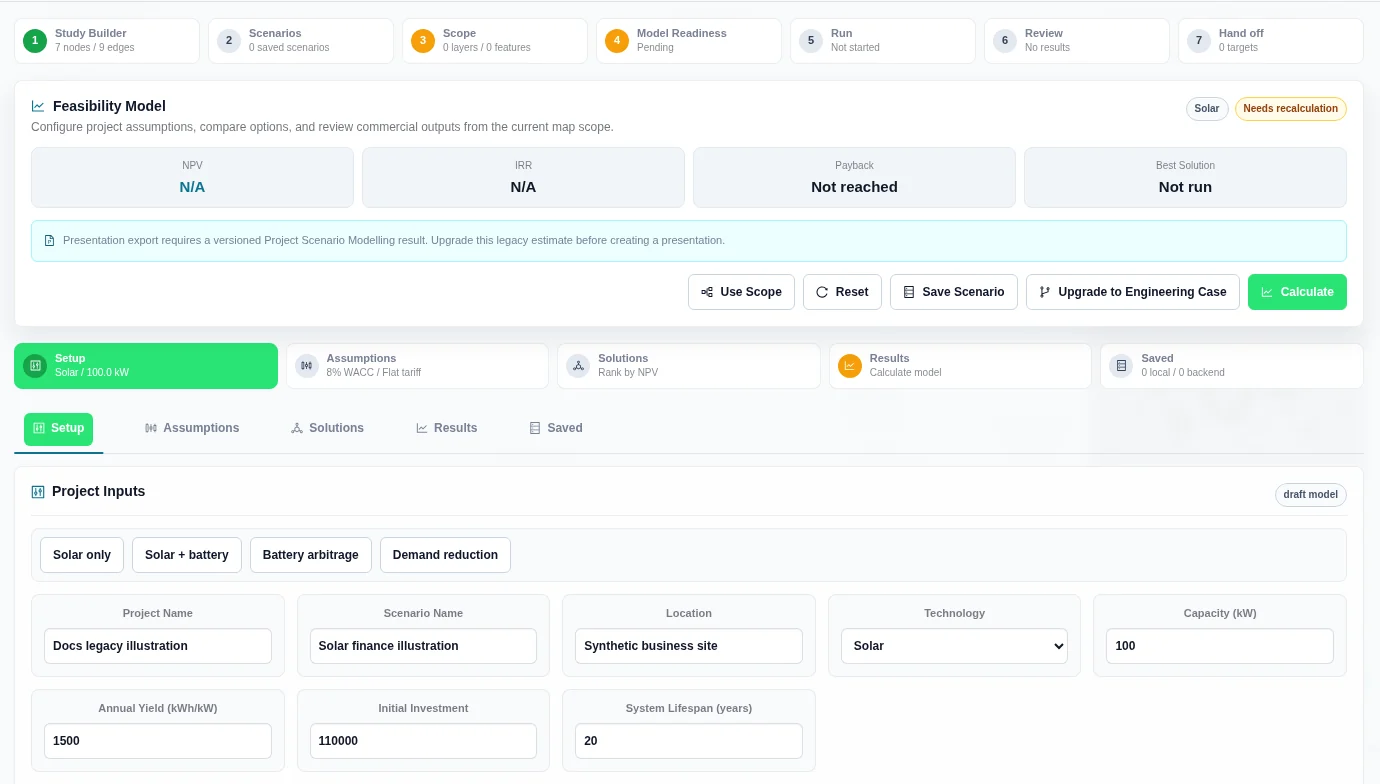
Value and storage inputs
Use Value and Finance for legacy investment, lifespan, discounting, maintenance, battery economics, and output definitions. Use Tariffs for flat rates, time-of-use shares, fixed charges, demand charges, and storage tariffs.
The Assumptions tab has three sections:
- Financial Assumptions: electricity and export rates, discounting, maintenance, escalation, and decommissioning.
- Tariff & Site Constraints: tariff model, energy shares, self-consumption, curtailment, demand reduction, and charges.
- Storage & Services: battery settings and frequency control ancillary services (FCAS) revenue.
| Storage control | Use |
|---|---|
| Include battery storage | Include storage in the annual estimate. It starts enabled. Selecting Battery Storage as the technology includes storage in the annual calculation. |
| Battery Capacity (kWh) | Stored energy capacity; starts at 5 kWh. Enter a non-negative value. |
| Battery Efficiency (%) | Efficiency assumption; starts at 90%. Use a value from 0% to 100%. |
| Replacement Cost and Replacement Interval (years) | Battery replacement assumptions for annual cash flow. See Value and Finance. |
| Battery Operation | Choose Coordinated with generation or Independent arbitrage. Coordinated operation is the default. |
| Battery Tariff | Value-rate assumption for independent operation. |
| Include FCAS revenue and Annual FCAS Revenue | Include an annual service-revenue assumption when storage is included. FCAS starts disabled. |
Compare sizes with Solution Finder
- Open Solutions.
- Enter comma-separated Solar Sizes to Test (kW) and Battery Sizes to Test (kWh).
- Confirm Solar Capex ($/kW) and Battery Capex ($/kWh).
- Choose Rank Solutions By: NPV, IRR, Payback, or Carbon offset.
- Select Find Solutions.
- Select a result card to load its assumptions and results.
The initial size lists are 25, 50, 75, 100 kW and 0, 5, 10, 20 kWh. The initial unit capex values are 1,200 per kW and 800 per kWh. The default rank is NPV. Legacy money outputs use USD formatting; the calculator does not convert currencies.
Enter non-negative sizes. Duplicate sizes are removed. Each option sets Initial Investment to generator capacity × Solar Capex ($/kW) plus battery energy × Battery Capex ($/kWh). A zero battery size excludes storage from that option. Each option also receives a size-based Scenario Name.
The finder tests the listed generator-capacity and battery-energy combinations using the current technology, and automatically loads the top result. It uses the first 25 distinct valid values from each list and generates at most 250 combinations. The list shows the first ten returned options, with rank, IRR, payback, annual energy, and NPV. Compare the annual estimates to choose candidates for a Detailed Engineering Case.
Simulate an Interval Profile
The legacy CSV accepts load and generation in the same file. This differs from the one-series uploads in the engineering workbench.
- Open Results.
- Choose a CSV using CSV Upload, or paste the file into CSV Profile.
- Check the displayed interval count.
- Select Simulate Intervals.
- Review Import, Export, Peak Reduction, and Interval Savings.
A clear header is timestamp,load_kw,generation_kw,duration_hours. For half-hour samples, use 0.5 in duration_hours. Without a duration column, the request uses 30-minute intervals; it does not infer duration from timestamp gaps. Use durations from 1 minute to 24 hours and no more than 20,000 interval rows per simulation.
| Data | Accepted header names |
|---|---|
| Time | timestamp, time, datetime, date |
| Load power | load_kw, demand_kw, site_kw |
| Generation power | generation_kw, generator_kw, solar_kw, pv_kw |
| Load energy | load_kwh, demand_kwh, site_kwh |
| Generation energy | generation_kwh, generator_kwh, solar_kwh, pv_kwh |
| Interval length | duration_hours, hours |
Header matching ignores punctuation and case. Use either power or interval energy consistently. Supply ordered ISO-format timestamps and complete, non-negative numeric values. Use the local time appropriate to the tariff. Do not use blank cells as a substitute for missing measurements. If the message Interval CSV needs timestamp plus load/generation kW or kWh columns. appears, correct the headings and numeric columns.
Read the interval outputs
| Output | Meaning |
|---|---|
| Import | Grid energy needed after generation and battery discharge, in kWh. |
| Export | Surplus generation left after on-site use and battery charging, in kWh. |
| Peak Reduction | The difference between maximum load power and maximum grid-import power in the supplied intervals, in kW. |
| Interval Savings | Avoided import cost plus export credit over the supplied data period. |
When Include battery storage is enabled, the interval simulation starts with an empty battery. Surplus generation charges it, and stored energy later supplies a load deficit. This is a simple energy-balance calculation, not the annual Independent arbitrage valuation or a detailed battery dispatch optimisation.
The Interval Energy Balance chart shows load, generation, import, and export for the first 96 intervals. The output totals use all supplied intervals and are not necessarily annual totals. The interval simulation is separate from Calculate; it does not replace annual assumptions automatically. Select Simulate Intervals again after changing the CSV or relevant assumptions.
Review results
Results Review shows Location, On-site / Export, Battery Throughput, Annual Production, Investment, and Scenario. The header shows NPV, IRR, Payback, and Best Solution. N/A means an IRR is unavailable; Not reached means payback was not reached within the study horizon. Treat these as unavailable outcomes, not zero.
Scenario Charts can include NPV Sensitivity, Cumulative Cash Flow, and Annual Cash Flow. Interval Charts appears after interval simulation. If the status shows Assumptions changed, select Recalculate before using the annual outputs. A current result shows Calculated.
Legacy cash-flow charts
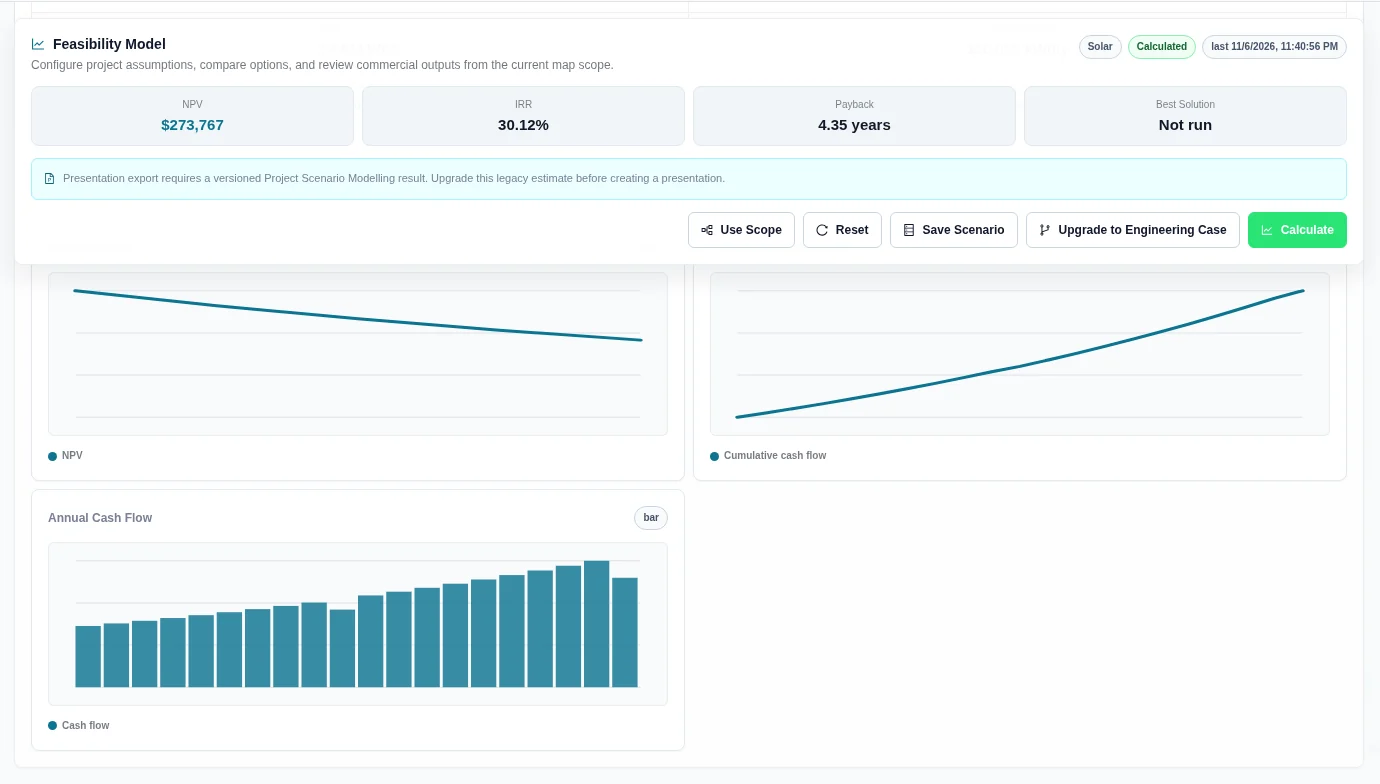
This screenshot is a separate legacy illustration, not a versioned-case result. It uses an electricity rate of 0.25, feed-in tariff of 0.08, 8% WACC, 1% O&M, 2% inflation, 2% escalation, 5% decommissioning, and 70% self-consumption. Do not compare its metrics with a versioned case unless all assumptions and calculation methods match.
Save, reopen, or remove estimates
Browser records
Calculate keeps a local record for the signed-in account in this browser. Under Saved → Saved Scenarios, select a record to reload its model and annual results. The browser retains up to 50 records, with the latest ten shown in the list. Clear removes this account's local estimate list. It does not delete backend scenarios.
Calculating an estimate with the same project, scenario, and location names replaces that matching local entry. To keep a separate local alternative, change Scenario Name before calculating. This is local record naming, not duplication of a versioned engineering case.
Backend Scenario Library
- Select Save Scenario in the header, or Save in Backend Scenario Library.
- Check the success message.
- Use Refresh to reload your library. It is filtered to the current network when a network is selected.
- Select a record to load its model, results, and saved solutions.
Saving recalculates missing or stale annual results before sending the record. Each backend save creates a new scenario record, even when the names match. It stores the model, annual results, and up to 20 solutions. The library loads up to 20 records and displays the latest ten.
To remove a backend record, select it and then select Delete. This does not clear browser records. Keep the original interval CSV separately: reopening a saved estimate does not restore the CSV or its interval chart.
Upgrade to a versioned case
In a shared engineering project, upgrading also requires permission to edit cases.
- Load the legacy estimate you want to retain.
- Select Upgrade to Engineering Case.
- The versioned workbench opens in Quick Estimate mode.
- Review the imported assets, financial assumptions, option sizes, estimated demand, and storage power. Check Currency and Timezone.
- For interval-based network screening, select Detailed Engineering Case. Complete the network, point of connection, snapshot, profiles, and DER inputs.
- Select Save case revision, then use Validate & Run.
The upgrade creates a new versioned case with legacy source assumptions marked for review. It does not import the interval CSV or convert old annual outputs into a completed detailed network result. Previous run results are cleared from the new workbench. Presentation export requires a current versioned Project Scenario Modelling result, so upgrade and run before creating a presentation.
Related Guides
- Project Modelling
- Profiles and Inputs
- DER Design
- Value and Finance
- Tariffs
- Comparison and Reports
- Worked Examples


