

Docs Menu
Site Scenarios and Saved Results
Keep a protected baseline for each site, test alternative scenarios in one case, edit their assets in a spreadsheet, and publish or archive the saved results in Project Modelling.
Create a site
- Open a Detailed Engineering Case and go to Design.
- Under Site and scenario, open Create site context.
- Enter a Site ID and a Site name.
- Select Create site from current draft.
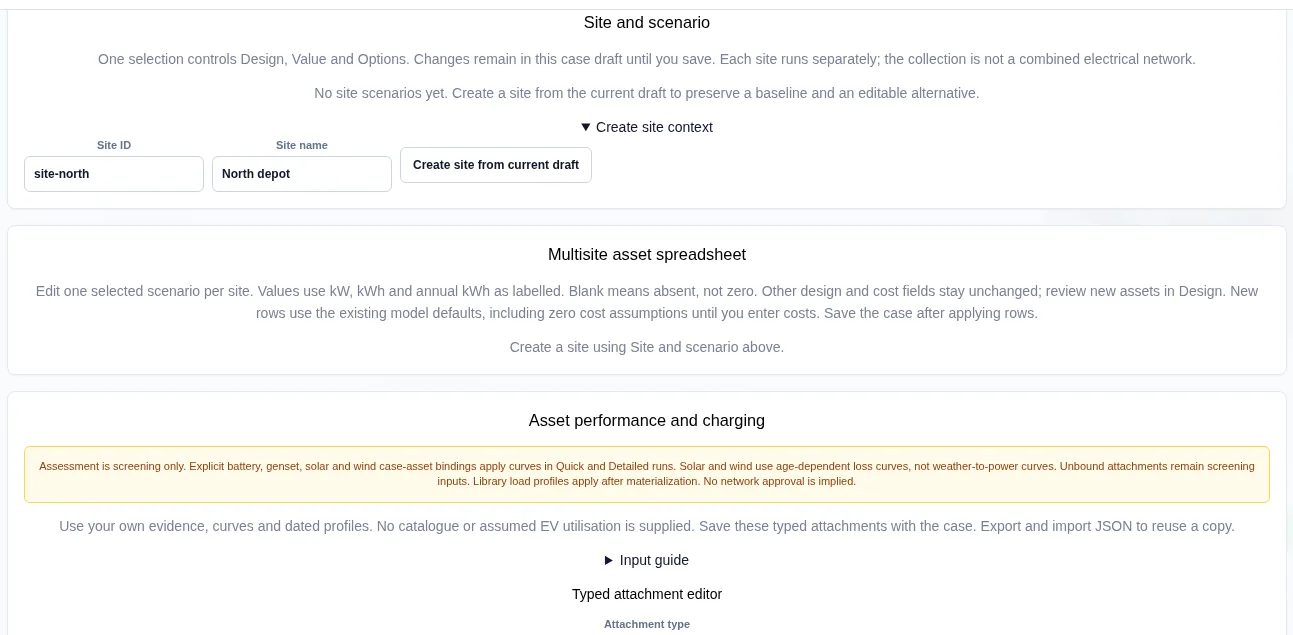
The baseline is protected. You edit the scenarios, not the baseline. One Site and Scenario selection controls Design, Value and Options. Changes stay in the case draft until you save.
Clone a scenario
- Choose the Scenario to copy.
- Enter a New scenario name.
- Select Clone selected scenario. To start again from the baseline, select Clone protected baseline.
- Change the new scenario, then select Save case revision.
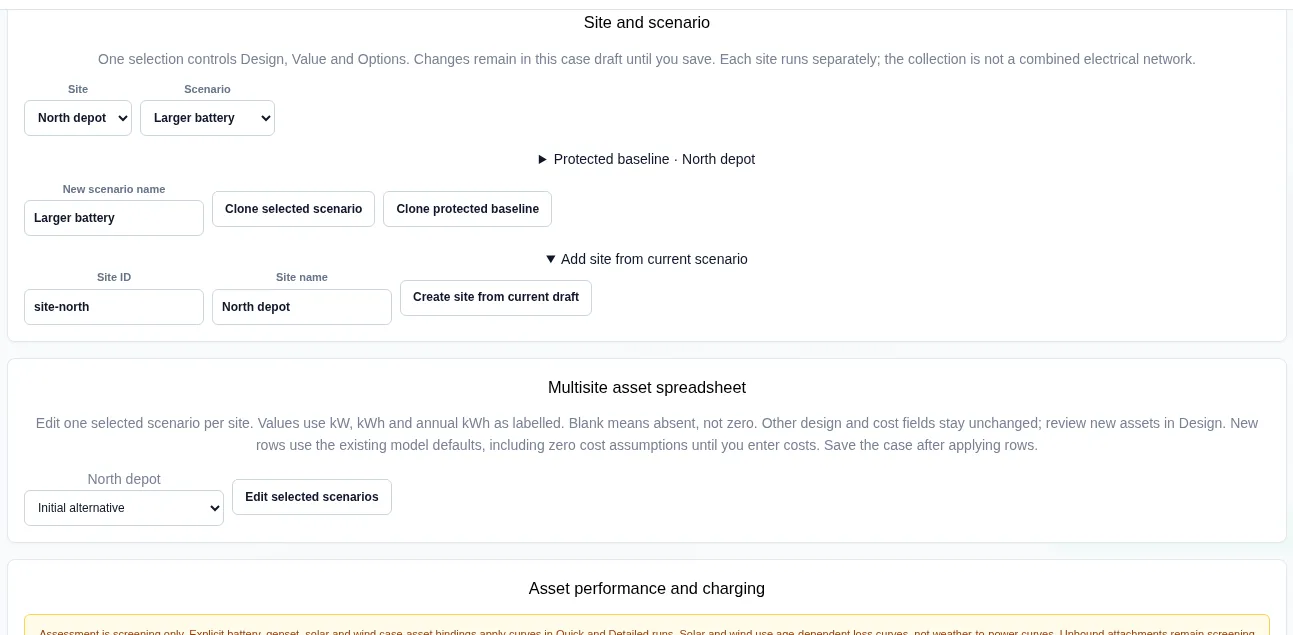
Edit assets in the multisite spreadsheet
- Under Multisite asset spreadsheet, choose the scenario for each site.
- Select Edit selected scenarios.
- Change Generation kW, Storage kW, Storage kWh or Load annual kWh. You can also add or remove rows, or paste tab-separated rows.
- Select Validate and apply rows to case draft.
- Select Save case revision.
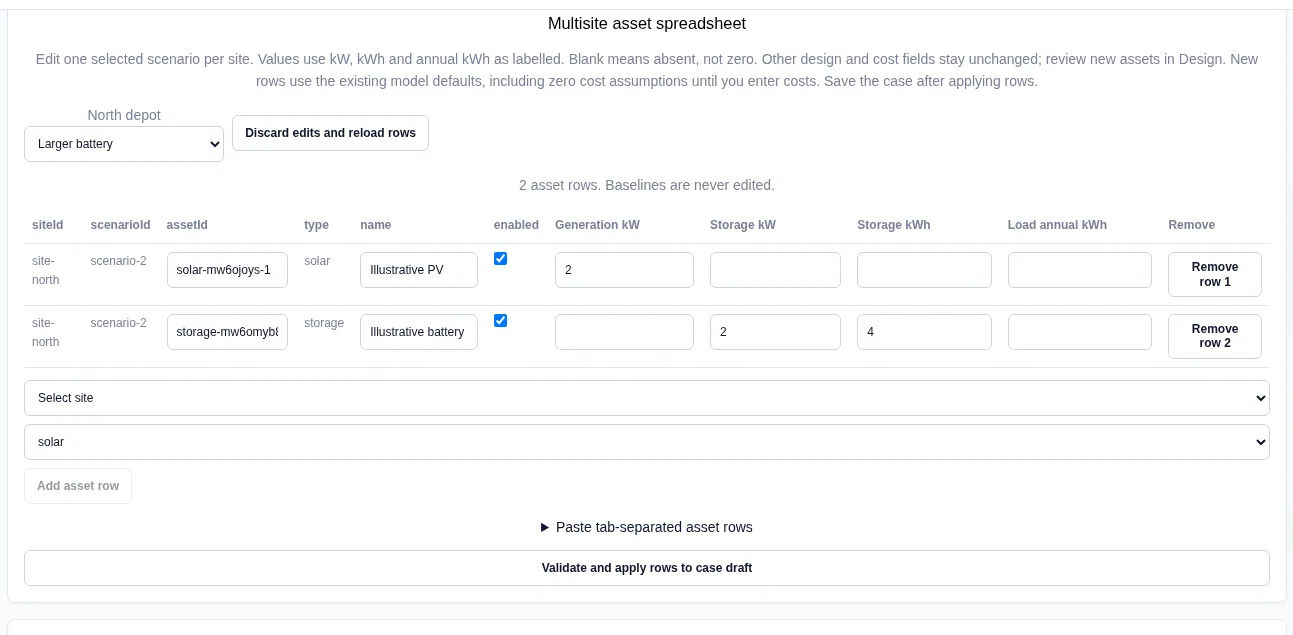
A blank cell means absent, not zero. Other design and cost fields stay the same. New rows use the model defaults, including zero costs, until you enter costs in Design.
While rows are loaded, you cannot change the scenario selection. Apply or discard the edits first with Validate and apply rows to case draft or Discard edits and reload rows.
Worked example: two battery sizes at one site
Site North depot has 8,760 kWh of annual load and a 2 kW solar array (4,380 kWh a year). The 10-year case uses a 10 kW import and export limit. Both scenarios have a total capex of A$1,800. We ran each scenario with Run and read Results.
| Result | Initial alternative (1 kW, 2 kWh) | Larger battery (2 kW, 4 kWh) |
|---|---|---|
| NPV | A$3,374 | A$3,900 |
| IRR | 41.51% | 46.13% |
| Discounted payback | 2.69 years | 2.42 years |
| First-year revenue and savings | A$801 | A$879 |
| Annual onsite use | 2,675.98 kWh | 3,161.93 kWh |
| Annual import | 6,084.02 kWh | 5,598.07 kWh |
| Annual export | 1,651.86 kWh | 1,113.76 kWh |
| Self-sufficiency | 30.55% | 36.1% |
The larger battery stores more solar for later use. Import falls by 485.95 kWh and export falls by 538.1 kWh. Both runs had the engineering gate review, so neither is a final feasibility answer.
Publish, archive and restore a saved result
- Go to Results → Saved result lifecycle. Each completed run of the case is listed with its revision.
- Select Publish result to mark a result for project use.
- Select Archive result to hide it from the default list.
- Tick Include archived results to show archived runs again.
- Select Restore and publish to bring an archived result back as published.
- Select Return to draft to remove the published status.
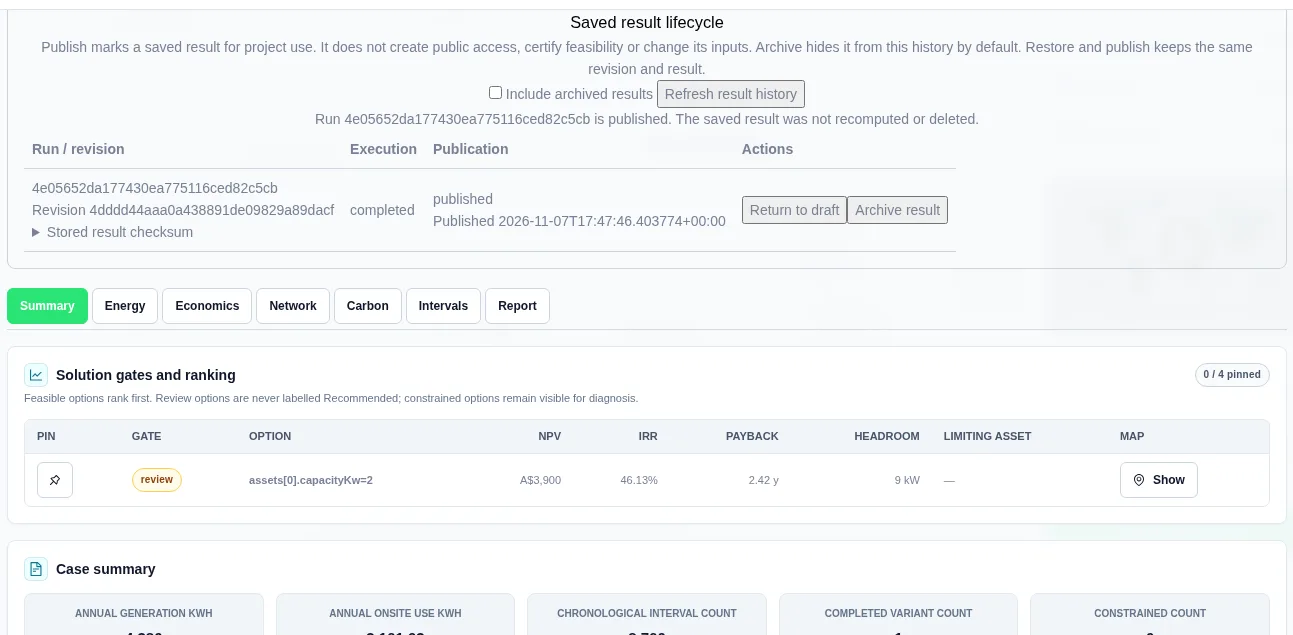
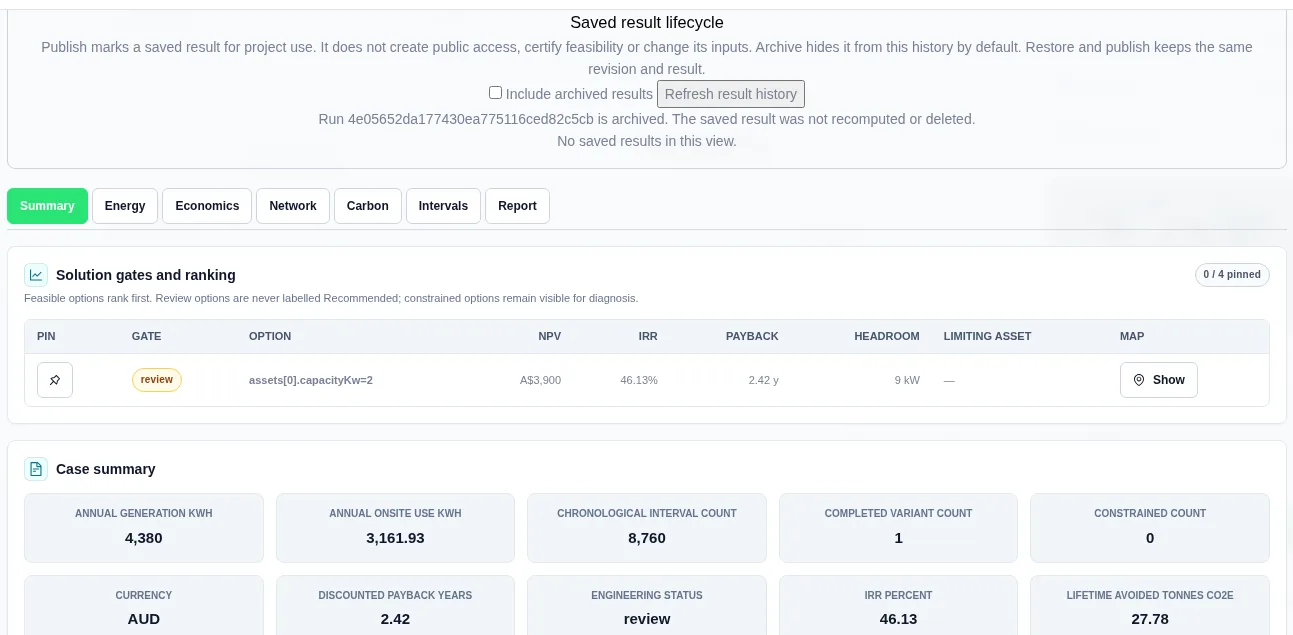
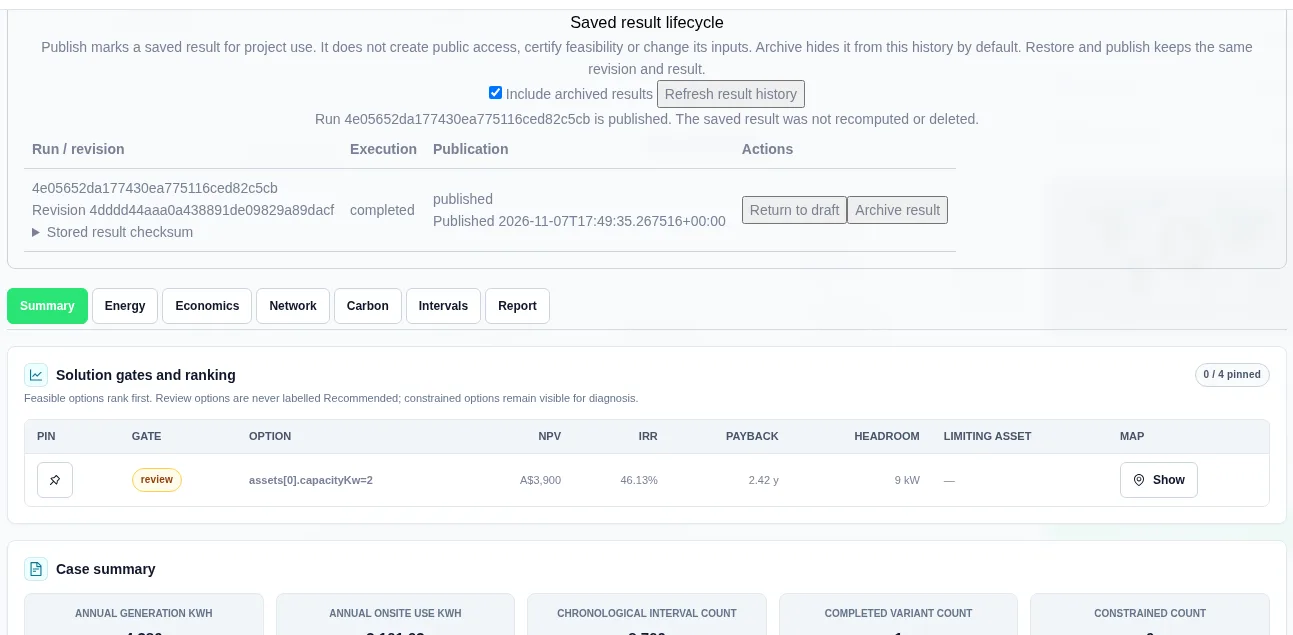
Each action shows the message "The saved result was not recomputed or deleted." Restore keeps the same revision and the same result. A failed run shows "A completed stored result is required." and cannot be published.
To make a PDF or DOCX report from a saved run, see Saved Reports and Templates.
Limits
- Each site is modelled on its own. Sites do not share a connection or a network.
- The spreadsheet changes only power, energy and annual load values. Check costs and other fields in Design.
- Unsaved changes, such as applied rows or applied sizes, are lost if you reopen the case from Case history before saving.


