

Docs Menu
Running Engineering Studies
Select the study scope, check its inputs, and submit a run with a clear record of its assumptions.
Before You Start
Open Engineering Studies with Professional or Enterprise access. Load the relevant electrical layers, select map assets, or publish a study-ready circuit revision. Include the electrical data required by your study.
- Open Setup & Run.
- Choose the scope under Scope Source.
- Select Study and Engine.
- Review the connection request, assumptions, and study-specific controls.
- For a circuit revision, review its Operating Case.
- Choose Check Readiness.
- Read the diagnostics in Model Readiness.
- Return to Setup & Run and choose Run Study.
- Review Study Results when the run finishes.
Choose the Scope
| Scope | What to do | What the study uses |
|---|---|---|
| Map Scope | Load the relevant layers and choose Refresh Scope. | The current map-derived input package and selected network/layers. |
| Selected Assets | Click visible map assets. Use Remove asset or Clear Selected Assets to change the selection. | A focused scope based on the selected assets. The first selected asset identifies the connection point. |
| Circuit Revision | Select an Engineering Project in session context. Choose a Published circuit revision. | The exact published revision. Later circuit edits do not change this input. |
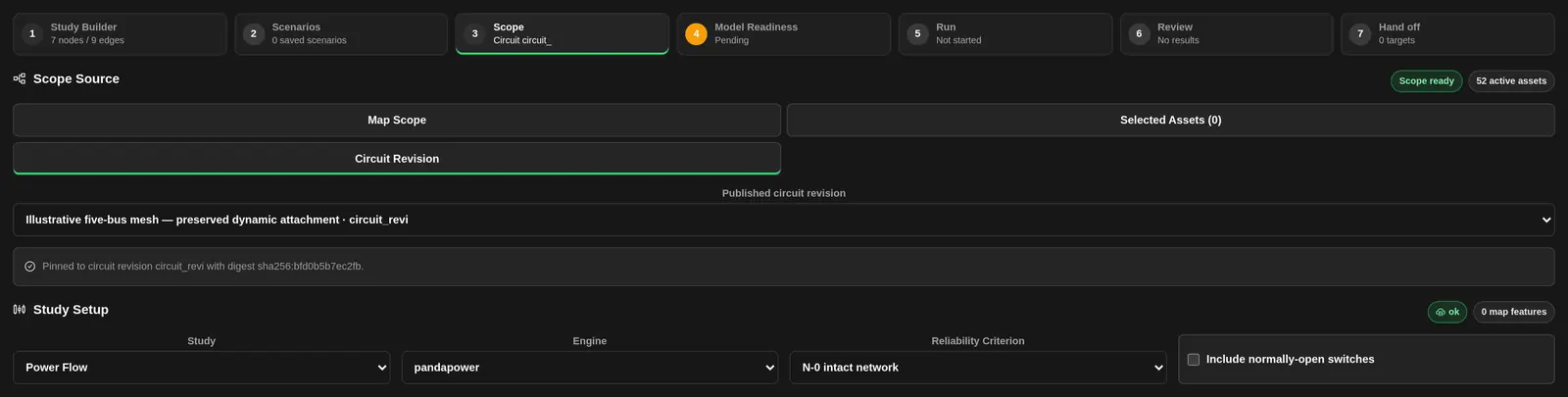
Scope ready means a scope is present, not that its electrical data is valid. Empty scope means there are no usable active layers or assets for this setup. For a circuit, wait for the revision to load. If no revision appears, publish and validate a circuit in the selected project.
Circuit-revision inputs support Model Quality, Power Flow, Contingency Analysis, DC Sensitivity Analysis, PTDF / LODF, and Cross-check in this panel. Use a supported study if the selected type is not enabled for a revision.
Review the Capture
Current Scope shows the network, layer and input-layer counts, captured map features, scope mode, selected assets, element IDs, and skipped features. Inspect skipped or capped captures before proceeding. The classic map model package is capped at 1,000 features; its separate input-layer capture is capped at 500 features. Narrow the scope or use a published circuit when the required model is larger.
In Mapping Review, keep Auto detect or assign a layer role: Bus / point, Branch / feeder, Transformer, Load, Generator / DER, Storage, or Switch. A role tells the converter how to interpret a layer. It does not supply missing electrical values. See Network Model Import and Validation.
Show the Inputs on the Map
- Choose Add Inputs to Map to add a frozen copy of the mapped inputs.
- After changing the setup, use Update Inputs on Map to replace that copy.
- Use Remove Inputs to remove it.
Inputs Added to Map means the map copy matches the current captured inputs. This input layer is separate from solved result layers.
Study Setup
Study selects the calculation. Changing it selects that study's default engine. Auto lets the service select an engine. An engine marked (not installed) is not available as an installed solver. Check Engine Status and read the returned execution method to identify how the calculation ran.
Reliability Criterion offers N-0 intact network, N-1 contingency screen, and Radial feeder assumption. The default is N-0 intact network. Include normally-open switches is off by default. These are setup assumptions. Select Contingency Analysis for an N-1 calculation and review the evaluated cases for N-1 coverage.
Connection Request
Use Selected Assets to identify the connection point. The panel shows its name or No selected point.
| Field | Meaning | Initial value |
|---|---|---|
| Connection Type | Choose Generator / DER, Load, or Storage. | Generator / DER |
| Direction | Choose Export to grid or Import from grid. | Export to grid |
| Requested MW | Requested active-power capacity. | 5 MW |
| Requested kV | Requested connection voltage. | 11 kV |
| Power Factor | Ratio of active power to apparent power. | 0.95 |
| Notes | Context for the request. | Blank |
Engineering Assumptions
Replace initial values with values appropriate to your network. These are entered assumptions, not measured equipment data. Their use depends on the selected study and engine. Review the returned method, ratings, and limits rather than assuming every control defines an acceptance check.
| Group | Field | Initial value |
|---|---|---|
| Network Base | Base MVA | 100 MVA |
| Frequency Hz | 50 Hz | |
| Nominal voltage kV | 11 kV | |
| Operating Constraints | Voltage lower pu / Voltage upper pu | 0.95 / 1.05 pu |
| Thermal warning % / Thermal limit % | 80% / 100% | |
| Grid supply limit MW | 25 MW | |
| DER & Growth | DER step MW / DER maximum MW | 0.5 / 10 MW |
| Load growth % | 0% |
Study-specific controls include contingency limits, sensitivity IDs, fault inputs, protection margin, hourly profiles, and voltage or transfer sweeps. See Engineering Study Types Reference for their fields, units, result interpretation, and validation rules. Classic Setup & Run takes these controls directly; model-file import belongs in the model-building tools.
Operating Case for a Circuit Revision
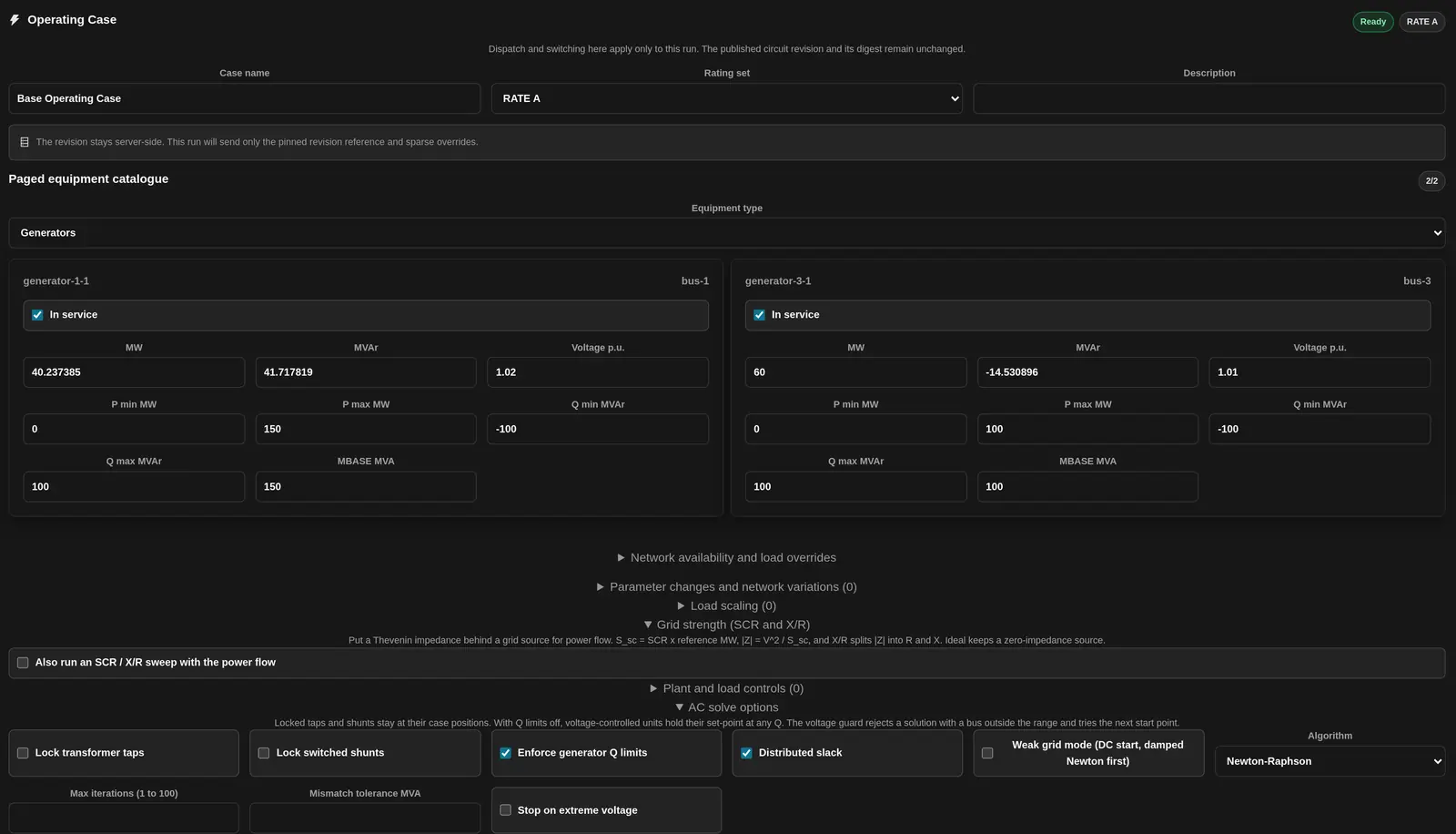
The operating case changes dispatch and switching for this run only. It does not edit the published revision or its digest. Set Case name, Description, and Rating set. The initial name is Base Operating Case and the initial rating set is RATE A. You can select RATE B or RATE C.
| Equipment | Editable controls |
|---|---|
| Sources | In service; in the paged catalog, Voltage p.u. and Angle degrees. |
| Generators | In service, MW, MVAr, and Voltage p.u.. |
| Storage | In service, Dispatch MW (+ discharge), MVAr (+ inject), and State of charge %. The paged catalog labels the power fields Dispatch MW and MVAr. Positive dispatch discharges the battery; negative dispatch charges it. Positive reactive power injects MVAr. |
| Loads | In service, MW, and MVAr. |
| Lines, cables, transformers, and fixed shunts | In service. |
| Switched shunts, SVCs, and STATCOMs | In service, MVAr, and Voltage p.u. in the paged catalog. |
| HVDC links | In service, From MW, From MVAr, and To MVAr in the paged catalog. |
| Switches, breakers, and disconnectors | Closed. Clear it to open the device. |
Where the full model is displayed, expand Network availability and load overrides for sources, loads, branches, transformers, and switches. Where the revision stays on the server, use Paged equipment catalogue. Choose Equipment type, then Load more equipment as needed. Choose Reset override to remove an equipment override. The catalog includes sources, generators, storage, loads, lines, cables, two- and three-winding transformers, shunts, HVDC links, SVCs, STATCOMs, switches, breakers, and disconnectors.
Storage dispatch starts at 0 MW. The full-model case starts at 0 MVAr and 50% state of charge; the paged catalog uses stored reactive power and state of charge when supplied. Check these values before each run.
Fix Operating-Case Errors
- Enter a nonblank operating-case name.
- Keep battery dispatch within a known power rating.
- Keep state of charge between 0% and 100%.
- Keep generator MW and MVAr within their known minimum and maximum values.
- Use a positive generator voltage setpoint no greater than 2 pu.
- Do not enter negative load MW.
- Keep at least one external-grid source in service.
Missing equipment limits do not establish acceptable operation. The run must not be treated as a passed limit check where no limit is available.
Solver Options for a Circuit Run
The Operating Case section has more options for a circuit run. The app says: Dispatch and switching here apply only to this run. The published circuit revision and its digest remain unchanged.
- Parameter changes and network variations: change element values or network items for this run.
- Load scaling: add rules that scale loads for this run.
- Grid strength (SCR and X/R): put a Thevenin impedance behind a grid source for the power flow. The short-circuit power is the SCR times the reference MW. X/R splits the impedance into R and X. Ideal keeps a zero-impedance source. Tick Also run an SCR / X/R sweep with the power flow to run a sweep as well.
- Plant and load controls: add controls for plant and load in this run.
- AC solve options: tick Lock transformer taps, Lock switched shunts, Enforce generator Q limits, Distributed slack or Weak grid mode (DC start, damped Newton first). Choose the Algorithm, for example Newton-Raphson. Set Max iterations (1 to 100) and Mismatch tolerance MVA. Stop on extreme voltage rejects a solution with a bus outside the voltage range and tries the next start point.
By default, Enforce generator Q limits and Distributed slack are ticked. With Q limits off, voltage-controlled units hold their set-point at any Q.
To prepare a run for PSS/E or another licensed tool, use the Vendor run package in the same section. See Prepare a vendor run package.
Check Model Readiness
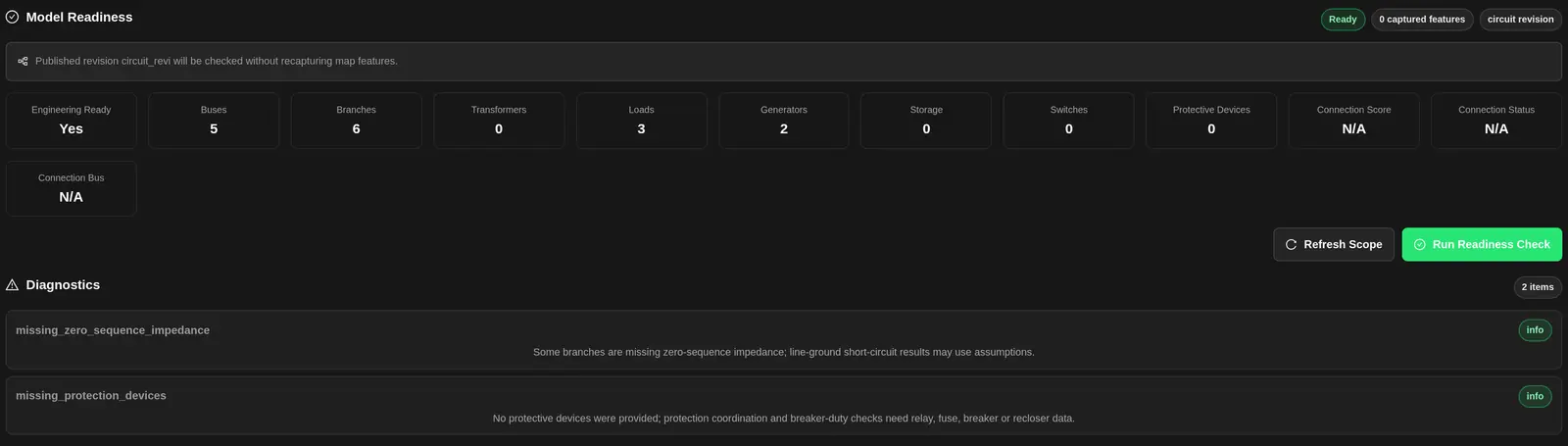
Choose Check Readiness in the setup tab, or Run Readiness Check in Model Readiness. A circuit check uses the pinned revision without recapturing map features.
The equipment tiles count Buses, Branches, Transformers, Loads, Generators, Storage, Switches, and Protective Devices. Engineering Ready reports model readiness. Connection Score, Connection Status, and Connection Bus describe the mapped connection.
Read each Diagnostics item. It shows a code, severity, message, and affected element when supplied. Fix errors, investigate warnings, and review information notices. Not checked and Pending mean no check is available. Checking means it is in progress. Ready means the returned readiness condition is met. Needs work means inputs need attention. Recheck after changing the scope or assumptions.
Run and Monitor
Run Study is disabled while another submission is active, when the scope is empty, at your queue limit, or when a blocking operating-case, minimum-fault-level, or study-option error exists. Resolve the shown error or wait for capacity. The service also applies quotas.
After submission, the panel opens Study Results. A run progresses through queued, running, and a final status. See Engineering Study Results and Statuses for interpretation.
Keep a Reproducible Study Record
- Identify the saved model revision, source records and operating case.
- Record assumptions, units, requested channels and study settings.
- Keep convergence and initialization findings with the actual results.
- Record any acceptance criteria and their source.
- Retain the run identity with exported files and reports.
For a licensed external solver, follow the prepared-case handoff guidance. The tutorial uses an example network to show the workflow.
Related Guides
- Engineering Studies
- Engineering Study Types Reference
- Engineering Study Results and Statuses
- Network Model Import and Validation
- Grid Circuit Builder


