Docs Menu
Docs Assistant
Find cited excerpts from public Network Map guides without attaching your case data.
Watch the Video: Docs Assistant (1:07)
Search the documentation
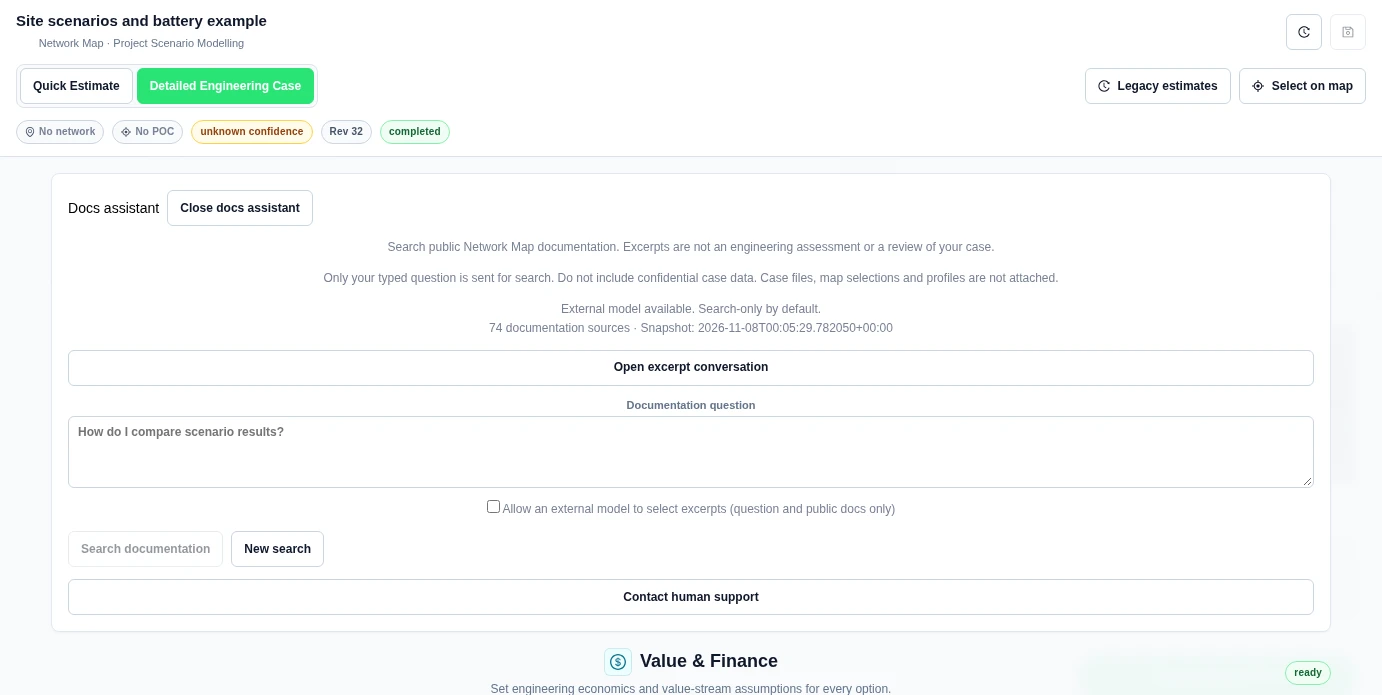
- In Project Modelling, select Open docs assistant.
- Read the source count and snapshot date. The assistant searches a captured documentation set, not every live page update immediately.
- Enter a Documentation question. Use at least 2 characters. Do not include confidential data.
- Leave the external-model checkbox clear. Select Search documentation.
- Read Documentation search results. Open the linked source guide to check the full context.
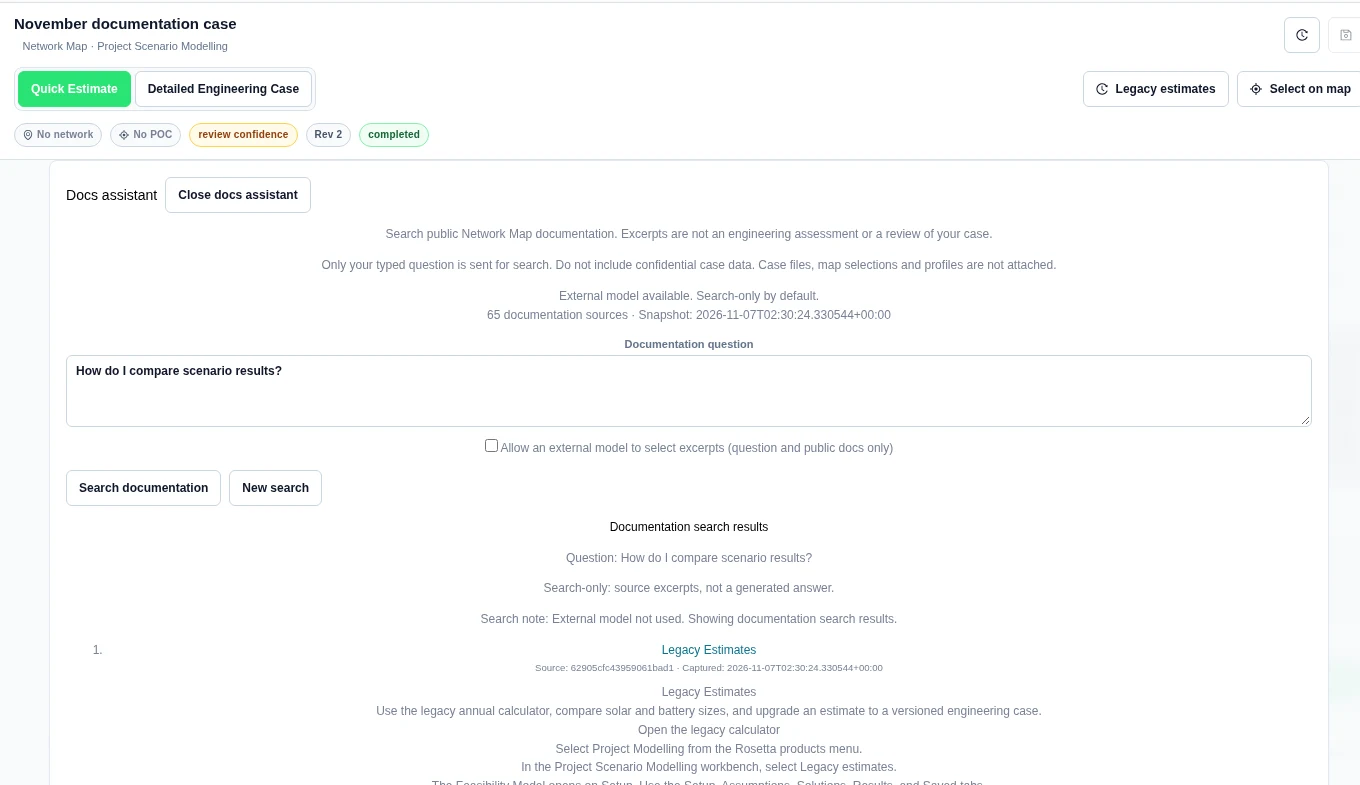
Only the typed question is sent for search. Case files, map selections and profiles are not attached. Search-only is the default.
The documentation snapshot
The panel shows the number of documentation sources and the snapshot time. The assistant searches this snapshot. A guide edit is not searchable until the snapshot is refreshed.
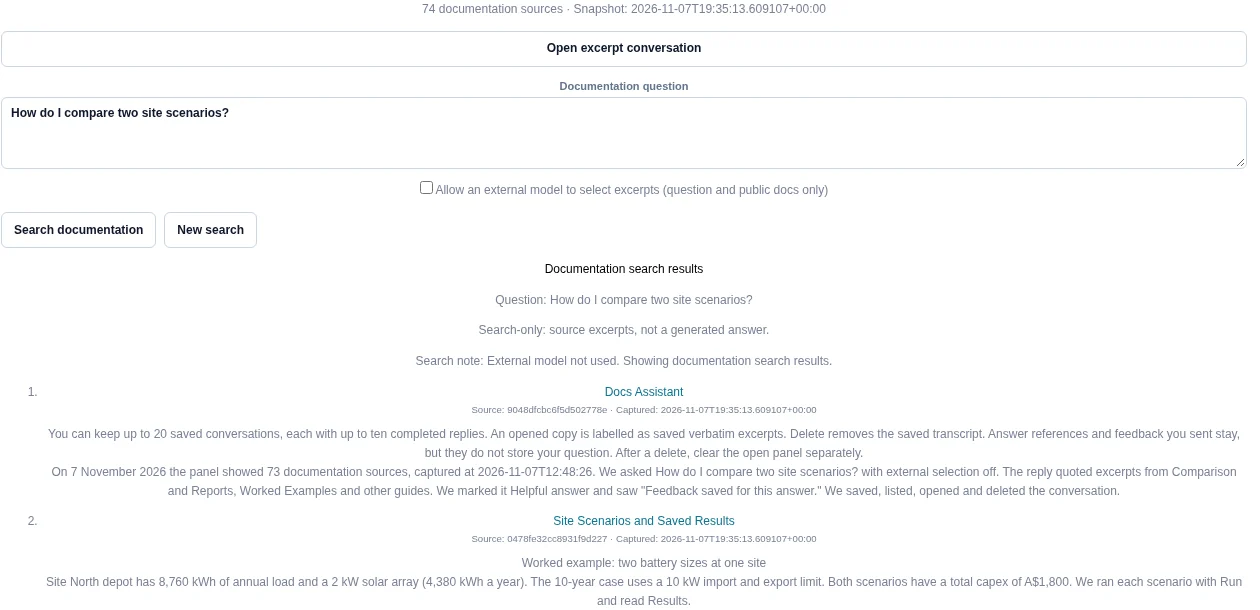
The worked example below shows the source count seen on that day. The count you see can differ. Open the linked guide for its latest text.
Allow AI to select excerpts
- Check that the assistant reports the external model as available.
- For this search, select Allow an external model to select excerpts (question and public docs only).
- Select Search documentation.
- Read Selected cited excerpts and open their sources.
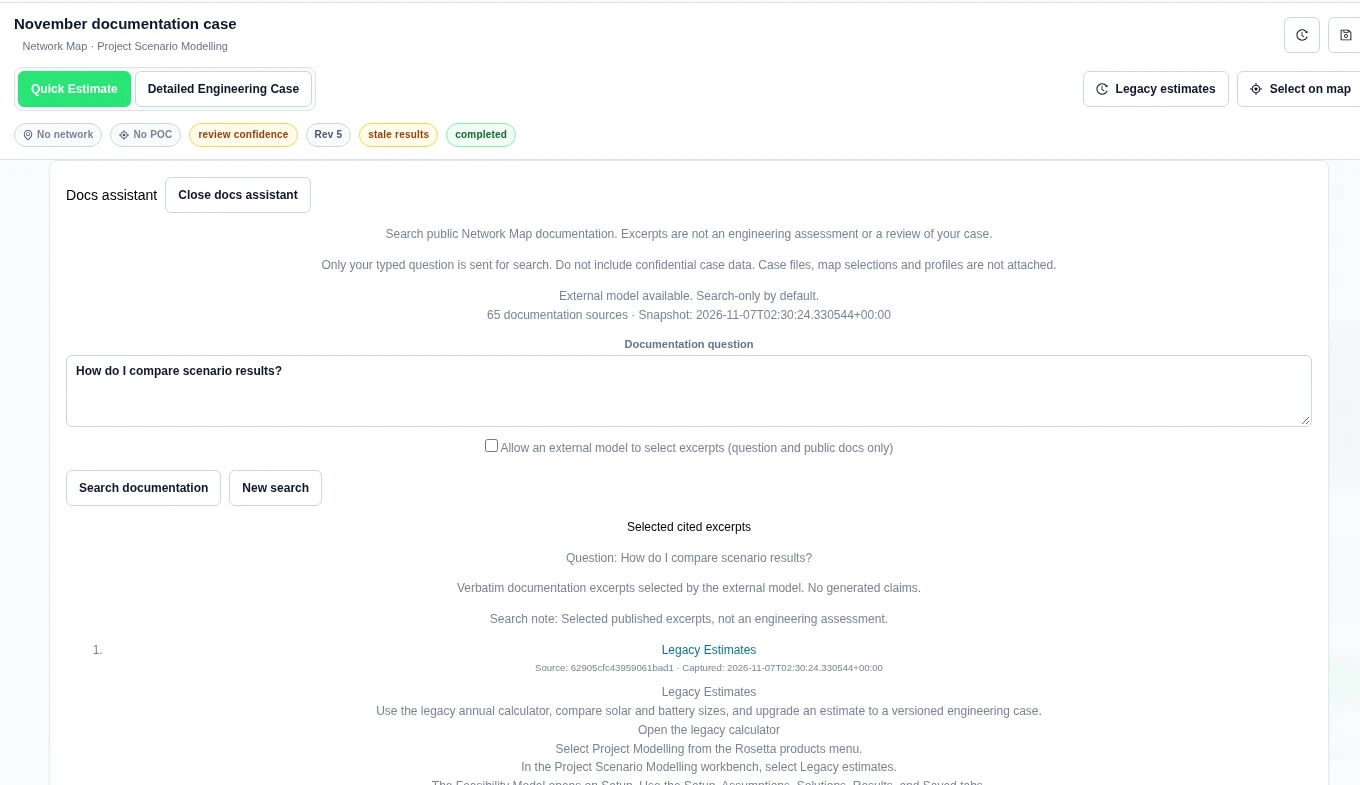
The opt-in sends the question and public documentation to the external model for excerpt selection. Returned text is verbatim documentation. A new question needs a new opt-in. If selection is unavailable, read the status and any search note; do not assume the model was used.
Worked example
On 7 November 2026, we asked How do I compare scenario results? The displayed snapshot contained 65 documentation sources.
| Mode | Observed result |
|---|---|
| Search-only | 5 cited source excerpts. The search note said the external model was not used. |
| Opted-in selection | 3 selected cited excerpts, from Legacy Estimates, Engineering Studies and Project Modelling. |
The model did not produce a new explanation or inspect our scenario. The linked guides supplied the text. Results and source counts can change when the documentation snapshot or selection changes.
Use the excerpt conversation
- Select Open excerpt conversation.
- Enter a Conversation question. Keep confidential information out of the question.
- Select Send conversation question. The reply delivers quoted public excerpts and links. It does not generate an explanation.
- Ask a follow-up in the same panel. It can reuse up to three cited excerpts from the previous completed reply.
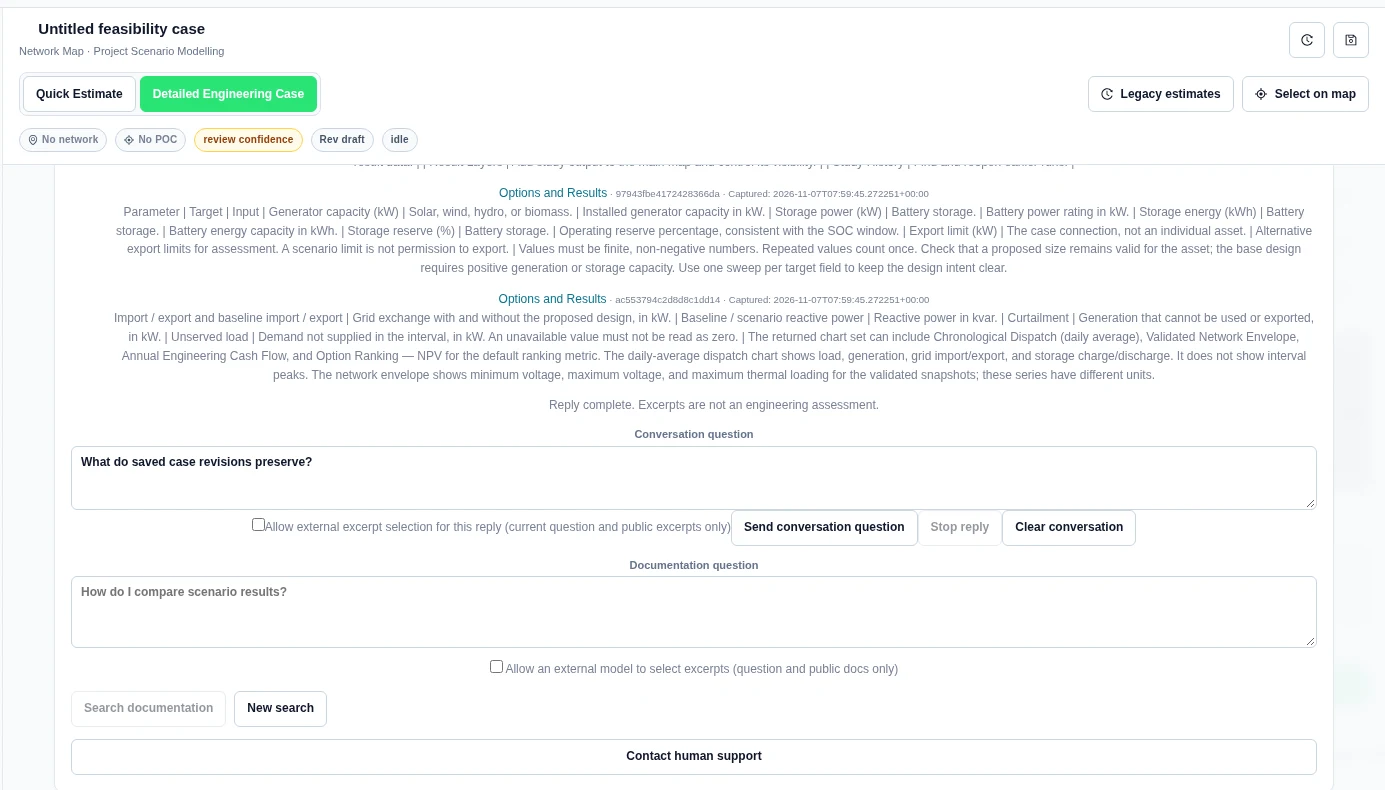
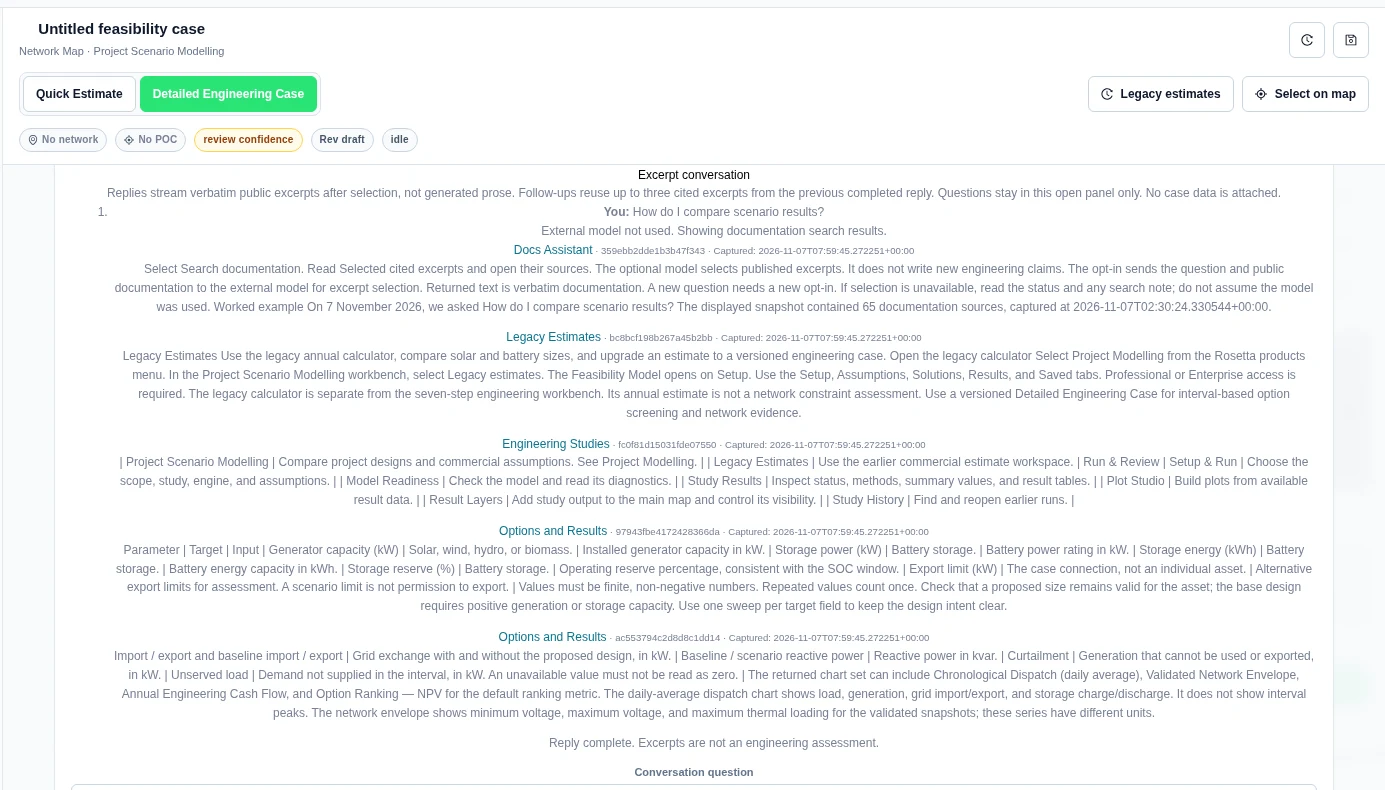
Stop reply cancels delivery. Clear conversation removes local history. The panel keeps at most ten turns. Closing it clears the conversation. Questions are not saved as a server transcript. A new documentation snapshot needs a new conversation.
Copy, rate and save a reply
- After Reply complete, select Copy answer with citations. The excerpts are copied with their source titles and links.
- To rate the reply, optionally enter text under Feedback for this answer, then select Helpful answer or Not helpful.
- To keep a private copy, tick Save these questions and cited public excerpts to my account, then select Save private conversation.
- Select List my saved conversations. Use Open saved conversation to load one into the panel, or Delete saved conversation to remove it.
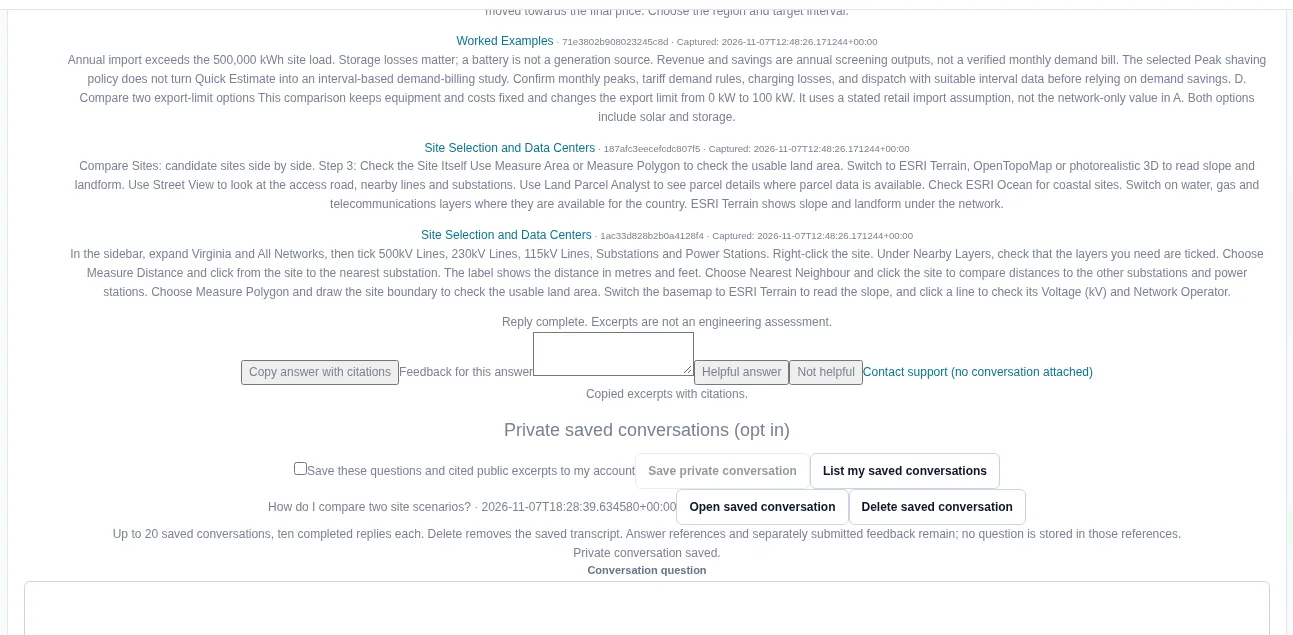
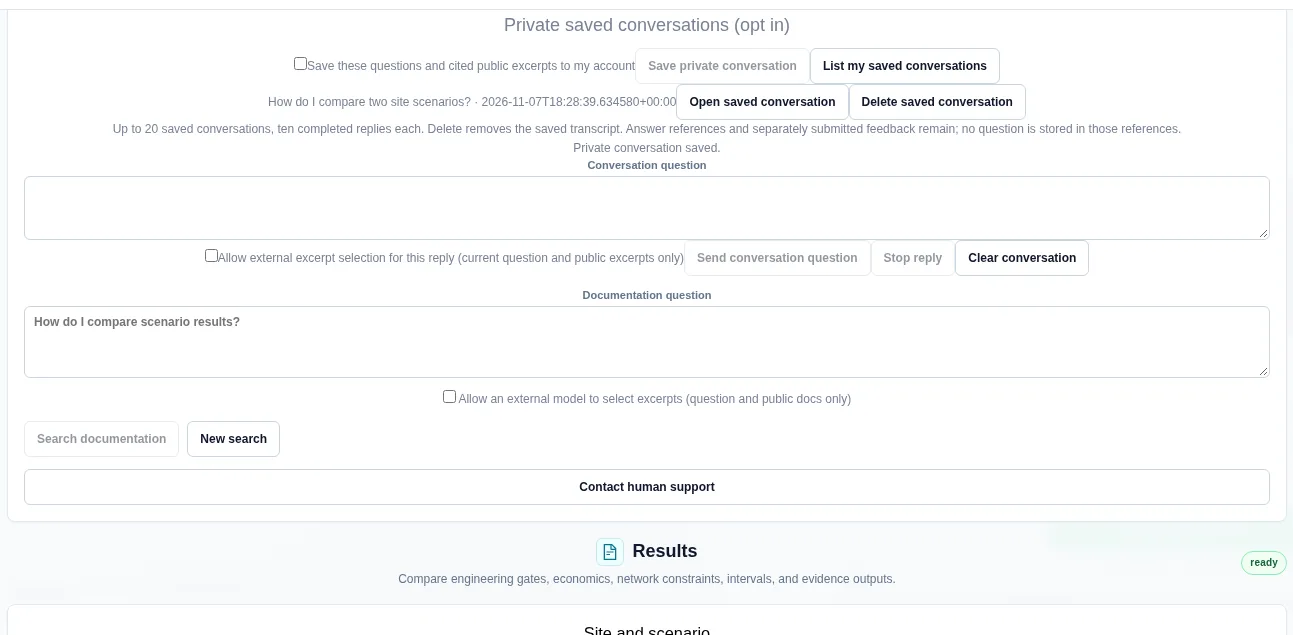
You can keep up to 20 saved conversations, each with up to ten completed replies. An opened copy is labelled as saved verbatim excerpts. Delete removes the saved transcript. Answer references and feedback you sent stay, but they do not store your question. After a delete, clear the open panel separately.
After you rate a reply, the panel shows "Feedback saved for this answer."
Get help
The separate New search control starts a documentation search. Use the excerpt conversation when you want citation context from the preceding reply.
Use Helpful or Not helpful to rate a response. An optional feedback comment is limited to 1,000 characters. Only the rating, comment and response reference are saved. Keep confidential details out of feedback.
Contact human support prepares an editable email draft with your question and citations. Opening the email app does not send the message. No case data is attached.
Check the documentation snapshot
Open Docs assistant and read the source count and snapshot time above Documentation question. The count and the snapshot time identify the searchable documentation set.