

Docs Menu
Engineering Exports and Handoffs
Export study results, reviewed circuit revisions, and presentation files with the data and checks needed for the next engineering step.
Watch the Video: Engineering Exports & Handoffs (1:26)
Choose the Right Handoff
- Use Exports & Handoffs for exchange packages from a completed engineering study.
- Use Export PSS/E in Grid Circuit Builder for a strict export from a saved circuit revision.
- Use PowerFactory Model Builder for versioned sources, reviewed data corrections, and a DGS package with local validation evidence.
- Use Vendor run package in Setup & Run to prepare a PSS/E, PowerFactory, PSCAD or TSAT run, import the returned results and benchmark two result sets. See Prepare a vendor run package.
- Use Presentation for a report in PowerPoint or PDF.
- Use Export plotted data in Plot Studio for the active plot’s CSV or JSON.
Generate a Completed-Study Package
Professional or Enterprise access is required. The active study must be complete and accessible to you. Run required means that you need a completed study. Completed study means that a study is available for export.
- Open the completed study.
- Open Exports & Handoffs.
- Under Export Targets, select at least one target. A selected card shows Selected; an unselected card shows Add.
- Use Select All or Clear if needed.
- Review PSS/E Profile if you selected the PSS/E target.
- Set Include results. It is selected by default.
- Select Generate Package.
- Read Warnings and any target-specific validation details.
- Select Download ZIP, or download individual entries from Files.
Package JSON downloads the package response, including its file contents and archive data. It is not only the package manifest. The file list shows each path, size, and MIME type.
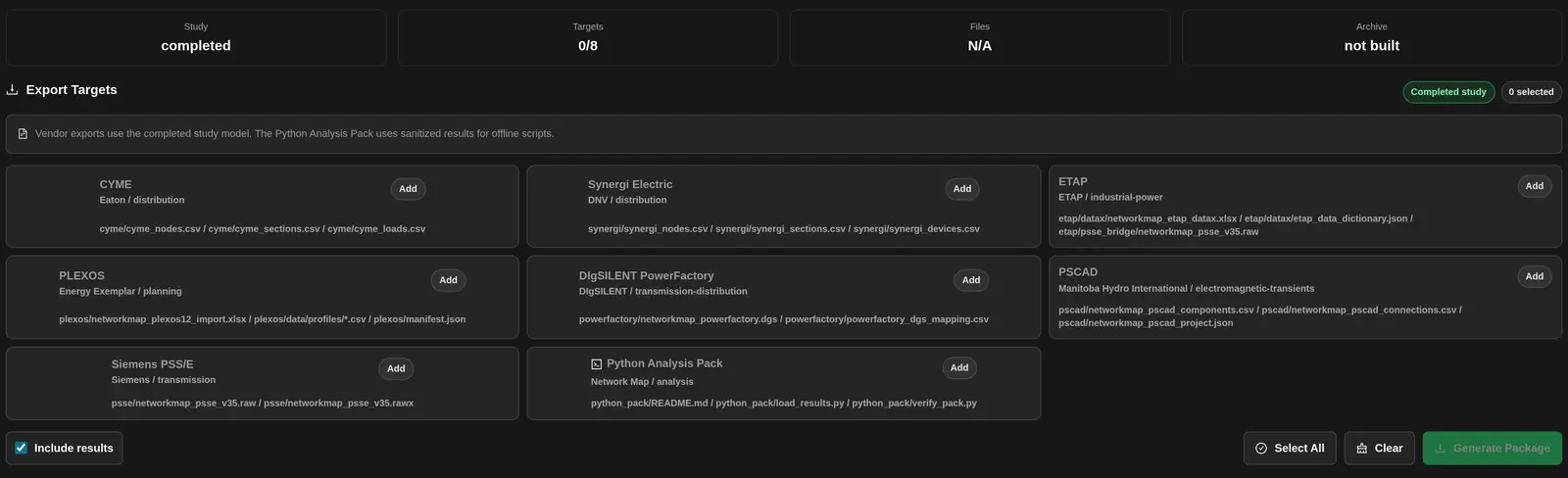
Formats and Requirements
| Target | Files and contents | Required follow-up |
|---|---|---|
| CYME | Node, section, load, and distributed-generation CSV files, plus import notes. | Map the CSV columns and equipment data to your local libraries. Review connectivity and units. |
| Synergi Electric | Node, section, and device CSV files, plus import notes. | Map equipment and fields to your local model. Check network connections and device parameters. |
| ETAP | DataX-oriented XLSX with Bus, Cable, TwoWindingTransformer, LumpedLoad, Generator, and Switch sheets; dictionary JSON; equipment CSV; and a PSS/E v35 RAW bridge. | Review the workbook mapping and equipment libraries. Import and validate the resulting model in your licensed installation. |
| PLEXOS | PLEXOS 12 Import Wizard XLSX; relative profile CSV files; object, membership, and property CSV files; manifest, mapping, and validation JSON. | Use the licensed PLEXOS 12 Import Wizard. Review missing inputs, units, memberships, and profiles. Validate the import and run a minimal ST Schedule case. The workbook is an import candidate, not a verified solved model. |
| PowerFactory | DGS-oriented exchange file with lookup and mapping CSV files. | Review type mappings and local libraries before import. For versioned sources and reviewed corrections, use the separate Network Model Builder. |
| PSCAD | Component and connectivity CSV files with project-settings JSON. | Assemble and review the electromagnetic-transient model in your own environment. This is not a native .pscx or .pswx project. |
| PSS/E | v35 RAW, alias RAW, RAWX, SEQ, DYR, profile JSON, mapping CSV, and validate_with_psspy.py. | Verify electrical data, sequence data, and dynamic models against source records. Import and solve in a licensed PSS/E environment. |
| Python Analysis Pack | Sanitized study_summary.json, charts.json, redaction_report.json, result-table CSV files, README, requirements, load_results.py, and verify_pack.py. | Use a suitable local Python environment and follow the README. Check the redaction report before sharing. This pack is for result analysis, not electrical-model interchange. |
The PLEXOS workbook is the main import path. Legacy staging XML or CSV files can accompany the package for backward compatibility; do not treat them as a native solved project.
Common Files and Data Handling
Packages with model-exchange targets include a README, manifest, canonical-model JSON, request JSON, and equipment CSV files. The equipment tables cover buses, branches, transformers, loads, generators, storage, and switches. Read the validation material as well as the target-specific import notes.
Include results adds study-result JSON, a result summary CSV, and available result-table CSV files. Missing values are not verified zero values. A check without a required limit is not assessed.
A Python-only package uses sanitized result files and excludes the raw model and map payload. If you combine Python Analysis Pack with a model-exchange target, the other files in the same ZIP can contain model and geographic data. Review the whole archive before sharing it.
PSS/E Profile and Readiness
The completed-study export has editable numbering, voltage, and machine settings. These initial profile values are not evidence about the actual network. Replace them with values appropriate to the model and source records.
| Field | Initial value | Use |
|---|---|---|
| Bus number start | 1 | Starting record number; use a valid numbering scheme. |
| Default area | 1 | Default area number. |
| Default zone | 1 | Default zone number. |
| Default owner | 1 | Default owner number. |
| Swing bus ID | Blank | Use an existing model identity. Use Selected Asset as Swing copies the selected asset ID when one is available. |
| Voltage target | 1 pu | Voltage target for the profile. |
| Generator voltage setpoint | 1 pu | Generator voltage target. |
| Machine base | 100 MVA | Machine base for the profile; verify against the actual machine. |
| Q maximum | 999 MVAr | Initial profile entry, not a verified equipment capability. |
| Q minimum | −999 MVAr | Initial profile entry, not a verified equipment capability. |
After generation, PSS/E Readiness lists the RAW, RAWX, SEQ/DYR, and validator files. A file marked ready or included is present in the package. missing or partial means that the expected file set is incomplete. These labels do not report a licensed import or solve.
| Diagnostic status | Meaning | Next action |
|---|---|---|
| blocked | The export check reports an error. | Correct the model or export settings before relying on the package. |
| review | A warning requires attention. | Check the stated assumption, mapping, or missing input. |
| ready | The check reports a note without a blocking error at that check. | Continue with source-data review and local import validation. |
Read the full diagnostic message. Do not treat generated SEQ or DYR file names as evidence that the package contains verified sequence parameters or approved dynamic models.
Strict Circuit-Revision PSS/E Export
This is a separate path from completed-study packages. It exports a saved circuit revision. It does not require a completed study. You need access to the project and the circuit.
- Open the required revision in Grid Circuit Builder.
- Save any edits with Save revision.
- In PSS/E export, choose Version: 36, the default, or 35.
- Select any required preserved attachments.
- Select Download PSS/E package, or use the toolbar’s Export PSS/E button.
- Wait for the download. If a check blocks export, read the message and correct the saved revision before trying again.
| Data group | Examples of required explicit data |
|---|---|
| Buses | Valid bus numbers and types; nominal kV; area, zone, and owner; initial voltage and angle; voltage limits. |
| Branches | Valid terminal identities; circuit ID; resistance and reactance; charging and terminal shunts; A, B, and C ratings. |
| Transformers | Winding voltages, impedance and base data, taps, ratings, and valid terminal identities. |
| Generators | At least one explicit generator; machine identity; active and reactive limits; machine base; voltage control, owner, and participation data. |
| Imported model | Resolved import and reconciliation findings; mapped electrical sections; current attachment identity bindings. |
A grid-source placeholder is not an explicit machine record. Supply the required generator data rather than relying on a source symbol to create it. Strict export also checks loads, storage, shunts, switchgear, and power-electronic equipment. It can reject equipment that cannot be represented by this export. Read the specific message before changing the model.
Preserved Attachments
- Include preserved SEQ attachment includes an imported sequence file only when its current identity binding and version are valid. This path does not synthesize sequence data.
- Include CON / MON / SUB definitions includes applicable contingency, monitor, and subsystem definitions. Imported definitions must remain valid for the current identities and version.
- Include preserved DYR attachment includes a valid imported dynamics attachment. It does not create machine dynamics from missing data.
These options are off by default. Recheck attachments after identity or model changes. A stale or incompatible attachment can block the requested export.
The ZIP includes versioned RAW and RAWX files, a manifest with the revision ID, content digest, and canonical-model digest, and validate_with_psspy.py. It includes only applicable optional attachments. Run the supplied validator in your licensed PSS/E environment and review its output.
Reviewed Model-Builder Package
The separate PowerFactory Model Builder adds immutable source and recipe revisions, preflight findings, reviewed corrections, and a local bootstrap script. Its outputs include a DGS candidate, canonical model, mapping, quality and correction records, map coverage, checksums, and selected enrichment files.
Use your licensed target-version installation to import and check the package. You can attach its local report and a customer-generated PFD file to the build. See Network Model Builder for the full procedure.
Export a Presentation
Open Presentation from Study Results. The result must be completed, current, and eligible for reporting. Wait for the current result to load before exporting.
- Enter Presentation title. The limit is 160 characters.
- Optionally enter Client or audience and Prepared by. Each has a 120-character limit.
- Set Confidentiality to Confidential, Internal, Client confidential, or Public. The default is Confidential.
- Set Export format to PowerPoint (.pptx), PDF (.pdf), or PowerPoint and PDF. The default is PowerPoint (.pptx).
- Select the required Presentation sections.
- Select Include current map if map capture is available and needed.
- Select Export presentation.
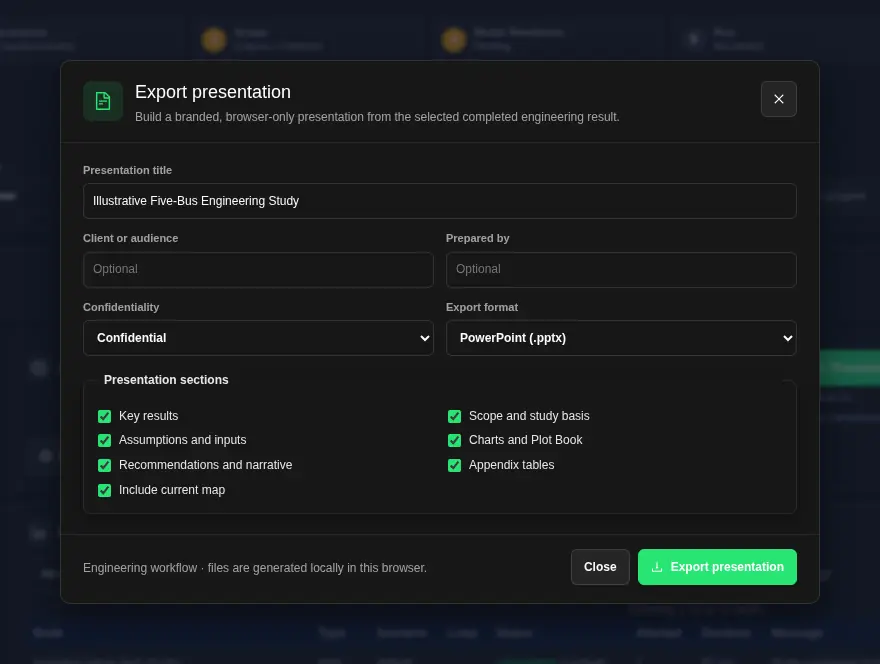
The section choices are Key results, Scope and study basis, Assumptions and inputs, Charts and Plot Book, Recommendations and narrative, and Appendix tables. The report is generated in your browser. It summarizes the result; it is not a complete raw-data export. Large tables and chart sets can be shortened for presentation.
The 3D viewport is not included in map capture. If capture fails, select Retry map capture or Continue without map. Use Cancel export to stop generation, or Close when finished. Review all warnings and unresolved diagnostics before sharing the files.
Plot Data and Quick Map Export
In Plot Studio, Export plotted data provides CSV for the active series and categories, or JSON for the active plot object. Select a plot first. These browser downloads are not electrical-model interchange files.
The map toolbar’s Quick PSS®E Export downloads a RAW file from the current map view. Load the map and add layers first. This shortcut is not the strict circuit-revision export and is not based on a completed engineering study. Use a reviewed circuit or study package for an engineering handoff, and verify all electrical data before local import.
Run a Prepared Case in Your Licensed Solver
Network Map prepares a run package. You run it in your own licensed tool, then return the results for checks. A PSS/E licence is not included. Network Map does not run the vendor simulation for you. The same applies to PowerFactory, PSCAD and TSAT.
Prepare a vendor run package
- Choose the project in Grid Circuit Builder or Projects & Flows. Setup & Run lists only published, study-ready circuit revisions of that project.
- Open Setup & Run. Choose Circuit Revision.
- Under Published circuit revision, choose the revision to study. Wait until the panel says the scope is pinned to that circuit revision.
- In Operating Case, open Vendor run package (PSS/E, PowerFactory, PSCAD, TSAT).
- Under Run settings, enter the Run name. In Tool, choose Siemens PSS/E, DIgSILENT PowerFactory, PSCAD or DSATools TSAT. Choose the Version.
- Set Duration (s), Time step (s) and Output step (s).
- Choose the Source model: Network Map circuit (solved RAW v35/v36) or My own case or project. You can paste dynamic data in DYR text (optional).
- Under Events, choose the Event type and choose Add event. You can also edit Events (JSON).
- Under Channels, choose the Element kind, enter the Element id, choose the Quantity and choose Add channel. You can also edit Channels (JSON).
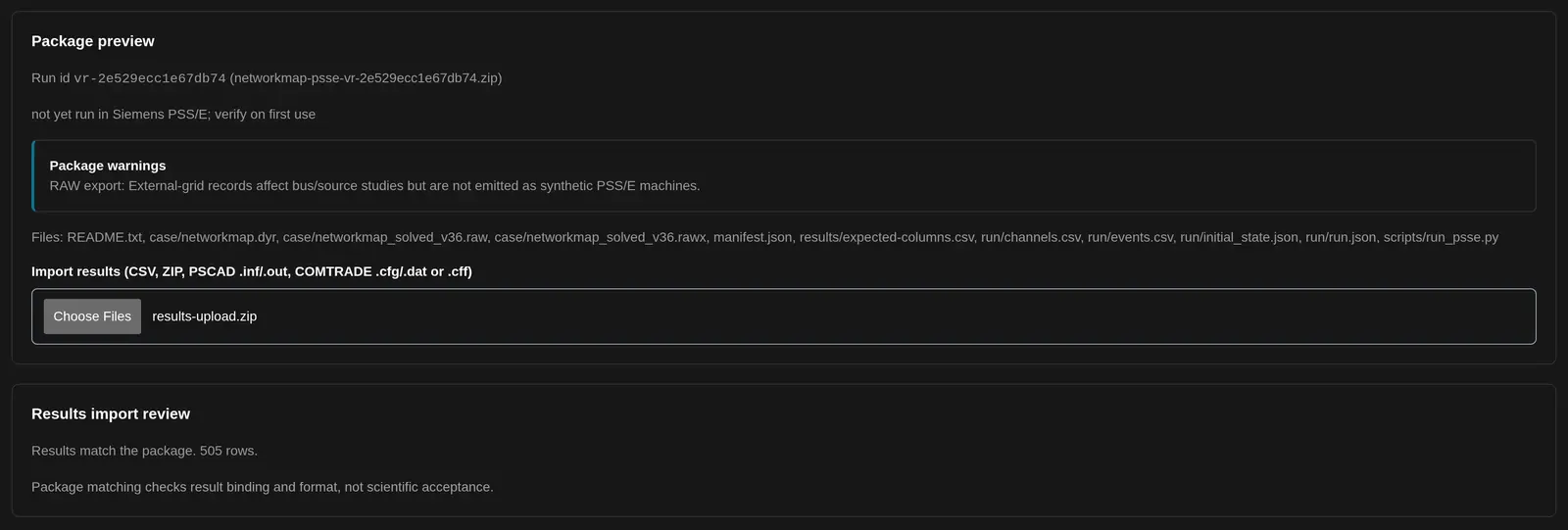
- Choose Check package. Read the Package preview: the run id and package file name, the script status, any Package warnings and the list of files.
- Choose Download package. Run the package in your own licensed tool.
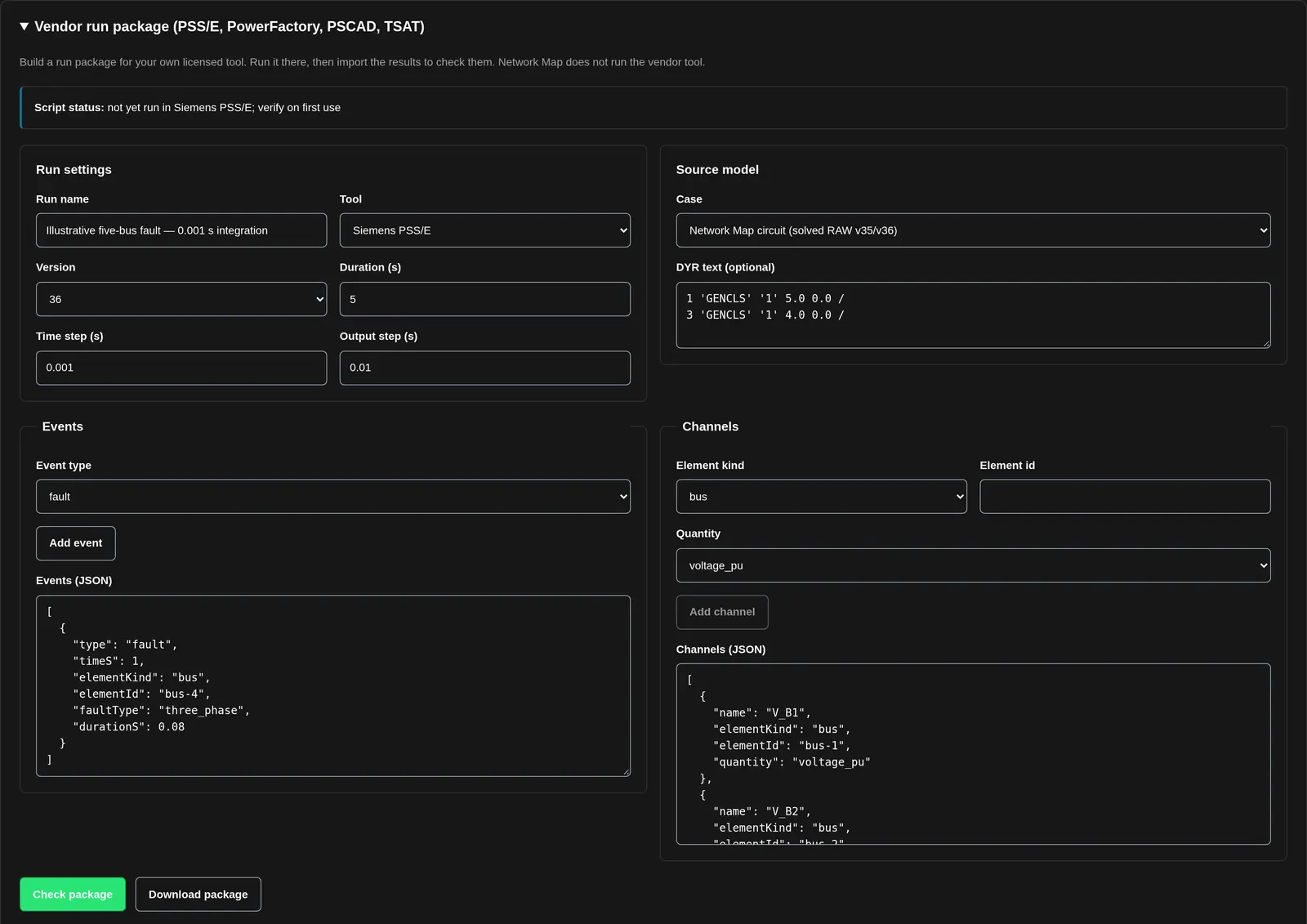
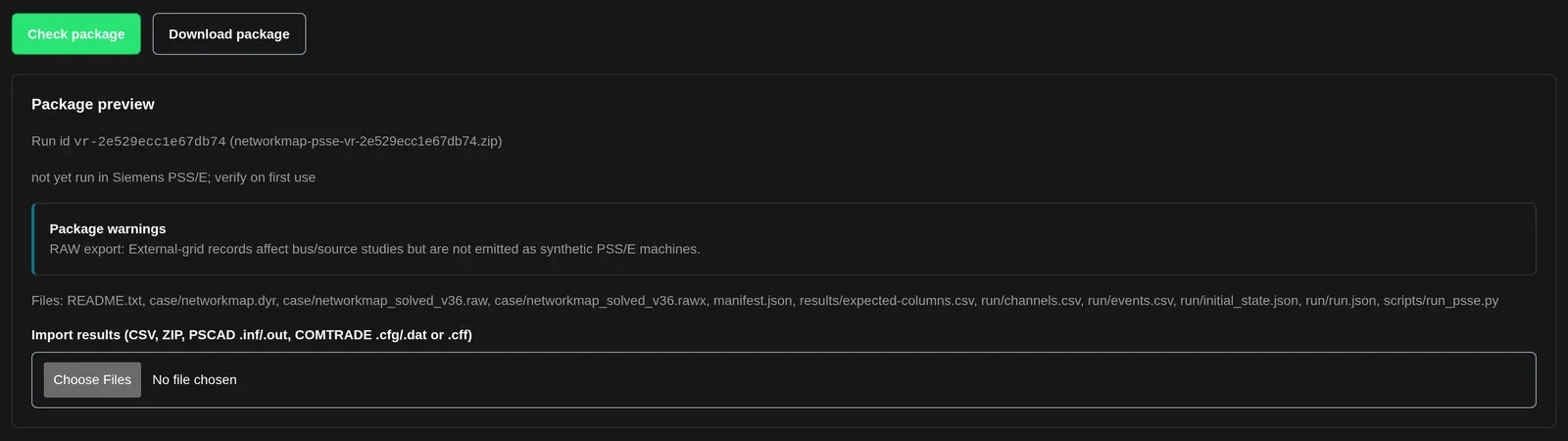
For a Siemens PSS/E package, the script status says not yet run in Siemens PSS/E; verify on first use. The status names the tool you chose. Check the first run in your own tool with care.
Import the returned results
- Keep the same package open. Under the Package preview, find Import results (CSV, ZIP, PSCAD .inf/.out, COMTRADE .cfg/.dat or .cff).
- Select the result files from your licensed run.
- Read Results import review. When the files match, it says Results match the package. with the row count, for example Results match the package. 505 rows.
Benchmark two result sets
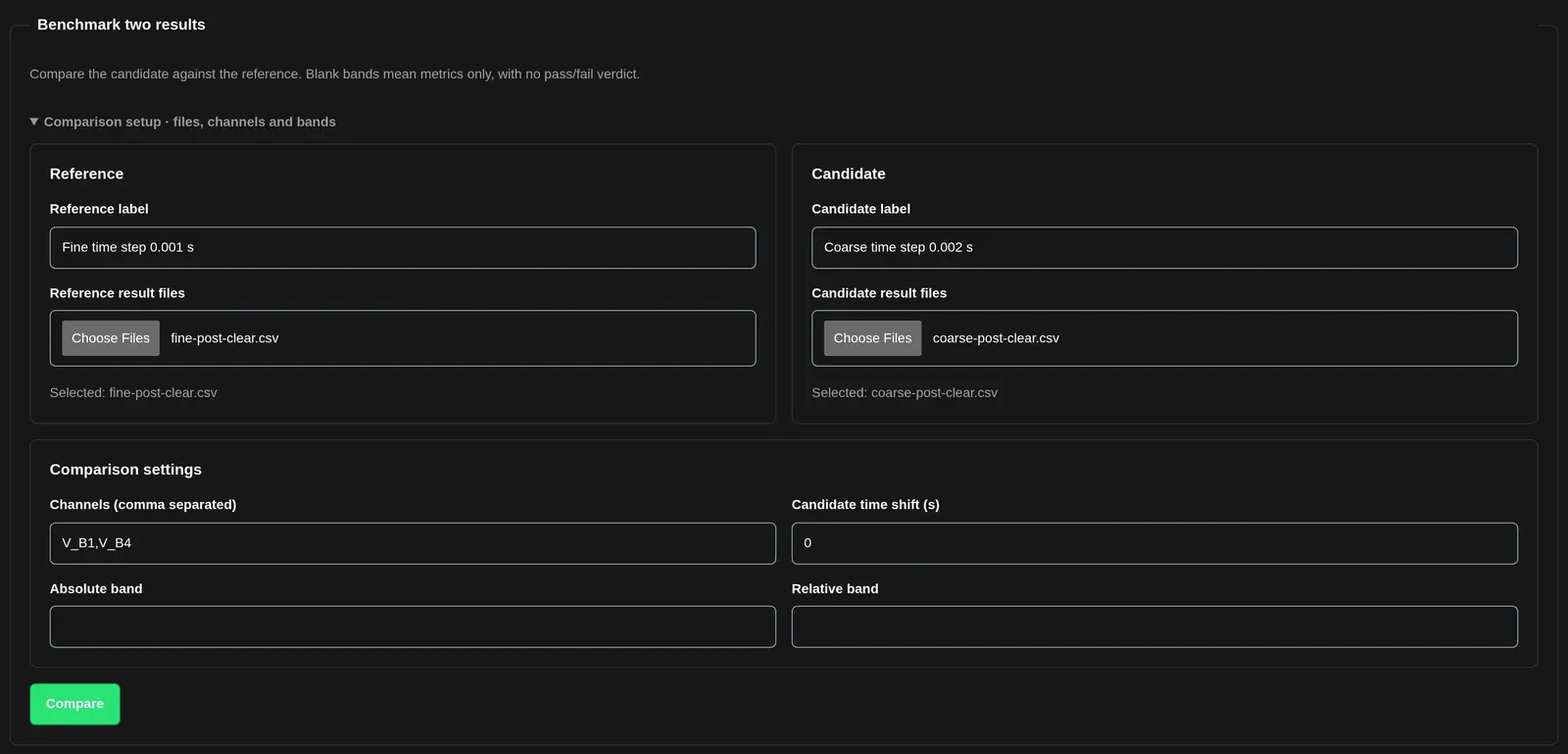
Benchmark two results is further down the same vendor run package panel. It compares a candidate result set with a reference result set, channel by channel. Blank bands mean metrics only, with no pass or fail.
- Under Reference, enter the Reference label and select the Reference result files.
- Under Candidate, enter the Candidate label and select the Candidate result files.
- In Channels (comma separated), enter the channels to compare. Use channel names that are in both sets.
- Leave Candidate time shift (s) at 0 unless you have a recorded reason to shift it.
- Leave Absolute band and Relative band blank to get metrics only.
- Choose Compare.
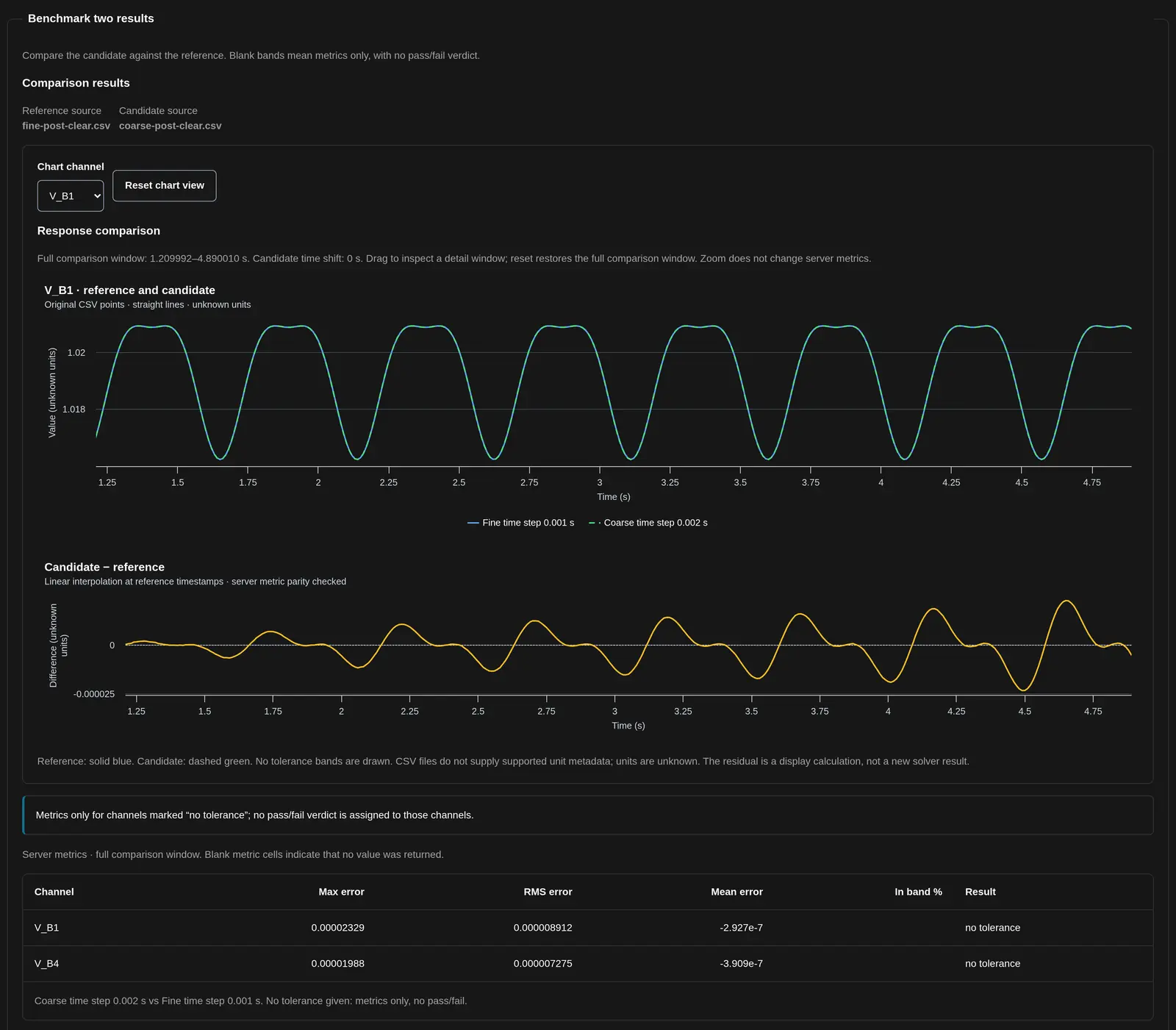
Comparison results shows:
- A Response comparison chart of the reference and the candidate for one channel. Choose the channel in Chart channel. Drag to look at a detail. Reset chart view shows the full window again. Zoom does not change the metrics.
- A Candidate − reference chart of the difference.
- A table with the columns Channel, Max error, RMS error, Mean error, In band % and Result.
With no band set, In band % is blank and Result shows no tolerance. The line under the table says No tolerance given: metrics only, no pass/fail. CSV files do not carry unit data, so the charts say the units are unknown.
Before you run a dynamic case
Check the case, tool version, event sequence, channels and timing before exporting. Retain the package manifest. Inspect the native import log, solved operating point and initialization findings before dynamics, and keep those logs with the output files.
For generated PSS/E dynamic cases, each in-service generator needs explicit source resistance and reactance on its machine MVA base. Resistance can be zero; reactance must be positive. These parameters are not inferred from the external-grid fault level. The stock single-machine harness DYR contains the infinite-bus model, not a plant model. Supply appropriate plant dynamics from an authorized source.
Return results to the matching workflow and read the validation findings before continuing. Record the model calibration, tool version and applicable study requirements with the handoff.
Related Guides
- Grid Circuit Builder
- Grid Circuit Element Reference
- Network Model Import and Validation
- Network Model Builder
- Running Engineering Studies
- Workspace Collaboration and Sharing


