

Docs Menu
Search and Navigation
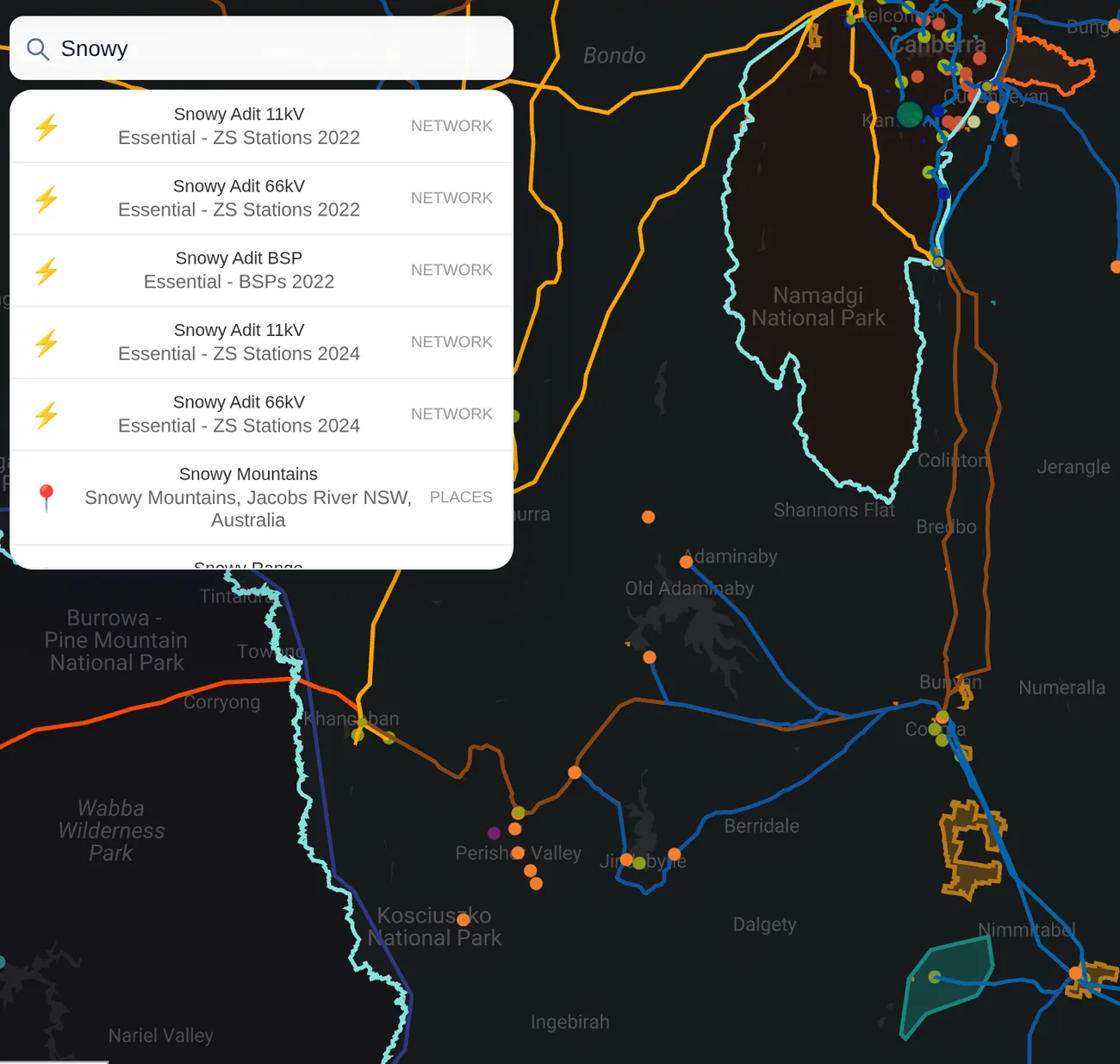
Network Map has two search boxes. Smart Spatial Search on the map finds places, networks, layers and assets anywhere in the world. The Network Filter in the sidebar narrows the list of networks and layers you can switch on.
Smart Spatial Search
Watch the Video: Smart Spatial Search & Nearby Layers (0:58)
Smart Spatial Search sits at the top left of the map (it reads Spatial Search on narrow phone screens). It searches two sources at once and shows them together:
| Result tag | What it finds | What happens when you choose it |
|---|---|---|
| Places | Addresses, suburbs, towns, landmarks and regions from Google Places | The map centres on the place and drops a search marker |
| Network: electricity network | Network businesses, shown with the description "Electricity Network" | Opens that network: its layers in the sidebar and its information card |
| Network: layer | A named layer, such as a network's substations or transmission lines | Switches the layer on and loads it on the map |
| Network: asset | A named asset, shown as "<network> - <layer>" | Loads the layer the asset belongs to so you can find and select it |
How to Search
- Click in Smart Spatial Search and type at least two characters. Results appear as you type.
- Look at the tag on each result: Network results come first, and up to three Places results are always kept, so you see both kinds even for a common name. Up to eight results are shown.
- Use the Up and Down arrow keys to move through the list and Enter to choose, or click a result. Esc closes the list.
Search by Coordinates
Type a latitude and longitude and press Enter. Any of these forms works: -33.86, 151.21, -33.86 151.21 or (-33.86, 151.21). The map centres on the point at street-level zoom and drops a marker. If the numbers only make sense the other way round, Network Map swaps them for you.
Network Filter
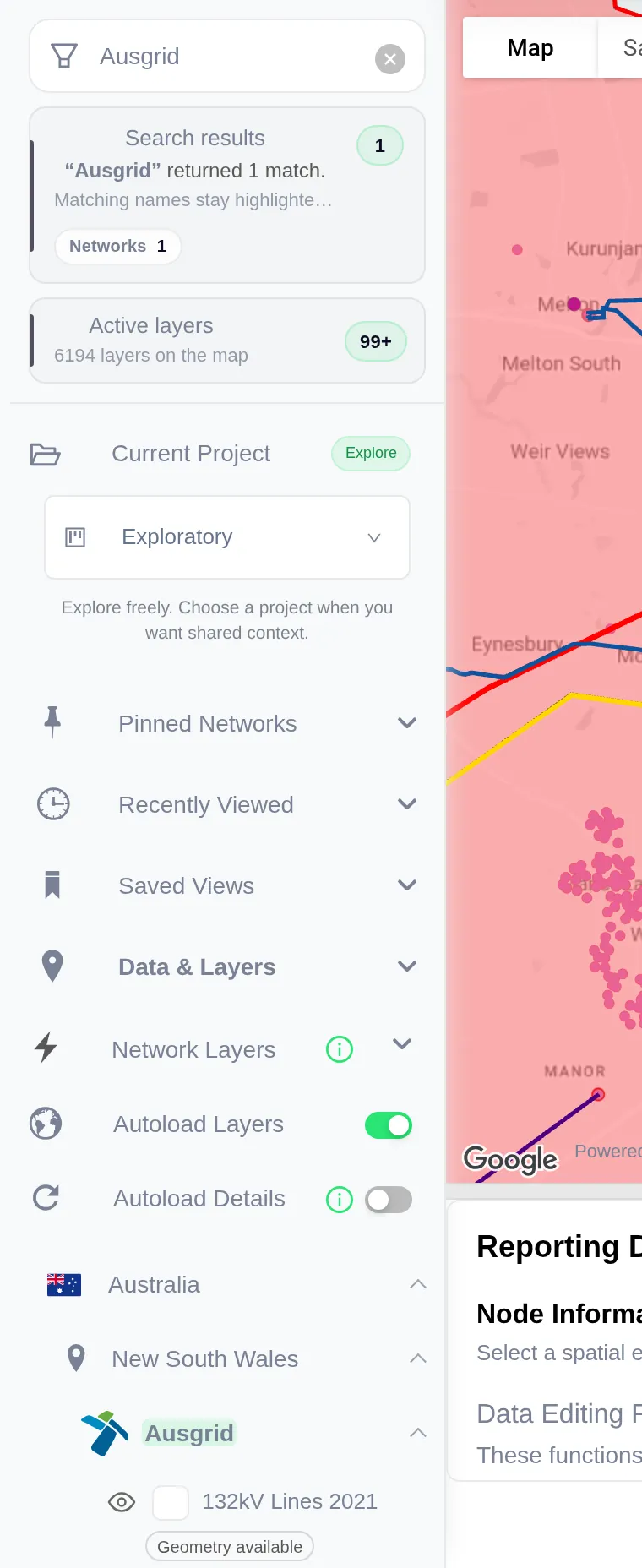
The Network Filter box at the top of the sidebar filters what the sidebar shows rather than moving the map. Type part of a name and the sidebar keeps matching items highlighted. It matches:
- network names, countries and states or regions;
- layer names inside each network;
- your own layers in Session Layers and Saved Layers.
A summary shows how many matches were found, with counts for Networks, My layers and Saved. If nothing matches you will see No direct matches, and the full sidebar stays available so you can keep browsing. Clear the box with the × button.
Jump to a Country or Network
From the Sidebar
- Under Network Layers, expand a country, then a state or region, then a network.
- Choose Center to Layer on any layer to load it if needed and move the map to it.
- Countries that have not loaded yet show Load <country> on the map. Choose it to pan to the country and load its layers. Countries load on demand to stay within your browser's memory.
Your own country is listed first, then the United States and Canada, then every other country from A to Z.
From Recently Viewed and Pinned Networks
Signed-in users get Recently Viewed and Pinned Networks lists in the sidebar. Choose a network in either list to expand it and scroll to it in the tree. See Layers, Networks and Projects.
From the Public Network Pages
Every network operator has a public profile at portal.networkmap.energy/viewer/network/<network>, grouped by country at portal.networkmap.energy/networks. See Network Profiles and Country Pages.
Moving Around the Map
| To | Do this |
|---|---|
| Pan | Drag the map, or swipe on a touch screen |
| Zoom | Scroll, pinch, or double-click the map |
| Go back to a clean map | Use Reset Map Defaults (the refresh icon in the top bar) |
Your Saved View
Network Map remembers where you were. After the map stops moving, it saves the centre and zoom for the current browser tab, so reloading the page brings you back to the same view. A new tab, or a visit on another day, starts from your own country.
Plans
Smart Spatial Search and the Network Filter work on every account, including free accounts. Which layers you can switch on from a result depends on your plan; a layer above your plan opens the upgrade prompt. On public map pages opened without signing in, search is locked and asks you to sign up.