

Docs Menu
Network Model Builder
Build a reviewed DGS package from versioned network sources and validate the handoff in your own licensed engineering environment.
Open the Builder
Open PowerFactory Model Builder under Validation & Handoffs in Engineering Studies. Professional or Enterprise access is required. Select a project that you can edit before creating sources, recipes, or builds.
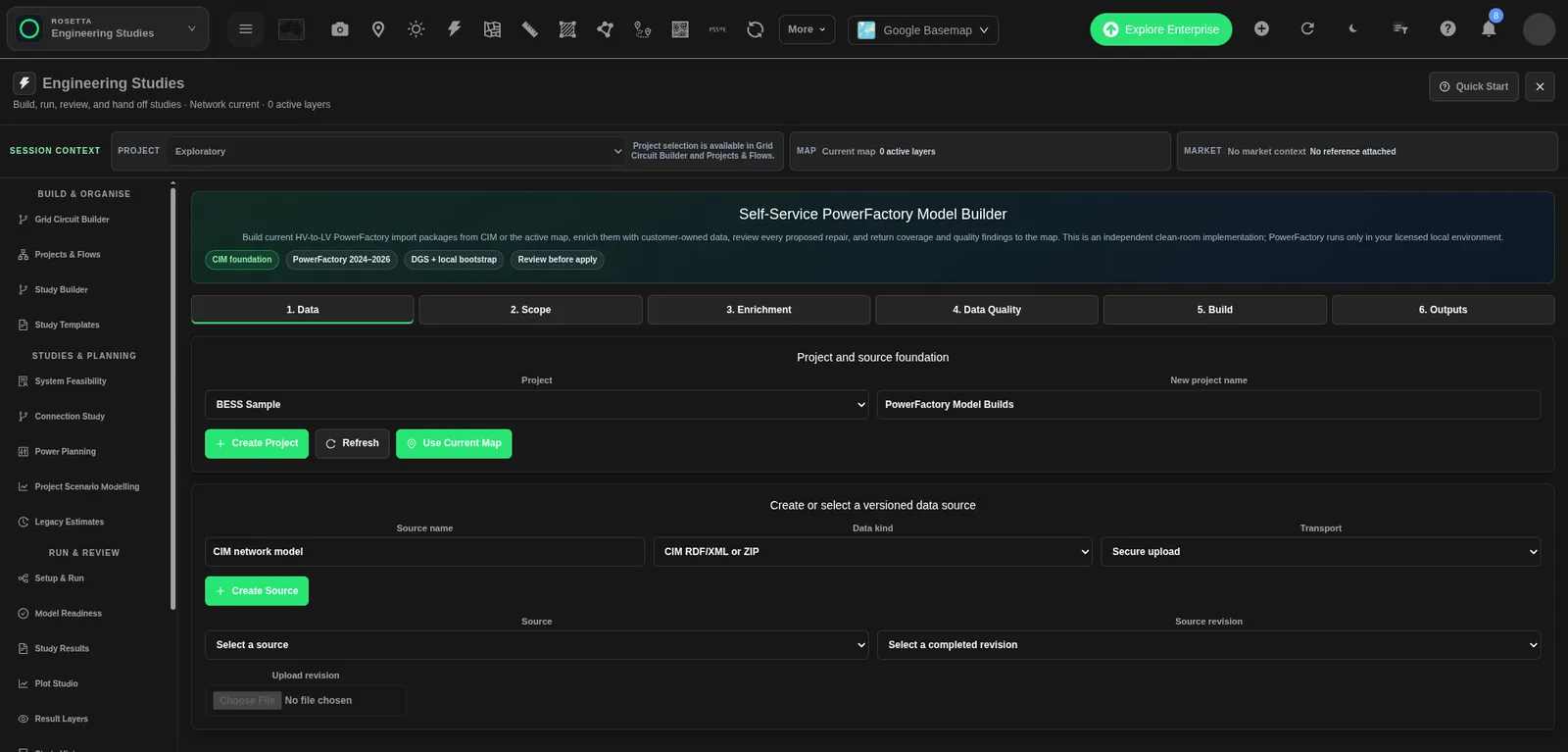
The workspace is titled Self-Service PowerFactory Model Builder. It has six steps: 1. Data, 2. Scope, 3. Enrichment, 4. Data Quality, 5. Build, and 6. Outputs. You can select a step directly.
1. Data
- Choose Project, or enter New project name and select Create Project. The initial project name is “PowerFactory Model Builds”.
- Select Refresh to reload the project’s sources, recipes, and jobs when needed.
- Choose an existing Source, or enter Source name, Data kind, and Transport, then select Create Source.
- Use Upload revision to upload the source file.
- Choose a completed Source revision.
The initial source name is “CIM network model”. A source keeps versioned uploads. A completed upload is available for recipe selection; an unfinished or failed revision is not.
Use the Map Instead
Select Use Current Map to capture available engineering features and selected assets into a versioned map snapshot. A project and usable map features are required. The builder creates or reuses a source named “Current Network Map” and advances to Scope.
Source Types and Files
| Data kind | Accepted input and purpose |
|---|---|
| CIM RDF/XML or ZIP | CIM RDF/XML or a ZIP archive containing the network source. |
| Current Network Map | A captured map snapshot in JSON. Use Use Current Map for the browser map. |
| Smart-meter timeseries | CSV, XLSX, or JSON rows. Required column groups are meterId or meter_id; timestamp or datetime; and pKw, p_kw, or value. |
| Protection database | CSV, XLSX, or JSON rows. Supply deviceMrid, device_mrid, or deviceId to identify the device. |
| QDSL model bindings | CSV, XLSX, or JSON rows. Supply modelKey or model_key, and foreignKey or foreign_key. |
| Customer PFD template | A customer-provided .pfd file. It is preserved and packaged, not inspected as an executable model on the server. |
JSON enrichment input can be an array of rows or an object with a rows array. Column checks are case-insensitive. Missing required columns produce findings; they are not silently replaced.
Secure upload is the normal transport. Map snapshot is available for the map-source kind. Only an administrator can create or refresh an Allowlisted HTTPS connector. When that transport is enabled, the administrator enters HTTPS endpoint and Credential environment reference, then uses Refresh Connector. The reference names a configured server credential; it is not a password field. The connector requires an approved HTTPS host.
2. Scope
- Enter Recipe name. The initial value is “PowerFactory model”.
- Choose Scope and supply its required inputs.
- Choose Target PowerFactory: 2024, 2025, or 2026. The default is 2026.
- Set Minimum kV and Maximum kV if you need voltage bounds. The minimum cannot exceed the maximum.
- Set PowerFactory project name. The initial value is “Network Map Model”.
- Enter Existing project type mappings (JSON; optional foreign keys) if your local project supplies reusable equipment-type foreign keys.
- Select Create Recipe. For an existing recipe, select Save New Revision.
- Select 3. Enrichment in the step list to add optional data. Create Recipe opens 4. Data Quality, so use the step list to return to enrichment when needed.
| Scope choice | Input |
|---|---|
| Whole network | Use the selected source revision as the network scope. |
| Substation containers | Enter comma-separated Container IDs (comma separated). |
| Feeder containers | Enter comma-separated Container IDs (comma separated). |
| Network zones | Enter comma-separated Container IDs (comma separated). |
| Map polygon | Paste a GeoJSON Polygon. This field is not a map-drawing tool. |
| Selected map assets | Use the current selected map assets. Check the displayed selection count. |
Use Recipe and Immutable revision to return to a stored recipe version. A new revision preserves the earlier one. A recipe records the source revision, scope, target version, enrichment choices, and review decisions.
3. Enrichment
- Choose sources for Smart-meter timeseries, Protection database, QDSL catalog/bindings, and Customer PFD template.
- Keep Not included for data you do not have.
- Select Save Enrichment Revision.
- Select Next: Data Quality.
The choices refer to the latest revision of each listed source. Use completed sources from the same project and of the correct data kind. Enrichment preserves traceable links and customer files. It does not invent meter profiles, protection settings, or licensed dynamic-model definitions.
4. Data Quality
- Select Run Preflight.
- Read each finding’s severity, rule, message, element identity, and field path.
- Use Accept proposal when a proposed correction is suitable.
- Use Override value to enter a reviewed replacement in the browser prompt where the finding identifies a field. Cancel the prompt to leave that decision unchanged.
- Use Acknowledge only for findings that allow acknowledgement.
- Select Save Review Decisions.
- Run preflight again for the new revision.
- Select Next: Build when ready.
Ready means no unresolved blocking findings remain. A count followed by blocking means the build still needs review. Correct the source and upload a new revision when a finding cannot be resolved safely in the review controls.
Review decisions create an immutable recipe revision. Accepted changes are applied to a working copy and recorded in a correction ledger. The build checks the resulting model again. The original source revision remains available.
5. Build
- Select Build PowerFactory Package.
- Read Status, Stage, Progress, and Compatibility.
- Use Refresh Queue when needed.
- In Recent model-builder jobs, select Open beside the job you want to inspect.
| Status | Meaning and next step |
|---|---|
| queued | The job is waiting for a worker. |
| running | The job is processing. Check its stage and progress. |
| waiting_for_review | Blocking findings require decisions. Return to Data Quality. |
| completed | That job finished. Open a completed build to inspect its output files. |
| failed | The job did not complete successfully. Read the message and correct the source or recipe before another build. |
| cancelled | The job stopped without completing the requested work. |
| skipped | No build work was performed for that job. Read its message for the reason. |
A completed scheduling job can mean that a child build was queued. Inspect the build job itself before treating a package as complete.
6. Outputs and Local Validation
Outputs shows the target version, compatibility status, reviewed-correction count, and artifact cards. Each card shows a filename, size, kind, SHA-256 hash, and Download button.
- The ZIP contains the DGS file, canonical model, bootstrap script and configuration, source-to-output mapping, reports, enrichment data, instructions, and checksums.
- Individual downloads include
networkmap_powerfactory.dgs,manifest.json,model_coverage.geojson,quality_findings.geojson,quality_report.json,correction_ledger.json,enrichment_linkage.json,powerfactory_mapping.csv,bootstrap.py,README_POWERFACTORY.txt, andSHA256SUMS. - Use Add to Map or Update Map to show model coverage and quality findings. Remove from Map removes those overlays.
- Download the completed build ZIP.
- Read
README_POWERFACTORY.txt. - Use the selected licensed PowerFactory version and its supported local Python environment.
- Import and activate your customer template if the package uses one.
- Follow the DGS import and bootstrap instructions.
- Perform the required local consistency and engineering checks.
- Use Upload powerfactory_local_report.json to attach the matching local report.
- Optionally use Upload customer-generated .pfd to attach your locally generated project file.
The report must identify the same build, build digest, and target version. A report for a different build is not valid evidence for this package. Upload the report produced by the supplied local procedure. A report can record a completed or failed local check. Read its contents; uploading a failed check is not evidence of a successful import.
| Compatibility status | Meaning |
|---|---|
| syntactic_candidate | The generated package is an import candidate. Local import and engineering checks are still required. |
| local_import_reported | A matching completed local report was uploaded. Preserve that report and review what it actually tested. |
Weekly Automatic Update
- Select the recipe, open 6. Outputs, and find Weekly automatic update.
- Set Enabled to Yes.
- Choose Weekday, Local time, and a valid IANA timezone.
- Select Save Schedule.
A new schedule defaults to disabled, Monday, 02:00, UTC. Set Enabled to No and save to stop automatic updates.
An administrator can schedule refreshes for an allowed HTTPS connector. Uploaded and map-snapshot sources use the latest completed stored revision. A schedule does not recapture the map open in your browser. New source revisions require fresh review decisions where findings apply.
Related Guides
- Network Model Import and Validation
- Grid Circuit Builder
- Engineering Exports and Handoffs
- Workspace Collaboration and Sharing


