

Docs Menu
Layers, Networks and Projects
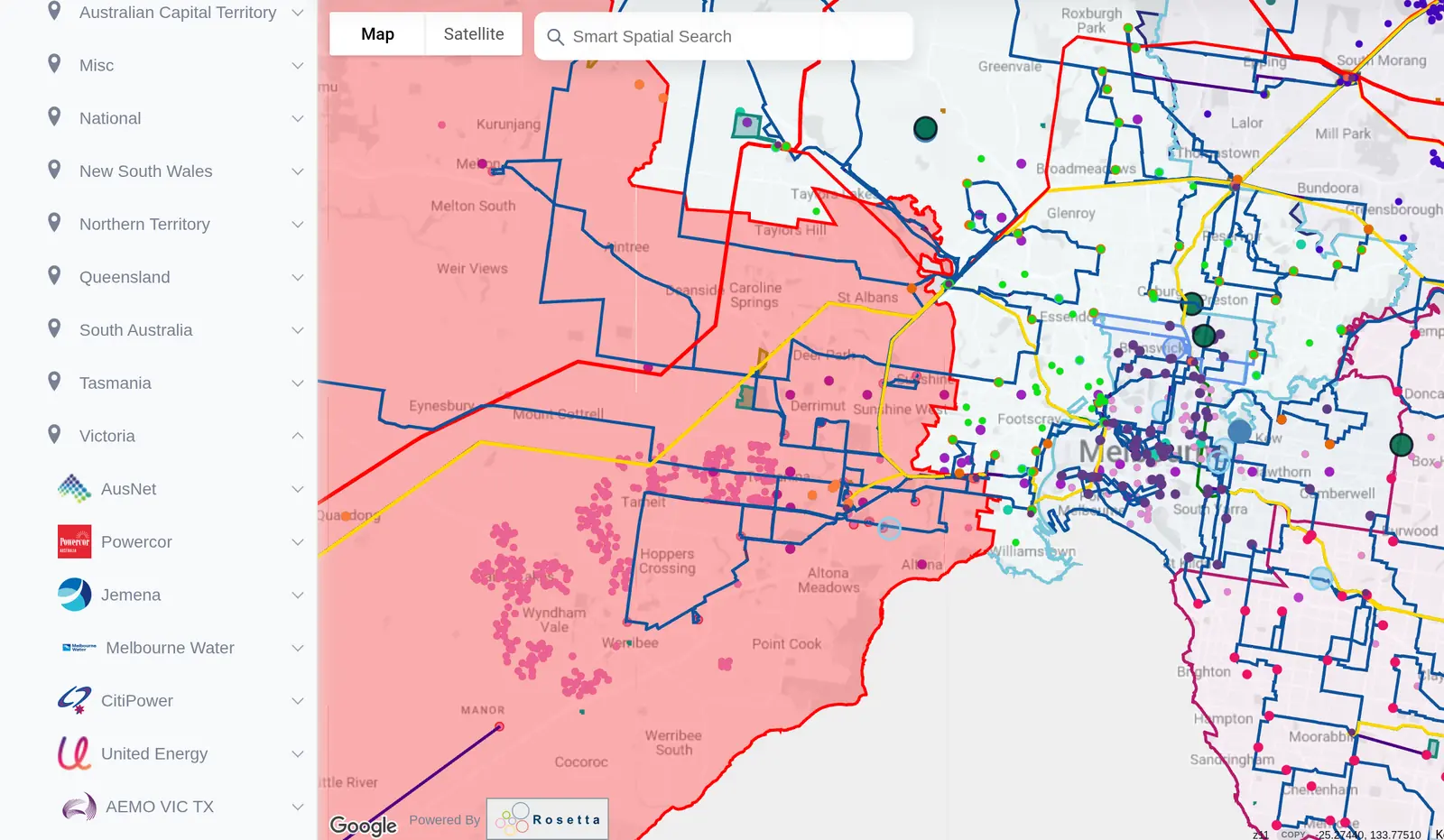
The sidebar is where you choose what is on the map. This guide covers the Network Layers tree, the Autoload switches, Recently Viewed and Pinned Networks, Data & Layers and the Current Project.
How Layers Are Organised
Network Map holds thousands of layers. In the Network Layers section of the sidebar they are arranged as a tree:
- Country: your own country first, then the United States and Canada, then every other country from A to Z.
- State or region within the country.
- Network: the network business, such as a transmission or distribution company, or a dataset such as power stations or data centers.
- Layers within the network, such as transmission lines, substations, poles or feeders.
Choose a network's name to open its information card, and the arrow beside it to show or hide its layers.
Layers and Layer Details
Each layer row has two tick boxes and a button:
| Control | What it does |
|---|---|
| Show layer on map | Draws the layer on the map. This is the fast, lightweight view used to see the network at any zoom. |
| Load detailed layer | Loads the layer's Layer Details: the individual assets you can click to see their attributes, measure to and export. |
| Center to Layer | Loads the layer if needed and moves the map to it. |
Use Select all and Clear all to switch a whole network's layers on or off at once. Counters under the Network Filter show how many Active layers and Active detailed layers you have.
Countries are loaded on demand to stay within your browser's memory. A country that is not loaded yet shows Load <country> on the map; choose it to pan there and load its layers.
How to Load a Network
Watch the Video: Adding a Layer (1:03)
- Type the network or place name into the Network Filter, or browse the tree.
- Expand the network and tick Show layer on map for the layers you want.
- Tick Load detailed layer on the layers whose assets you want to click and inspect.
- Choose Center to Layer to go there.
Autoload Layers and Autoload Details
Two switches at the top of Network Layers load layers for you as you move around the map.
| Switch | Default | What it does |
|---|---|---|
| Autoload Layers | On | Loads each country's default network layers for the area you are viewing. Turn it off to show only the layers you choose yourself. |
| Autoload Details | Off | When the map stops moving, loads the Layer Details for layers near the centre of the map (within about 5 km), so you can click assets without ticking each layer. Turn it off to keep layers visible but load less data. |
Autoload Details loads up to 50 detailed layers at a time (fewer on less powerful devices). When the limit is reached you will see Layer Details limit reached. Remove one to load another. It pauses while the browser tab is in the background, and after several layers fail to load in a row. Both switches are remembered in your browser.
Recently Viewed and Pinned Networks
When you are signed in, the sidebar keeps two short lists of networks:
- Recently Viewed shows the five networks you opened most recently, from the sidebar or from a network page.
- Pinned Networks keeps the networks you use often one click away.
How to Pin a Network
- Open the network once, so it appears in Recently Viewed.
- In Recently Viewed, choose Pin beside it. It now appears in Pinned Networks.
- Choose a pinned network's name to expand it and scroll to it in the tree. Choose Unpin to remove it.
Both lists are saved to your account, so they follow you to other browsers and devices.
Data & Layers
Data & Layers holds everything that is yours or that comes from another workspace, rather than from the network catalogue:
| Section | What it holds |
|---|---|
| Add Custom Layer | Upload your own SHP, GeoJSON or KML file. See Upload Custom Layers. |
| Context Layers | Layers added from other workspaces: study layers from Engineering Studies, project pins and Markets layers added with Add to Map |
| Session Layers | Layers you have added in this session, such as uploads, that are not saved yet |
| Saved Layers | Your saved layers, kept with your account |
Right-click a session layer and choose Save Layer to keep it; it moves to Saved Layers. Right-click a saved layer and choose Delete User Layer to remove it permanently.
Current Project
Current Project in the sidebar sets the project you are working on. Choose a project from the list and it follows you across Markets, Project Modelling and Engineering Studies, so sites, studies and market context stay together. Clear the selection to go back to Exploratory mode and browse freely.
The active project is part of the page address, so a link you share opens in the same project for colleagues who have access to it. Shared workspaces with viewer and editor access are part of the Pro plan.
Starting Again
If the map feels busy, use Reset Map Defaults (the refresh icon in the top bar). It clears your layers, Layer Details, drawings and filters, and turns both Autoload switches off.
Watch the Video: Resetting to Defaults (0:35)
Plans
Every plan can browse the tree. Each layer has its own plan level: ticking a layer above your plan opens the upgrade prompt. Analyst unlocks all electricity, gas and water networks, power stations and renewable projects, and custom layer uploads. Recently Viewed, Pinned Networks and Current Project need you to be signed in.