

Docs Menu
System Feasibility and Planning Studies
Use System Feasibility to record project needs, assess evidence, compare solution types, and prepare a deeper engineering or project study.
Open the workbench
Watch the Video: Power Planning & System Feasibility (1:26)
Open Engineering Studies, then System Feasibility. Professional or Enterprise access is required.
The six steps are Study Scope, Data, Profiles, Solutions, Analyse, and Report. Select a step directly, or use Back and Continue. Review validation findings before running the assessment.
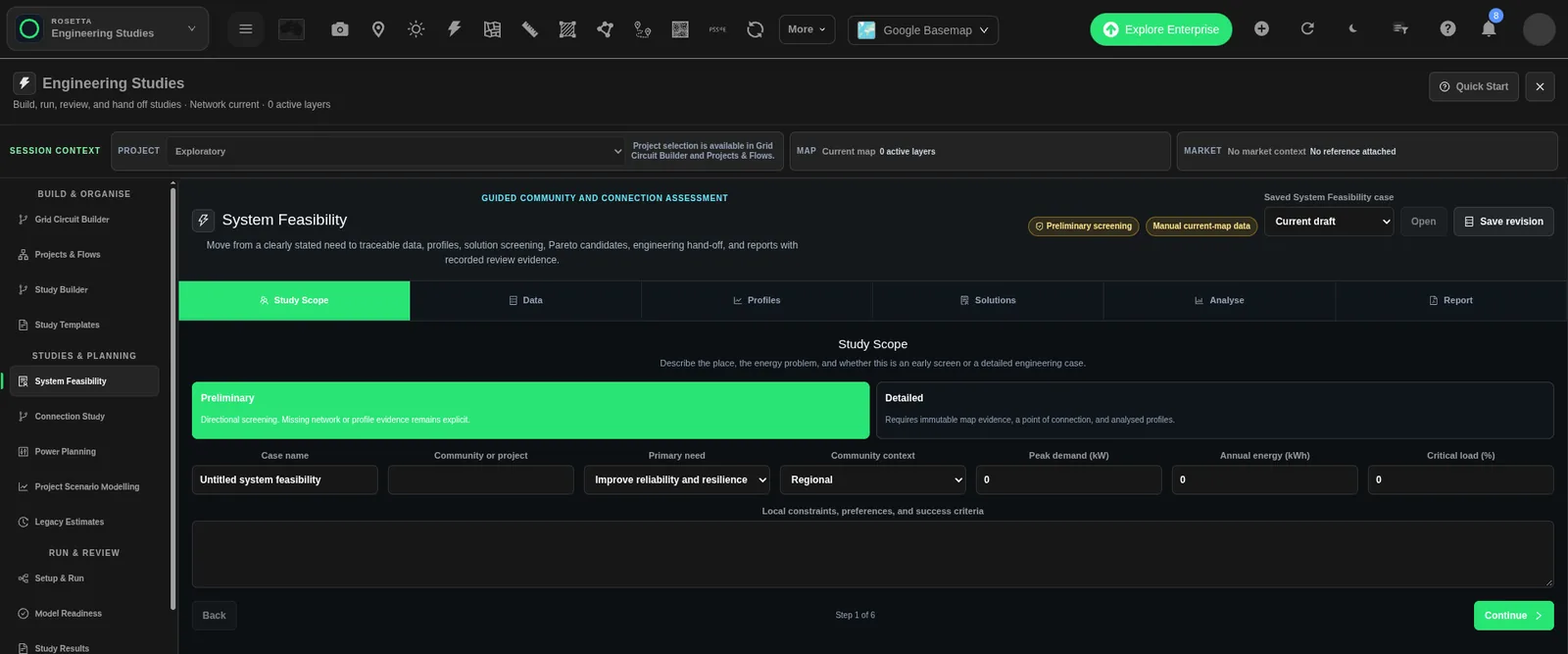
Define scope and assessment depth
- Enter Case name and Community or project.
- Select Preliminary or Detailed.
- Choose the Primary need.
- Choose Community context.
- Enter demand, annual energy, and critical-load assumptions.
- Record Local constraints, preferences, and success criteria.
| Input | Choices or meaning |
|---|---|
| Preliminary | The initial mode. Provides directional screening. Missing network or profile evidence remains explicit as warnings. |
| Detailed | Requires an immutable map snapshot, a site-specific point of connection, and analysed valid profiles. Review the returned solver status and evidence after assessment. |
| Primary need | Improve reliability and resilience initially. Other choices are Connect new renewable generation, Relieve a network capacity constraint, Reduce community energy cost, Reduce emissions, and Support demand or electrification growth. |
| Community context | Regional initially. Other choices are Rural, Remote, Indigenous community, Industrial or commercial precinct, and Renewable developer. |
| Peak demand (kW) | Project peak demand. Enter a nonnegative value. |
| Annual energy (kWh) | Project annual energy demand. Enter a nonnegative value. |
| Critical load (%) | Share of load identified as critical, from 0% to 100%. This value is recorded in the needs assessment. |
Capture electrical and map evidence
- Open Data.
- Under Electrical network, select Choose on map.
- Choose the relevant electrical layer or network.
- Under Point of connection, select Select on map.
- Select the site-specific point.
- Select Capture current map.
- Review Immutable evidence, including Digest, Confidence, and the capture time.
- Resolve Evidence incomplete before relying on a detailed assessment.
Use Cancel map selection to leave a selection operation without completing it. A capture records the current visible map manually. It is not automatic extraction of all regional network data. Recapture after changing visible source data. Snapshot ready means the map snapshot is ready for use in the case.
Analyse chronological profiles
The profile editor accepts pasted CSV text. It is separate from the CSV/XLSX file uploader in Connection Study.
- Open Profiles.
- Set Profile name.
- Choose Profile type: Load, Generation, Resource availability, Market value, or Emissions intensity.
- Set Unit for the selected type. The initial unit is kW; check it when changing type.
- Set Timezone. The initial value is Australia/Melbourne. Replace it for other locations.
- Set Interval (minutes) to 5, 10, 15, 30, or 60. The initial interval is 30 minutes.
- Paste the data into Chronological CSV (timestamp,value).
- Select Analyse profile.
- Inspect the quality and summary results before running the case.
CSV layout
Use a header row and at least one data row. The timestamp column can be named timestamp, datetime, or time. The value column can be named value, load_kw, generation_kw, power_kw, or energy_kwh. Use simple comma-separated columns with valid timestamps and finite numeric values. Do not leave measurement cells blank or treat missing values as zero.
Set the unit, timezone, and interval metadata to match your own data. The timestamp axis is needed for gap, peak, seasonal, and weekday/weekend analysis.
Profile outputs
| Output | How to interpret it |
|---|---|
| Profile quality | Returned data-quality measures. Check missing intervals, timestamp issues, and other validation findings. No returned summary means quality evidence is unavailable. |
| Profile summary | Returned descriptive statistics for the analysed series. Values describe the supplied data, not a forecast. |
| Seasonal & weekday/weekend | Mean and maximum values for returned groups. The workbench shows up to eight groups. |
| Peaks | Up to three returned peak timestamps and values are shown. |
| Profile analysed | An analysis result is attached. Review its validity findings. |
| Profile required for detail | Supply and analyse the profile evidence needed for a detailed assessment. |
The summary cards display up to eight simple returned fields each. Profile quality normally includes status, row count, parsed and invalid timestamp counts, duplicate and non-increasing timestamp counts, missing intervals, and inferred interval length. A valid status means the implemented checks found no reported quality issue; warning means review is needed; invalid means the profile failed a required check.
Profile summary normally includes kind, unit, timezone, minimum, maximum, mean, total, and the 10th percentile. Total is the sum of the entered values; do not interpret a sum of kW samples as kWh without applying the interval duration. The analysis is descriptive. It does not forecast or fill missing data. Use nonnegative values for load, generation, emissions, and availability profiles. Market values can be negative. Use a normalized fraction for resource availability and check interval-mismatch warnings.
Each profile supports up to 105,408 values. A case supports up to 24 profiles. Analysing another profile adds it to the case. The profile result cards show the most recently attached profile. Use clear names and correct metadata for each series.
Select solution types
In Solutions, select one or more of Community Battery, Microgrid, VPP, Renewable Connection, Demand Management, and Hybrid. Select a chosen card again to remove it.
Each card shows a rationale linked to the primary need. This is an initial hypothesis, not a calculated equipment design. Changing the primary need updates these rationales. The workbench does not provide equipment sizing or candidate cost-entry forms; complete these in a deeper project or connection model.
Run and interpret the assessment
- Open Analyse.
- Read every Readiness message.
- Resolve blockers. Preliminary mode may retain warnings about incomplete evidence. Detailed mode requires the missing evidence before proceeding.
- Select Run System Feasibility. This saves an immutable revision and assesses its selected technologies.
- Read Recommendation rationale.
- Inspect Pareto candidates and each candidate's Evidence class.
Pareto candidates represent alternatives that are not dominated across the assessed trade-offs. A candidate can remain useful for one priority while another candidate performs better for a different priority. The table appears only after evaluated alternatives return.
| Column | Meaning |
|---|---|
| Candidate and Technology | Identity and solution type. |
| NPV | Net present value, displayed in AUD. Where financial evidence exists, it is capital cost subtracted from discounted annual net benefits over the assessment horizon. |
| Simple payback | Capital cost divided by positive annual net benefit, in years. It does not discount future cash flows. It is unavailable without the necessary evidence or positive net benefit. |
| Benefit-cost ratio | Discounted benefits divided by capital and discounted operating costs, where costs and benefits are available and the denominator is positive. |
| Utility | Returned multi-criteria score for comparing the assessed trade-offs. |
| Evidence class | The level of analytical or review evidence behind the candidate. |
Annual net benefit is annual benefit minus annual operating cost. Missing financial or performance evidence is not zero. Do not rank a candidate as cost-free or fully reliable because a value is unavailable.
Evidence classes and next actions
| Class or status | Meaning | Next action |
|---|---|---|
Preliminary screening / preliminary_screening | Directional screen; network, profile, or solver evidence may be incomplete. | Collect the missing evidence and move to a detailed study. |
Detailed · solver complete / solver_complete | Configured solver checks have completed with verified evidence. | Review the configured checks, their scope, and remaining evidence. |
Detailed · review required / review_required | Engineering or partner review is required before relying on the recommendation. | Complete the required review and deeper engineering work. |
Partner evidence attested / partner_validated | An application administrator attested an evidence record. External partner identity is not authenticated by this label. | Check the underlying analytical class, diagnostics, and referenced evidence. |
Assessment failed / failed | The assessment did not complete. | Review diagnostics, correct the cause, and retry. |
Continue in Project Modelling or Connection Study
Open Analyse and find Engineering hand-off. Save any destination draft you want to keep before opening a new draft from this case.
- Open Project Scenario Modelling creates a new project-modelling draft with scope, profiles, and provenance. Preliminary cases use the quick workflow; detailed cases use the detailed workflow. Complete resource, operational, tariff, and financial inputs in the new draft.
- Open Connection Study creates a new connection-study draft with the shared scope and profiles. The first load profile becomes the reference load profile. Selected solution types initialize applicable solar, battery, and flexible-load options.
Renewable Connection and Hybrid initialize solar. Community Battery, Microgrid, and Hybrid initialize battery storage. Demand Management, VPP, and Hybrid initialize flexible load. Review every initial size and assumption. The hand-off does not transfer a completed optimised design or a valid run result. It starts a new draft and clears previous result state in the destination workbench.
Save and reopen cases
Select Save revision to store the current case. To reopen a case, choose it in the saved-case selector and select Open. Current draft refers to the draft rather than a saved selection.
Opening a saved case loads its latest revision. It does not restore a current assessment, review list, or report into the workbench. Run an assessment before creating new outputs. Editing case inputs also clears the displayed assessment and its report state so old results are not presented as current.
Record partner review
- Complete an assessment.
- Open Report.
- Enter Organisation, Reviewer, and Role.
- Choose Outcome: Comment, Changes requested, or Endorsed — app-admin attestation required.
- Enter an Evidence reference where applicable. It is required for an endorsement.
- Enter Review comments.
- Select Record partner review.
- Check Recorded reviews for the organisation, reviewer and role, outcome, evidence, and comments.
Organisation, reviewer, role, and comments are required. An endorsement requires an authenticated application administrator. Typing an administrator title into Role does not grant that permission. The record is attached to the persisted assessment and its candidates. An endorsement attests the evidence reference; it does not authenticate the named external reviewer or replace the underlying analytical class.
Generate reports and presentations
- Complete a current assessment.
- Open Report.
- Select Generate one-page PDF or Generate detailed PDF.
- Read the report status. Select Refresh to update it.
- Use the download button for the returned artifact.
Reports remain tied to the immutable assessment, evidence class, and partner-review state. After recording another review, generate a new report to include the updated review state.
Export presentation creates a standalone presentation from the current assessment. It does not replace the immutable evidence reports. See Engineering Exports and Handoffs for presentation options.
Related Guides
- Connection Study and System Feasibility
- Connection Study Alternatives and Recommendations
- Project Modelling
- Hosting Capacity Screening
- Running Engineering Studies
- Engineering Exports and Handoffs


