

Docs Menu
Engineering Studies
Prepare a network model, run a study, and review its tables, plots, and map layers.
Open Engineering Studies
Watch the Video: Engineering Studies: Getting Started (1:06)
- Open the Rosetta products menu above the map.
- Choose Engineering Studies.
- Start in Study Builder, or choose another tab for your task.
Engineering Studies requires Professional or Enterprise access. Other plans show a lock and Upgrade. Shared public viewer links do not provide this workspace. Choose Quick Start for the in-product checklist. Close the panel to return to the map.
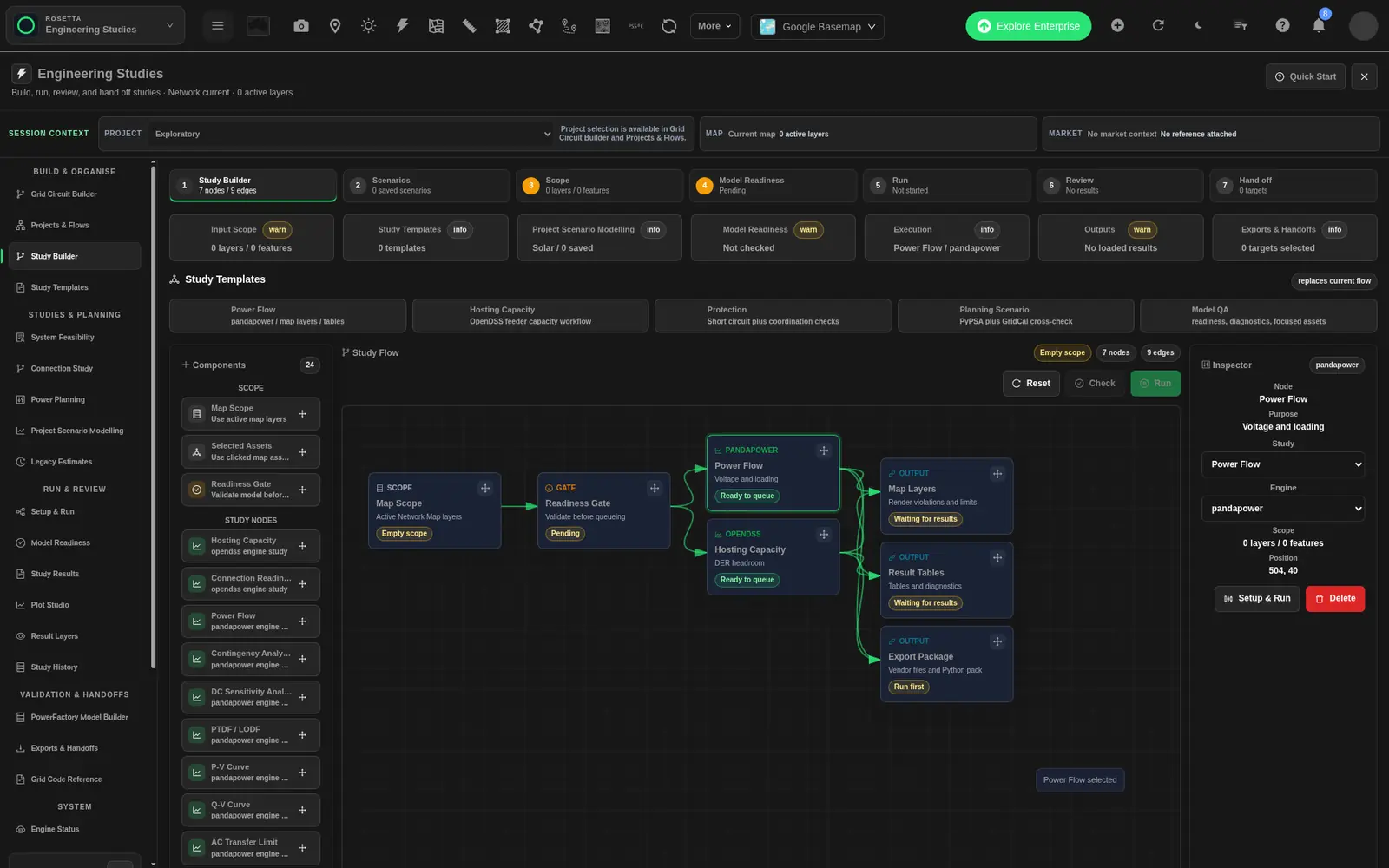
Choose a Workspace
| Group | Tab | Use |
|---|---|---|
| Build & Organise | Grid Circuit Builder | Create, import, validate, and publish a network model. See Grid Circuit Builder. |
| Projects & Flows | Build a flow of typed steps, save revisions, run it, and review the status, result and log of each step. See Projects and Flows. | |
| Study Builder | Arrange scope, readiness, study, and output nodes for a classic study. See Engineering Study Types Reference. | |
| Study Templates | Browse published templates and apply their setup. | |
| Studies & Planning | System Feasibility and Connection Study | Assess a system or compare connection alternatives. See Connection Study and System Feasibility. |
| Power Planning | Build a planning case with buses, loads, generators, storage and profiles. Run dispatch, unit commitment, expansion, adequacy, stochastic or hydro studies, and export a PLEXOS 12 package. The package is export only and is a compatibility candidate. A PLEXOS licence is not included. See Power Planning. | |
| Project Scenario Modelling | Compare project designs and commercial assumptions. See Project Modelling. | |
| Legacy Estimates | Use the earlier commercial estimate workspace. | |
| Run & Review | Setup & Run | Choose the scope, study, engine, and assumptions. |
| Model Readiness | Check the model and read its diagnostics. | |
| Study Results | Inspect status, methods, summary values, and result tables. See Engineering Study Results and Statuses. | |
| Plot Studio | Build plots from available result data. | |
| Result Layers | Add study output to the main map and control its visibility. | |
| Study History | Find and reopen earlier runs. | |
| Validation & Handoffs | PowerFactory Model Builder and Exports & Handoffs | Prepare model and result packages. See Network Model Builder and Engineering Exports and Handoffs. |
| Grid Code Reference | Review cited grid-code clauses and values. See Read the Grid Code Reference. | |
| System | Engine Status | Check service availability, engine availability, queues, and daily quotas. |
Use Study Builder
Study Builder is the classic study setup canvas. It is separate from the executable graphs in Projects & Flows. The Run action submits the current study and engine selection. It does not run every study node as a sequence.
- Choose a preset under Study Templates. This replaces the current canvas.
- Click a component in Components, or drag it onto Study Flow.
- Click a node to select it.
- Drag the node to change its position.
- For a study node, set Study and Engine in the Inspector.
- Choose Setup & Run to complete the inputs.
- Choose Check to check readiness.
- Choose Run to submit the selected study.
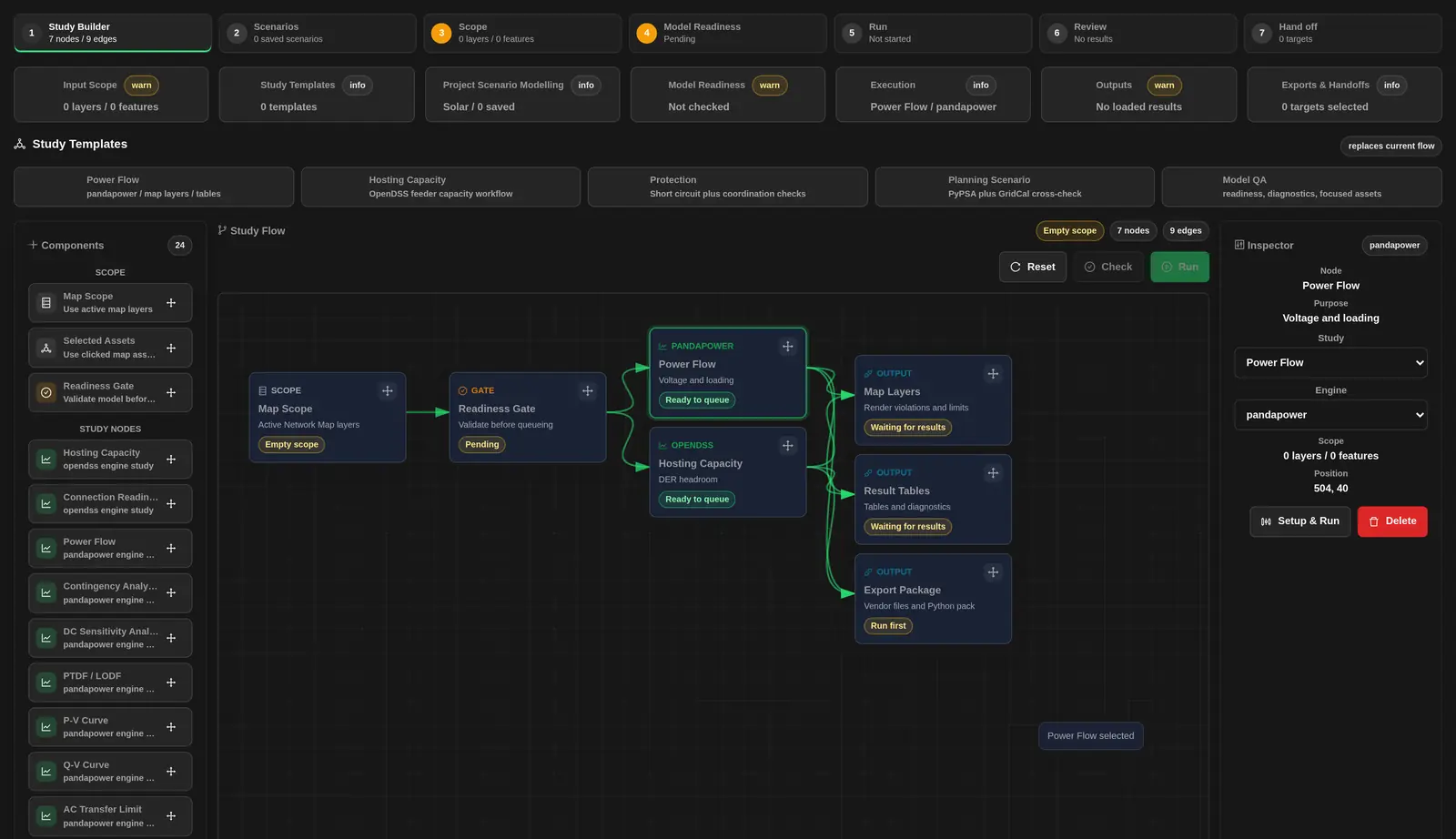
| Preset | Setup |
|---|---|
| Power Flow | Power-flow study with map-layer and table outputs. |
| Hosting Capacity | Feeder hosting-capacity study. See Hosting Capacity Screening. |
| Protection | Short-circuit and protection-coordination study nodes. Select the study you want to run. |
| Planning Scenario | Planning and cross-check study nodes. |
| Model QA | Model-quality study with readiness checks and focused assets. |
Components and Inspector
- Scope contains Map Scope, Selected Assets, and Readiness Gate.
- Study Nodes lists the study types available from the service.
- Outputs contains Map Layers, Result Tables, Export Package, and History.
- The Inspector shows Node, Purpose, Study, Engine, Scope, and Position.
- Use the inspector links to open Setup & Run, Result Layers, Exports & Handoffs, or Study History, where available.
- Choose Delete to remove the selected node. Locked nodes cannot be removed.
- Choose Reset to restore the default canvas.
The canvas shows the number of nodes and edges. Its badges show scope, readiness, queue, and output state. Empty scope or Select assets means inputs are missing. Pending means readiness has not been checked. Needs review means the readiness result needs attention. Queue full means a run limit has been reached. Run first and Waiting for results mean an output is not ready. Use Study Results for the actual run status.
Use Study Templates
- Open Study Templates.
- Filter the Compliance Template Library by Country, Software, or Search.
- Choose Refresh to reload the catalog.
- Select a template in Catalog.
- Check its country, version, status, description, and supported study types.
- Read Source traceability, Operating-condition matrix, Global subplot definitions, and the listed sections.
- Choose Source to open the source document, when a source link exists.
- Choose Apply or Apply To Flow.
- Review the applied study, engine, and assumptions in Setup & Run before running.
Conditions and Subplots count template definitions, not completed calculations. A superseded template is an older version. Check the current source before using it. If no templates match, clear the filters. Applying a template updates the study setup and may replace its flow nodes. It does not start a study.
Read the Grid Code Reference
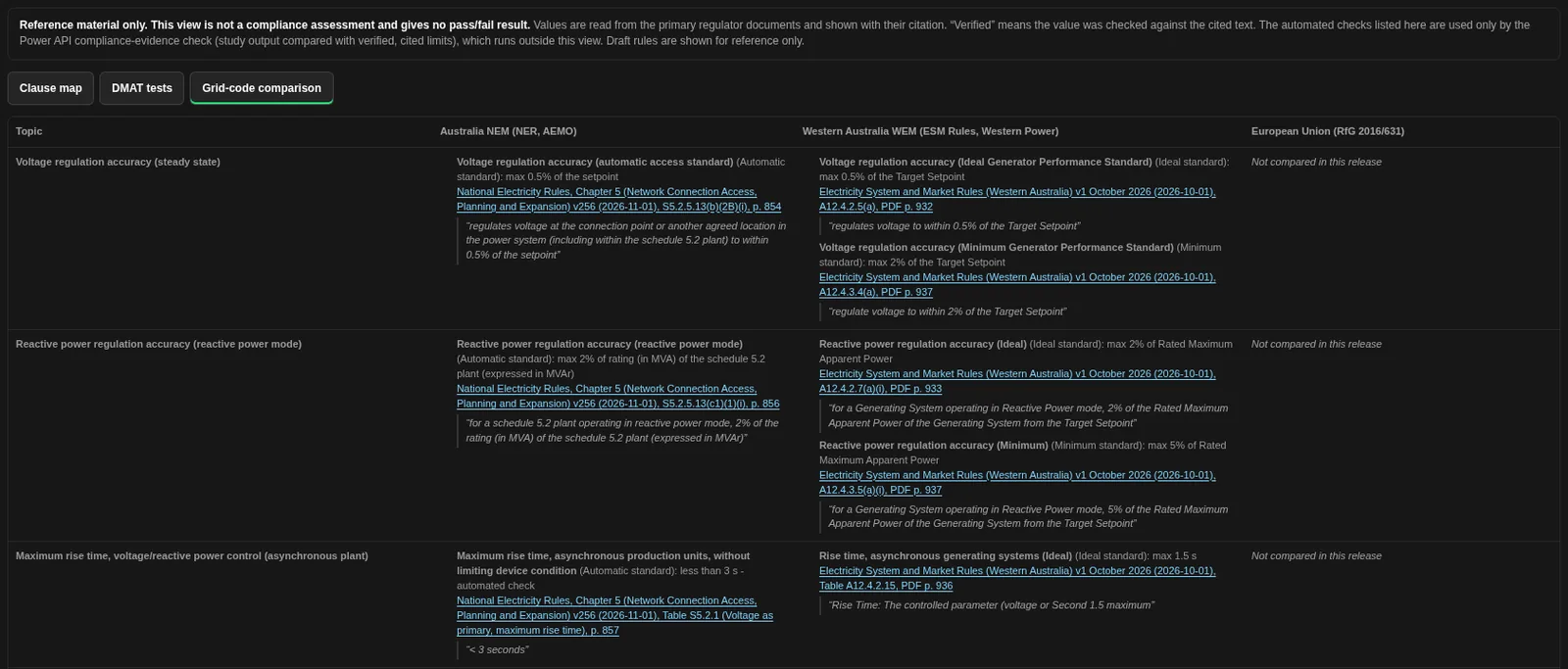
Grid Code Reference shows grid-code values and clause text from the primary regulator documents. Each item has its citation. Use it to look up cited requirements. You decide which requirements apply to your project.
Use the view to compare cited requirements and open their source documents.
- Under Validation & Handoffs, choose Grid Code Reference.
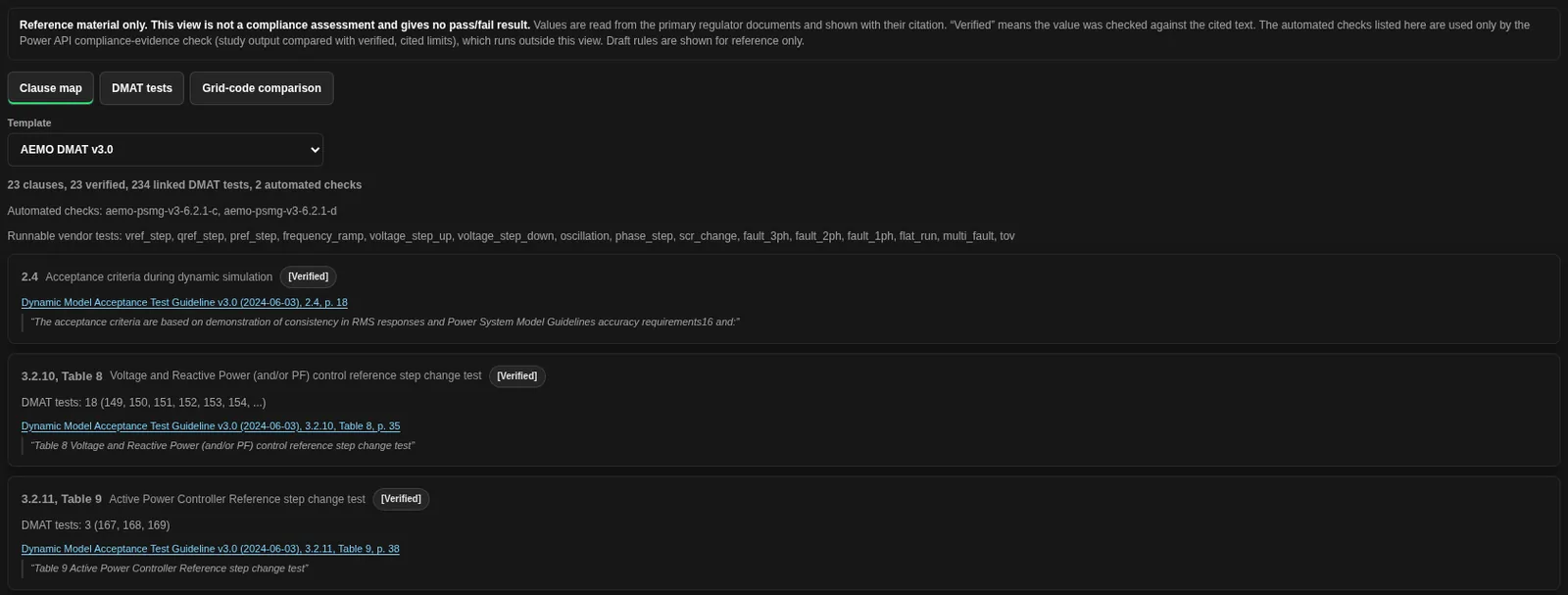
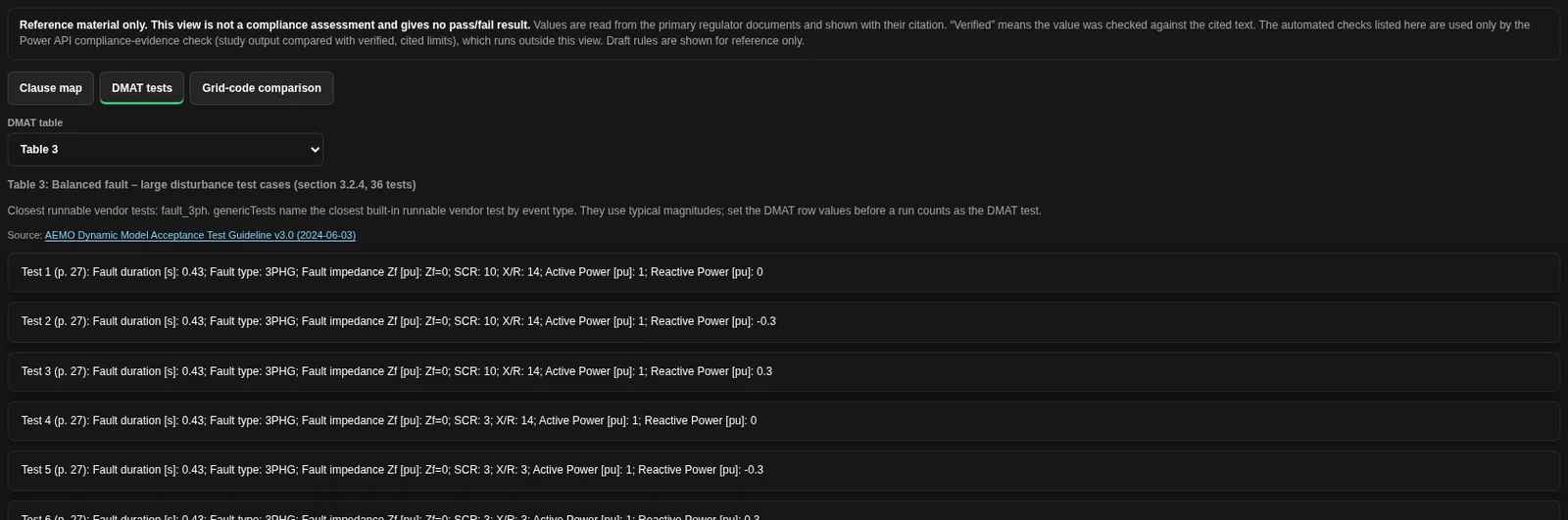
- Choose Clause map, DMAT tests or Grid-code comparison.
| View | What it shows |
|---|---|
| Clause map | Choose a Template. A summary line counts the clauses, the verified clauses, the linked DMAT tests and the automated checks. The view also lists the IDs of the automated checks and the runnable vendor tests. Each clause shows its clause number, its title, its status (Verified, Unverified or Draft - never decides pass/fail), the number of linked DMAT tests, a citation link to the source document and the quoted source text. Where a clause has cited values, the view lists them with their citation. The words automated check next to a value mean that the Power API compliance-evidence check can use this value. They are not a result. A template without such checks shows No automated pass/fail check for this template. |
| DMAT tests | Choose a DMAT table from Table 2 to Table 17 of AEMO DMAT v3.0. The view shows the table title, the number of tests, the closest runnable vendor tests, a link to the source document, and one row for each test with its page number and test values, such as fault duration, fault type, SCR and X/R. It ends with the DMAT acceptance criteria (clause 2.4) and their citation. |
| Grid-code comparison | A table of topics by jurisdiction: Australia NEM (NER, AEMO), Western Australia WEM (ESM Rules, Western Power) and European Union (RfG 2016/631). Topics include voltage and reactive power regulation accuracy, rise and settling times, rate of change of frequency withstand, and overvoltage and undervoltage ride-through. A cell shows the cited values with the access standard they belong to, or Not compared in this release, or The instrument gives no number. |
The closest runnable vendor tests use typical values. Set the values of the DMAT row in your study before a run counts as that DMAT test.
The Template list has six reference templates:
- AEMO DMAT v3.0
- AEMO Early Assessment Framework
- Western Power model acceptance (WEM)
- Inverter based loads (ERC0394 draft)
- EU RfG connection
- AEMO GPS (ERC0393)
Keep Project and Market Context Separate
Use Current Project to select shared project context, or leave the session exploratory. See Workspace Collaboration and Sharing for access and collaboration controls.
Market observations sent with Use in Study appear as Market reference context. Check their timestamp, cadence, revision, and freshness or partial-data status. These observations are Reference only. They do not supply topology, impedance, equipment ratings, or verified electrical inputs. Choose Return to Markets to reopen their source, or Remove to clear the reference.
New in Engineering Studies
- Result charts follow the dark theme and draw in once when they open. See Charts in workflow runs.
- Charts can use mixed axes, an oscillation fit, a wrapped power factor axis and a regression fit.
- Projects and Flows has a flow canvas, Check flow, and a run view with the status, result and log of each step.
- You can prepare a vendor run package for Siemens PSS/E, DIgSILENT PowerFactory, PSCAD or DSATools TSAT, import the returned results and benchmark two result sets. A PSS/E licence is not included. See Prepare a vendor run package.
- Flow runs can make a PDF or HTML plot report. Run files can be downloaded from Artifacts and evidence.
- Grid Code Reference shows cited grid-code values and clause text for comparison and review.
- Power Planning is now available on Professional and Enterprise plans. Build a planning case, run planning studies and export a PLEXOS 12 package. The package is a compatibility candidate. A PLEXOS licence is not included.
Choose the Next Step
- Prepare inputs in Setup & Run.
- Check Model Readiness.
- Run the study and read Study Results.
- Review plots and map layers.
- Export the required evidence.
Review the Study Evidence
Keep the model basis, actual results and acceptance criteria together. See the reproducible study checklist, licensed-solver handoff guidance and report output choices.
Related Guides
- Running Engineering Studies
- Engineering Study Types Reference
- Engineering Study Results and Statuses
- Engineering Plot Studio
- Projects and Flows


