

Docs Menu
Shared Library
Reuse typed inputs without changing earlier cases. Each saved item has an immutable version and a content digest.
Create a reusable item
- Open Project Modelling, then Profiles.
- Under Shared input library, select Open library.
- Choose My library or Current project in Library scope. Select Refresh library after changing scope.
- Select New item. Enter Item name and choose Item type.
- Open Typed input schema. Enter matching data in Item payload JSON, then select Create item.
The editor accepts profiles, assets, project templates, dispatch calendars, asset screening types and cost rate cards. Supply units, currency where needed, and dated time axes. Do not put client references in reusable templates.
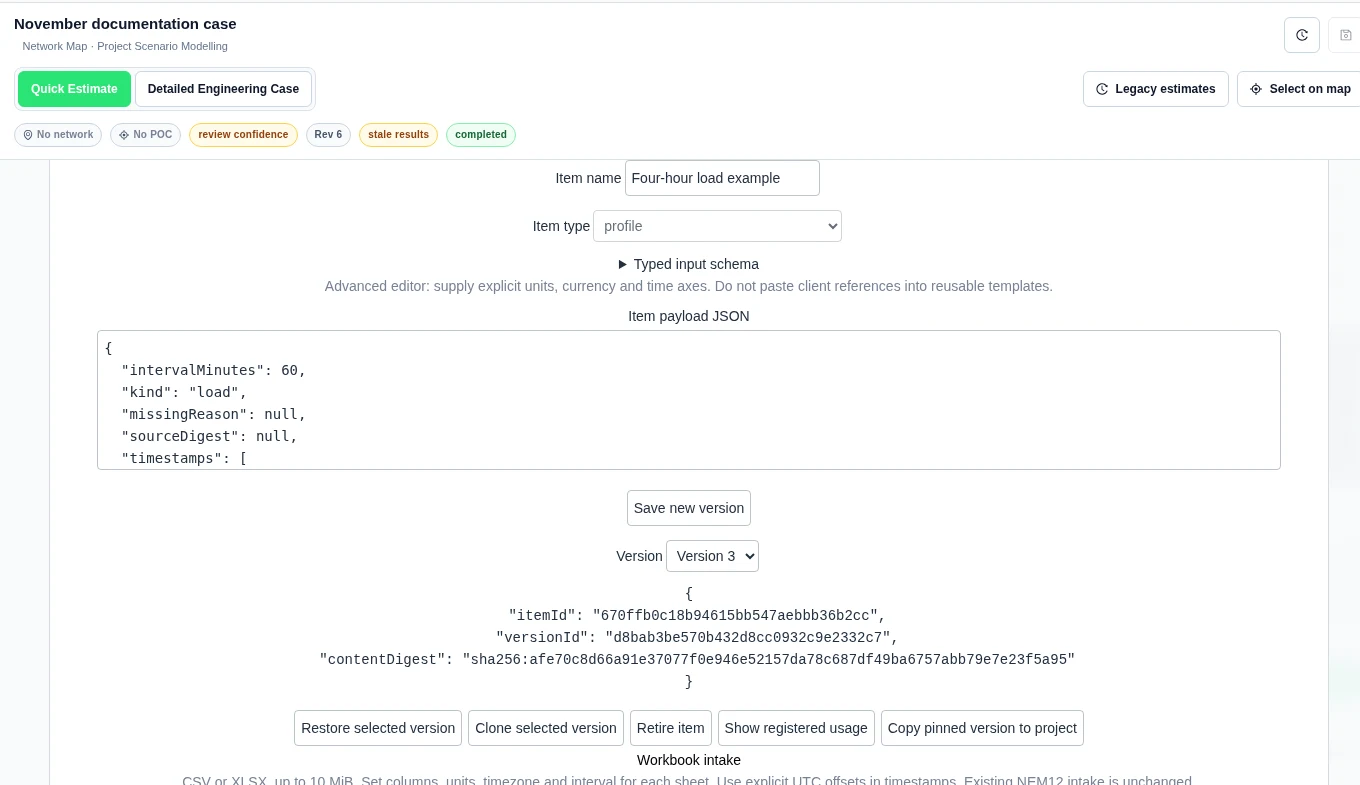
Select, restore or copy a version
- Open an item and choose its Version. The pin contains itemId, versionId and contentDigest.
- To revise the payload, select Save new version. Older versions stay unchanged.
- To reuse earlier values as the latest version, select the earlier version and choose Restore selected version. This creates another version; it does not erase history.
- To make an independent item, change Item name and select Clone selected version.
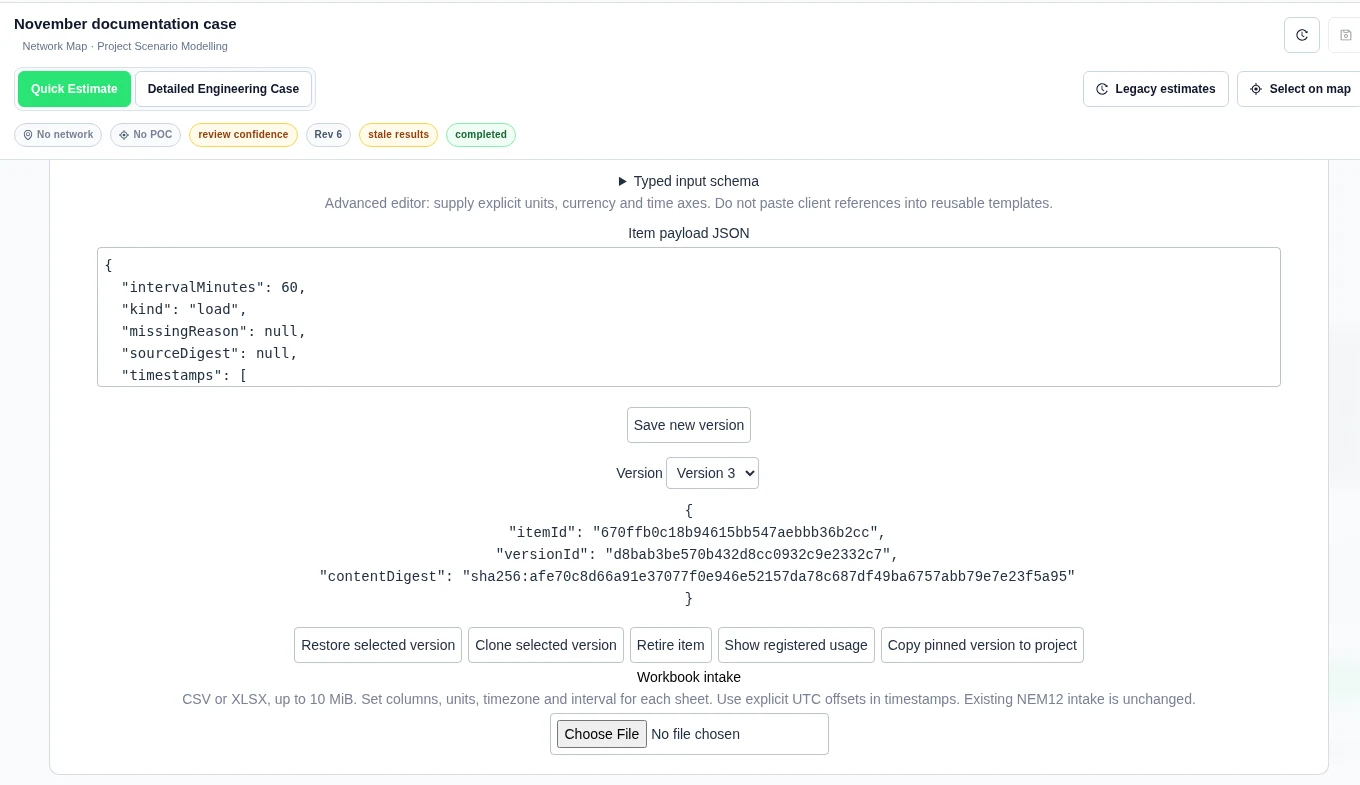
Retire item marks an item as retired. Restore item makes it available again. Read Show registered usage before retiring an item. This lists registered saved consumers, not every draft or copied value. Existing saved consumers never update automatically.
Copy a profile into the open case
- Select a profile and its exact Version.
- Select Copy pinned version to project.
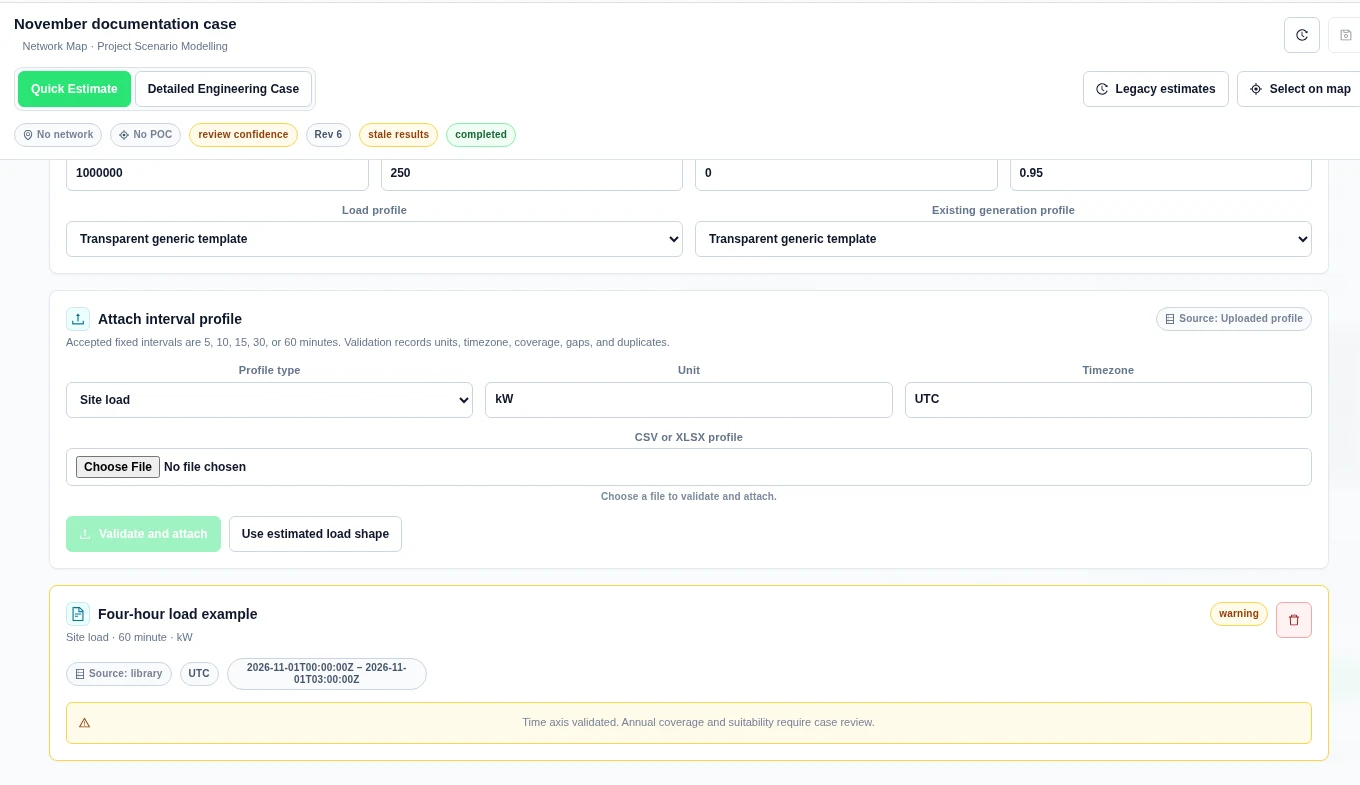
- Close the library. Review the new profile card and its warnings.
- Choose the profile in Load profile or the relevant input selector. Save the case revision before running it.
Worked example: a four-hour load profile
Our example used kind load, unit kW, timezone UTC and intervalMinutes 60. Its four timestamps ran from 1 November 2026 at 00:00 to 03:00 UTC. Values were 10, 20, 30 and 40 kW. These are example inputs.
Version 2 changed the last value to 50. Restoring version 1 created version 3 with the original values. Copying version 3 returned 4 rows, 0 missing intervals, 0 duplicate timestamps and 100% coverage of the supplied time axis. This is not annual coverage. The profile card correctly asks for annual coverage and suitability review.
Estimate a cost from a rate card
- Create or select a cost_rate_card item. Use Typed input schema for the schedule and band fields.
- Enter Size, Size unit and Quote date.
- Select Estimate cost. Read the components, currency and reasons for missing values.
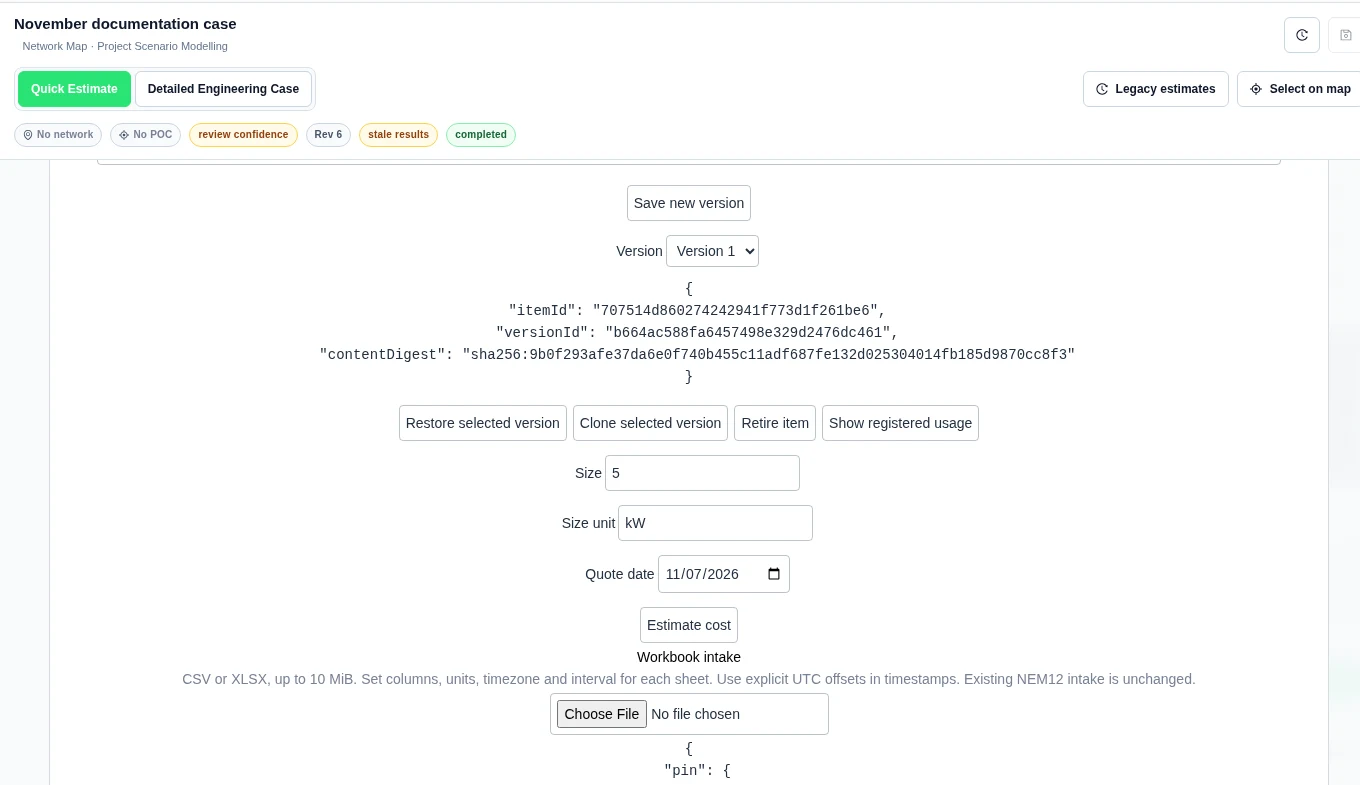
Our capex card used AUD and kW. Its schedule started on 1 November 2026. One band covered sizes from 0 with no upper bound. The fixed rate was 1,000 and the per-size rate was 200. For Size 5, Size unit kW and Quote date 7 November 2026, the product returned:
| Component | Amount (AUD) |
|---|---|
| Fixed | 1,000 |
| Per-size | 1,000 |
| Total | 2,000 |
Import more than one workbook sheet
- Under Workbook intake, choose a CSV or XLSX file, up to 10 MiB.
- Select a Sheet. In Sheet settings JSON, set its name, mode, header row, columns, kind, unit, timezone and interval.
- Select Preview sheet. Check the headers and rows.
- Select Import or retry sheet. Repeat for the next sheet. A successful sheet is not duplicated on retry.
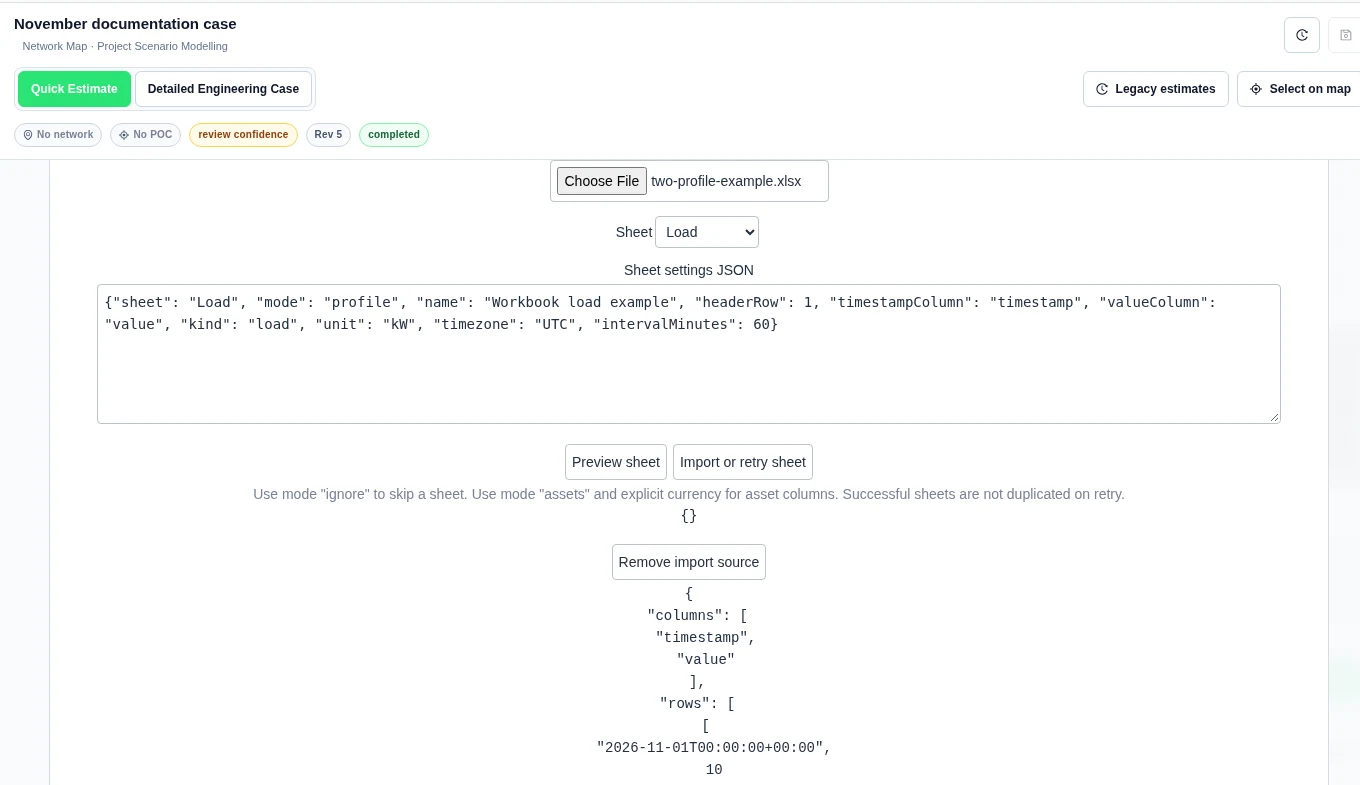
Our two-sheet XLSX had Load values 10, 20, 30, 40 and Generation values 0, 5, 10, 5. Both used the four UTC timestamps above. With mode profile, headerRow 1, timestampColumn timestamp, valueColumn value, unit kW and intervalMinutes 60, each sheet returned status created and one new profile item. Use kind load for Load and generation for Generation.
Use mode ignore to skip a sheet. Asset intake uses mode assets and explicit currency. Remove import source removes the retained import source. Check created items separately.
Apply equipment and performance curves to a case
Use an asset item for equipment such as battery storage, solar, wind or a genset. Enter the equipment type and its inputs in Item payload JSON. Check Typed input schema for the exact fields. A performance attachment is separate from the equipment item.
- Select the item and its exact Version.
- For equipment, optionally set New asset ID. Select Apply pinned item to case.
- For a battery, genset, solar or wind performance item, choose the existing equipment in Target case asset, then select Apply pinned item to case.
- Review the copy in Design. Select Save case revision and run again.
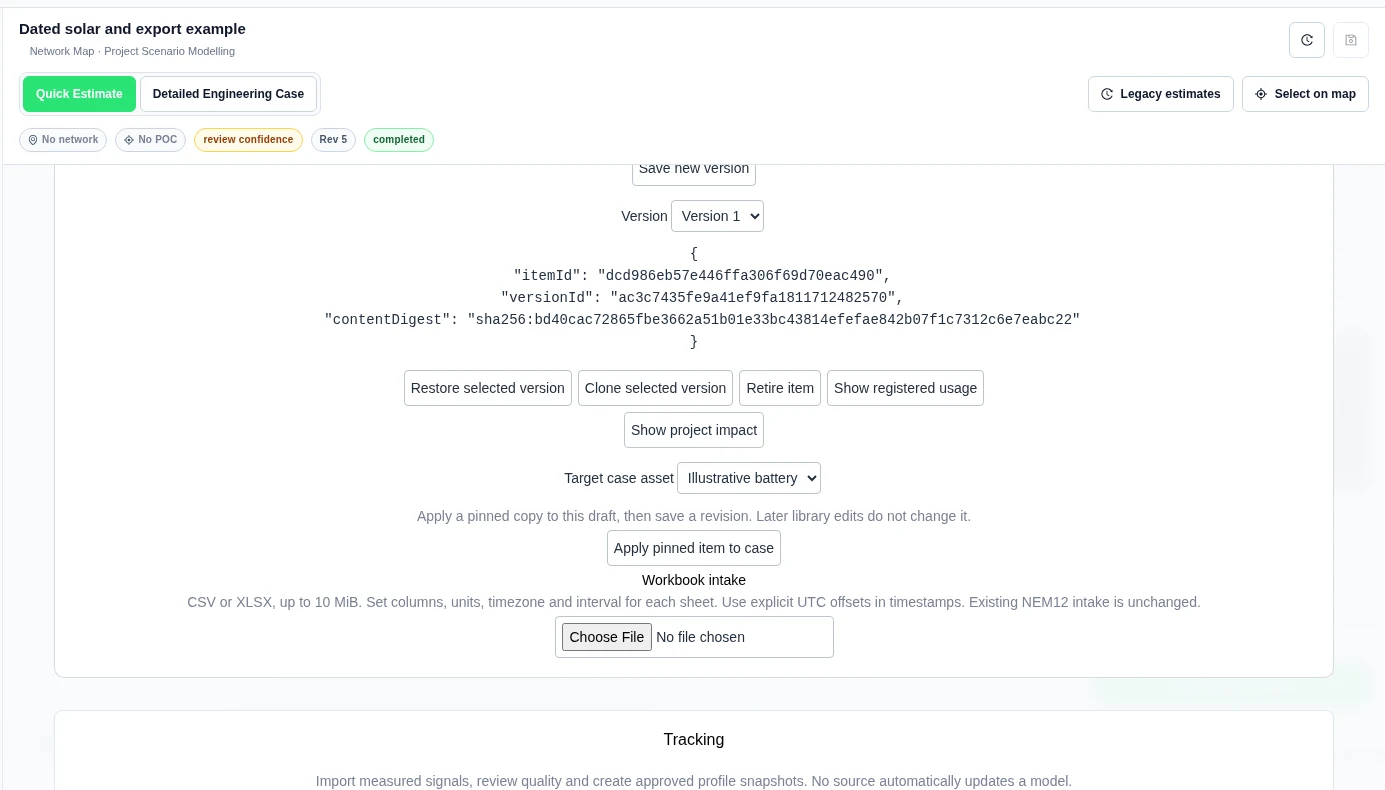
We applied a 20 kW, 40 kWh battery and a separate asset_types.battery age curve. The curve used retained fractions 1 at age 0 and 0.9 at age 1. A two-year run showed 40 kWh in year 1 and 36 kWh in year 2 under Results → Energy → Applied asset curves. See Asset Screening for the curve limits.
Check which cases use an item
- Select an item, then choose Show project impact.
- Read each project, case, revision and source pin. Select Scan next inventory page until the scan says All accessible inventory pages scanned.
- Only then treat the list as complete for your access.
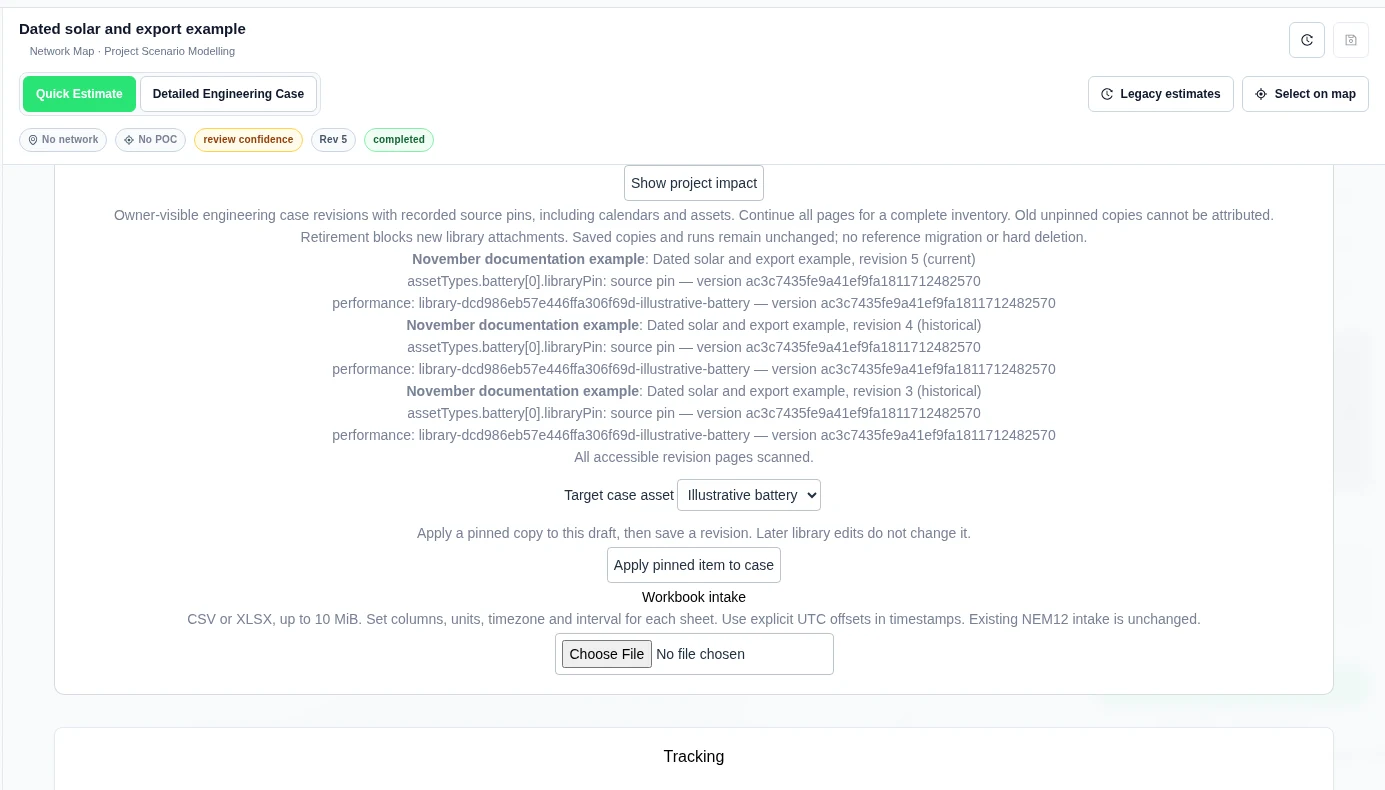
This scan covers owner-visible engineering revisions with recorded source pins. It cannot attribute old unpinned copies. Show registered usage is a separate list of registered consumers; an empty list is not proof that no case uses the item. Retire item blocks new attachments. It does not migrate references or erase saved copies and runs.
Turn operating windows into a load profile
Use a flexible-load, fleet or on-demand charging item when you have explicit dated operating windows. These actions create an estimated profile. They do not create an optimal charging plan.
- In Design, add a Load adjustment asset. Set Adjustment type to New demand.
- Open Profiles → Shared input library. Select the saved item and exact Version. For a new item, choose asset_types.flexible_load, asset_types.fleet_charging or asset_types.on_demand_charging. Use the displayed Typed input schema to supply the Item payload JSON.
- Set Target case asset to the load adjustment. Enter Annual load energy (kWh; confirm total supplied windows) and Profile interval (minutes).
- Select Confirm zero demand outside supplied windows only if that is true. Select Apply pinned item to case.
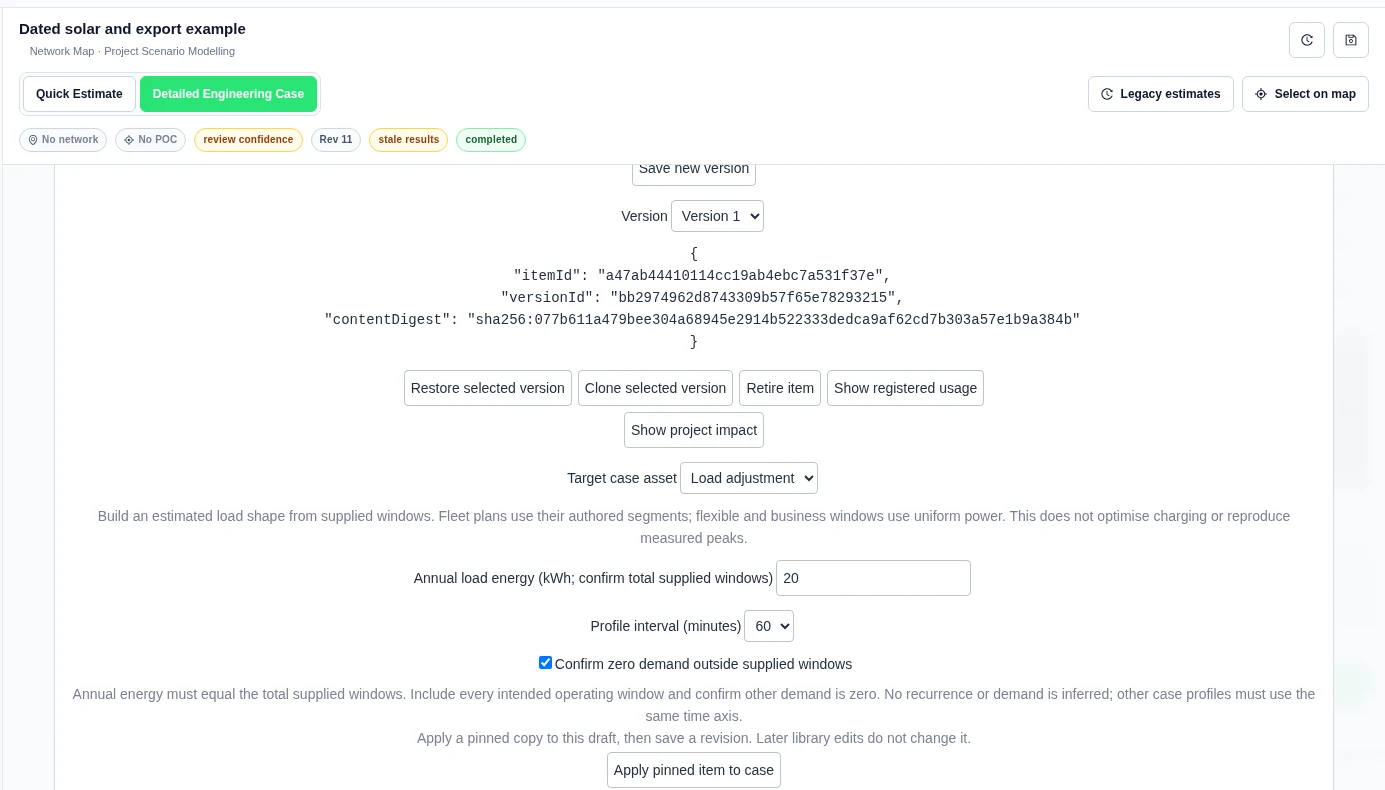
Review the new profile in Profiles. Check its units, dates and warnings. Use Save case revision to retain the applied copy. Align all other case profiles to the same time axis before running.
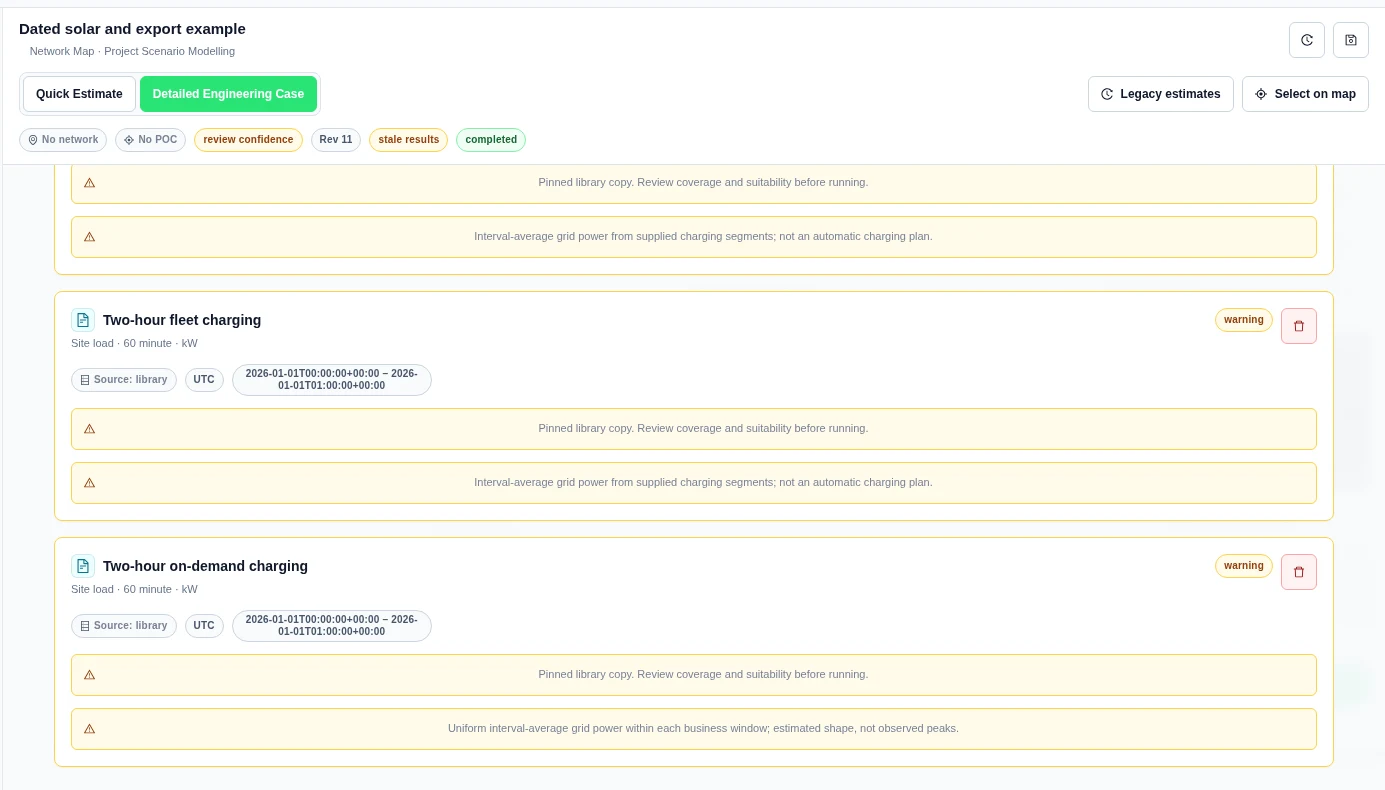
Worked example: two supplied hours
We created three separate items for 1 January 2026, from 00:00 to 02:00 UTC. Each generated two interval-start rows, at 00:00 and 01:00 UTC. These are the returned profile values, not an annual dispatch result.
| Item | Supplied grid energy | 00:00 power | 01:00 power |
|---|---|---|---|
| Flexible load | 15 kWh | 7.5 kW | 7.5 kW |
| Fleet charging | 20 kWh | 10 kW | 10 kW |
| On-demand charging | 20 kWh | 10 kW | 10 kW |
The flexible and on-demand items spread energy uniformly within each supplied window. The fleet item uses its explicit charging segments. It does not invent missing vehicle plans.
Review a network tariff source with your project
- In Profiles → Shared input library, select Open network references.
- Enter an Exact network owner, such as SA Power, and select Refresh network references. Use Load more network references for long lists.
- Read each version's effective dates, modelling level, source document and Project review status.
- Select Review for a version. Choose a Review outcome: Needs review, Source confirmed or Changes needed.
- Enter Next review date, Guide title, Guide URL and, if useful, Guide section and Review notes. Select Save shared review.
- Select Show review history to see each saved review revision.
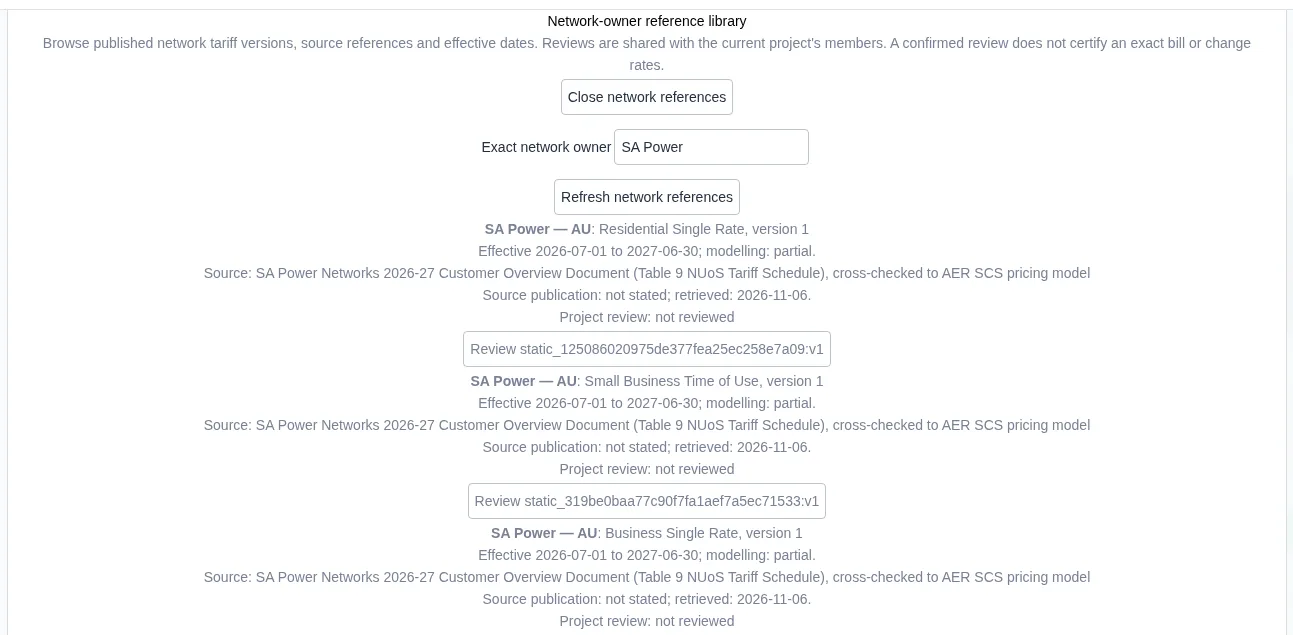
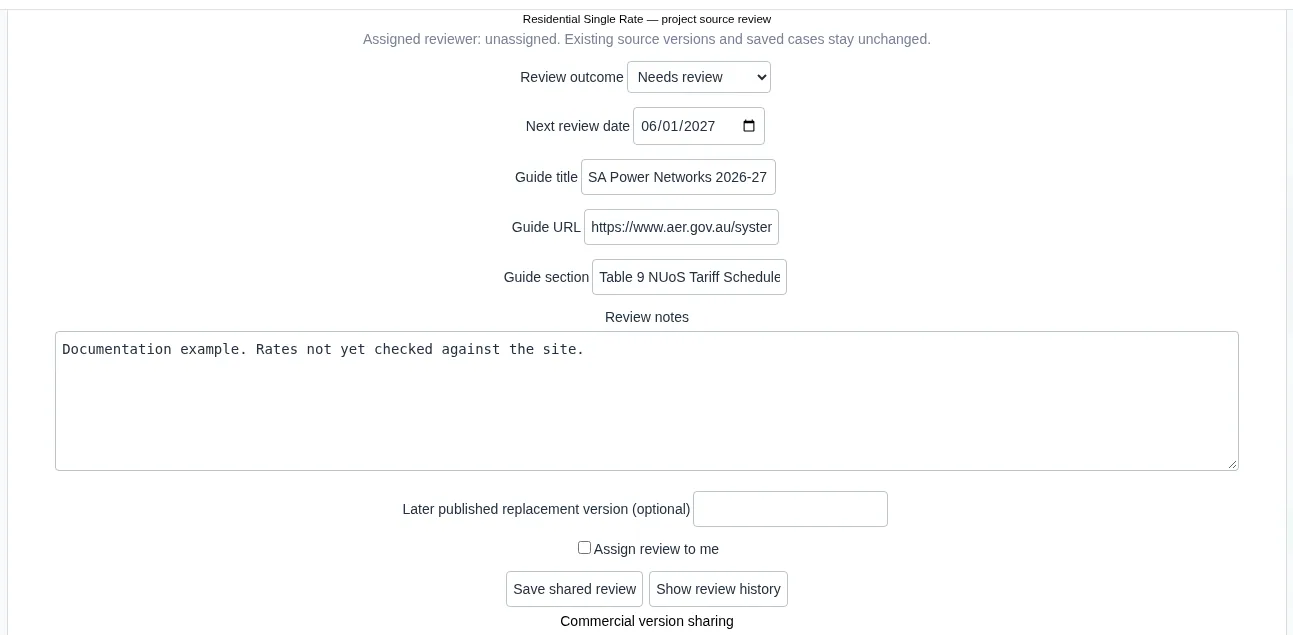
In our example, the SA Power filter returned 4 versions. We saved a Needs review outcome on Residential Single Rate, version 1, with a next review date of 1 June 2027 and the guide section Table 9 NUoS Tariff Schedule. The list then showed "Project review: needs_review; next 2027-06-01", and the history showed Revision 1.
Choose a library scope and tag
Under Library scope, choose My library, Current project or Common catalogue. Use Search for names and Exact tag filter for one exact tag, then select Refresh library. Common catalogue items require operator approval and are read-only. A pending submission is not a published item.
Submit an exact version for common publication
Professional users can submit their own saved private or project items. Submission requests a separate operator review. It does not publish the item immediately.
- Open Profiles → Shared input library → Open library. Select your editable, non-retired item and its exact Version.
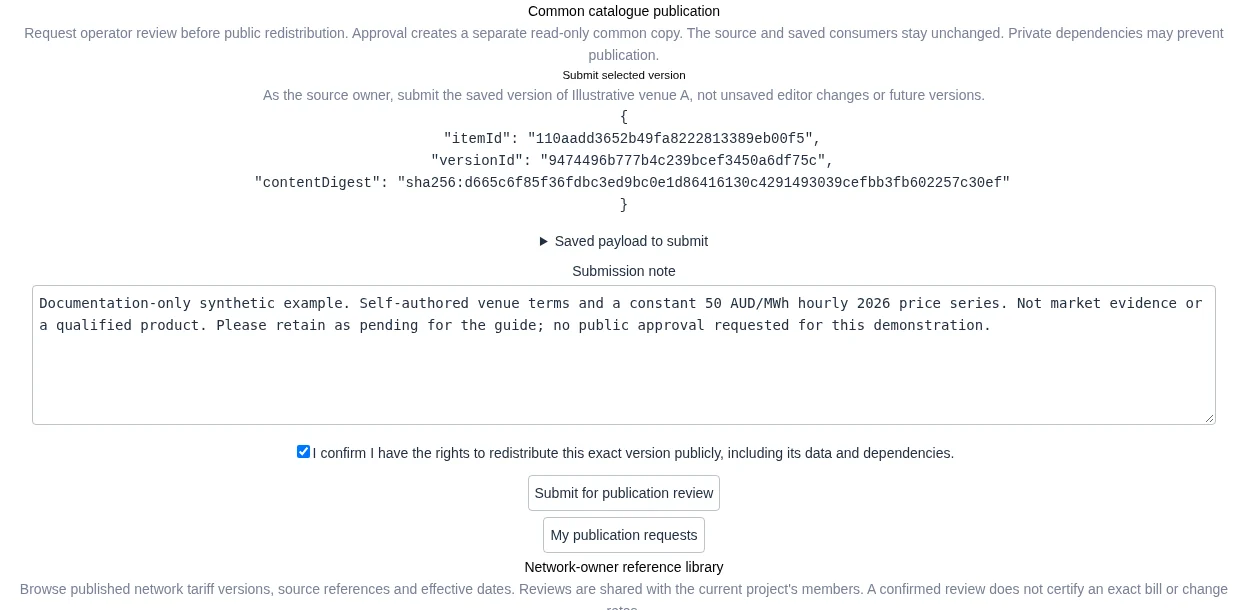
- In Common catalogue publication, check the item ID, version ID and digest. Expand Saved payload to submit. Unsaved editor changes and later versions are not included.
- Enter a Submission note. Confirm redistribution rights only if you have them for all contents and dependencies.
- Select Submit for publication review.
Read the decision
Select My publication requests to refresh the status. Use View request to inspect the exact request. A separate reviewer must approve publication. A newer source version does not replace a pending request. Rejected versions can be submitted again after review.
Approval creates a separate read-only common copy. It does not grant rights you did not have or update saved cases. Common copies can be cloned for separate edits; they cannot be edited in place.
Worked example: a version with attached prices
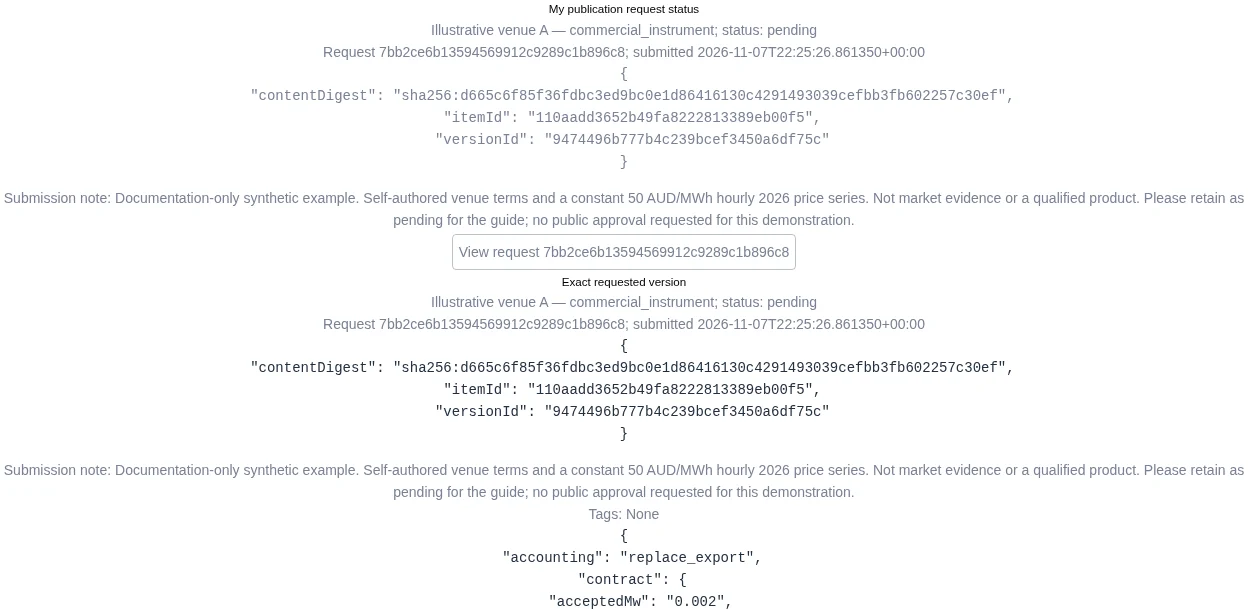
We submitted Illustrative venue A, version 1, with exact version ID 9474496b…. The product returned request 7bb2ce6b… with status pending. The source version and its saved case pins stayed unchanged.
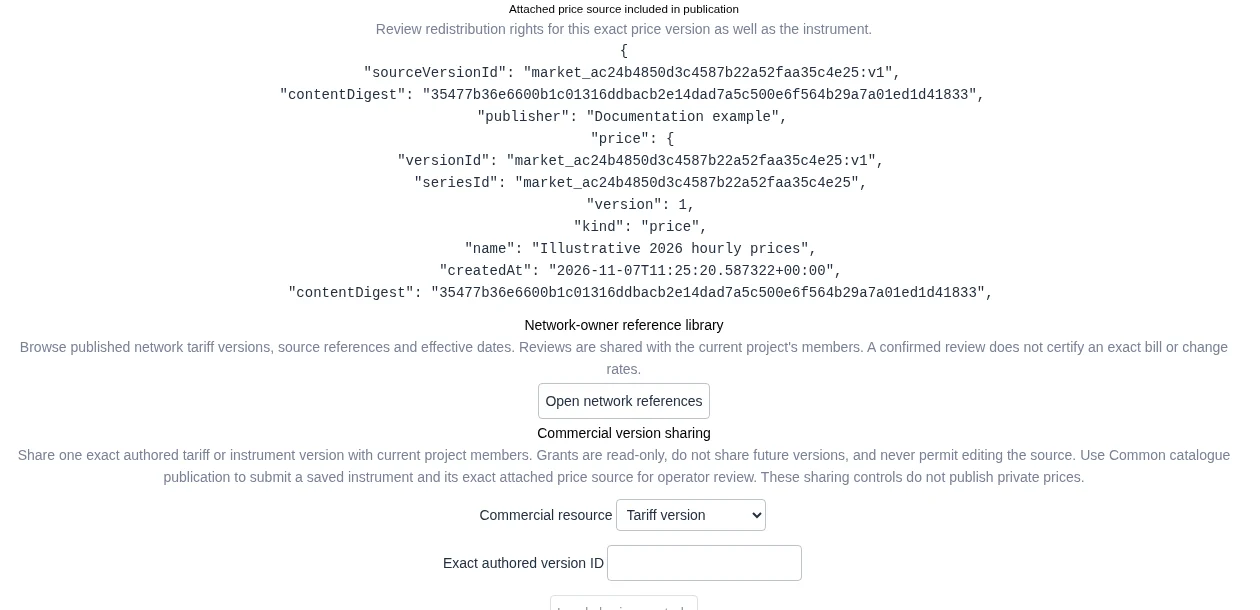
View request also showed Attached price source included in publication: price version market_ac24b485…:v1, its digest and publisher Documentation example. The attached series contains 8,760 hourly values at 50 AUD/MWh for 2026. These are synthetic price inputs.
Withdraw your pending publication request
- Open Profiles → Shared input library → Common catalogue publication.
- Select My publication requests. Find your request with status pending.
- Select its Withdraw request button. Check that the returned status is withdrawn.

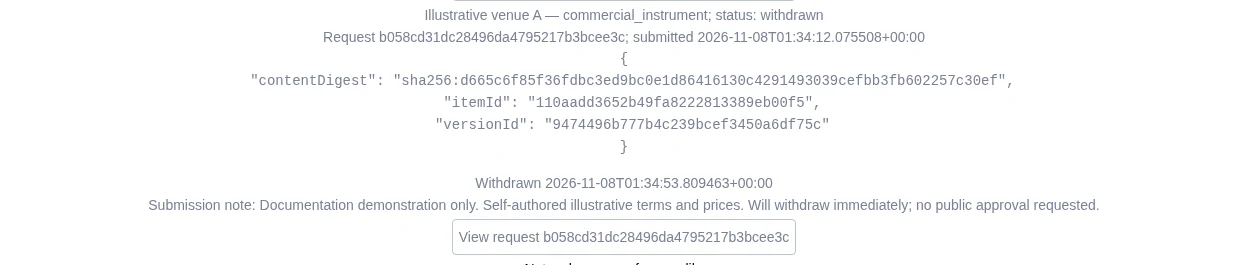
On 8 November, we submitted the existing self-authored Illustrative venue A version again with fresh redistribution consent. Request b058cd31… changed from pending to withdrawn. No approval was requested. No pending demonstration request remains.
Delete your own current network review
- Open Network-owner reference library. Select the current project and find the published version.
- Select Review. For your own current review, select Delete my review. You also need project edit access.
- Check Project review: deleted in the list. The review fields clear. Use Show review history to inspect the retained revisions.
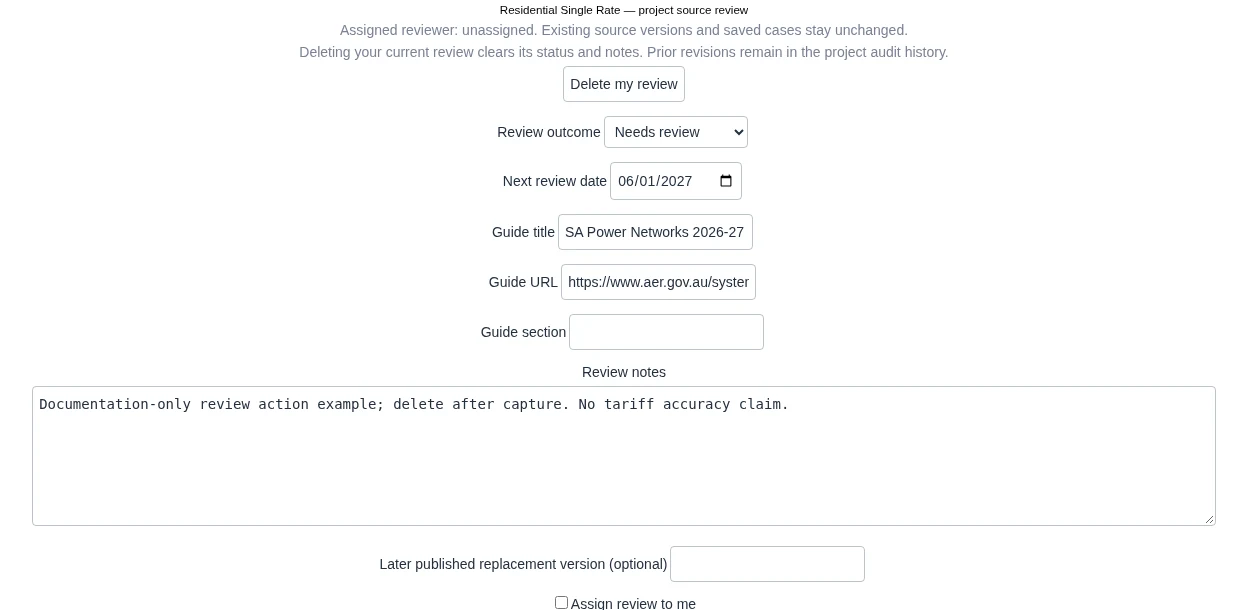
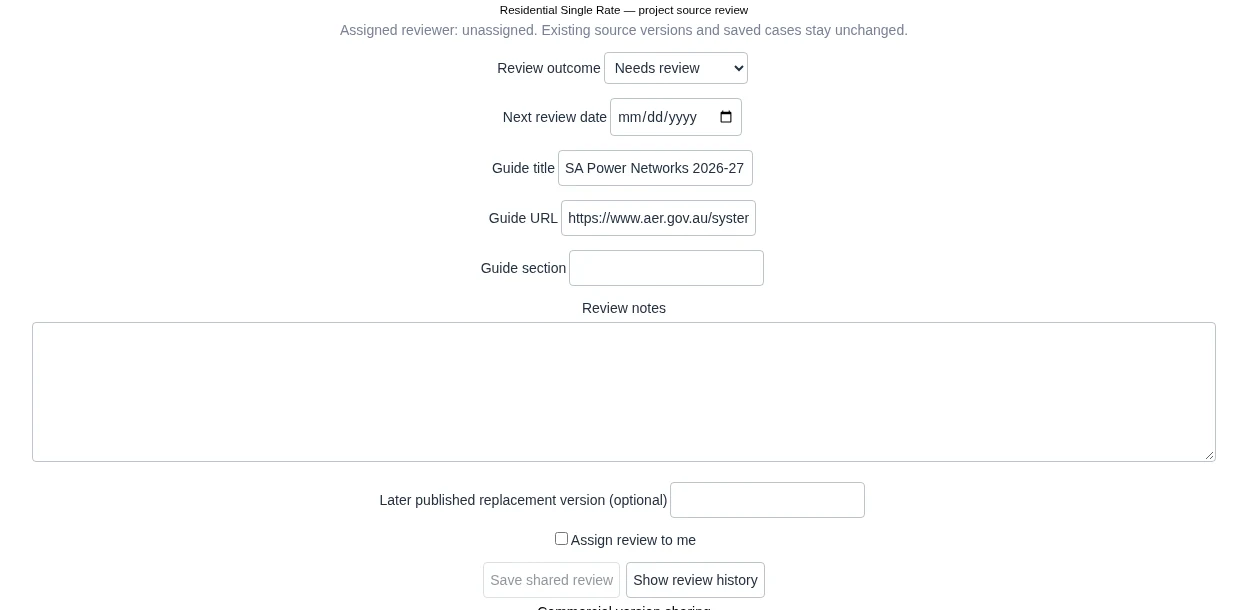
Our 8 November check used Residential Single Rate, version 1 under SA Power. We saved a new Needs review entry as revision 3, with next review date 1 June 2027. Deletion created revision 4. The history kept both revisions and the earlier entries. No current demonstration review remains.


